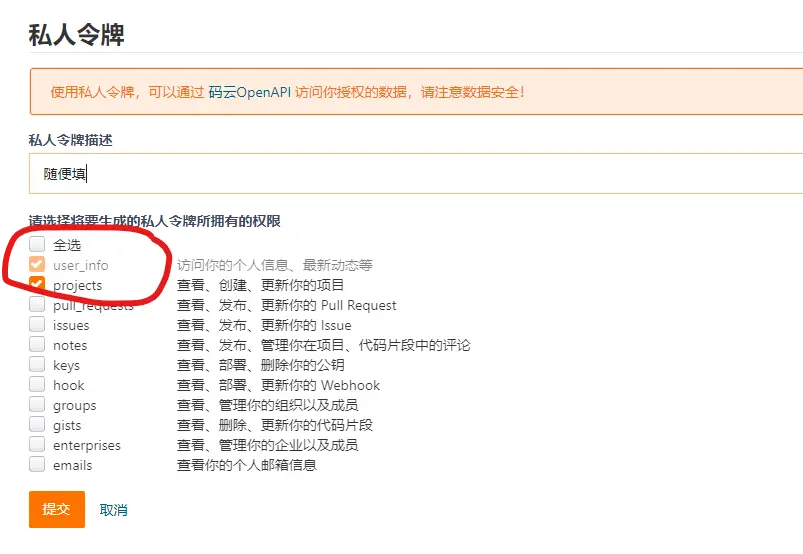
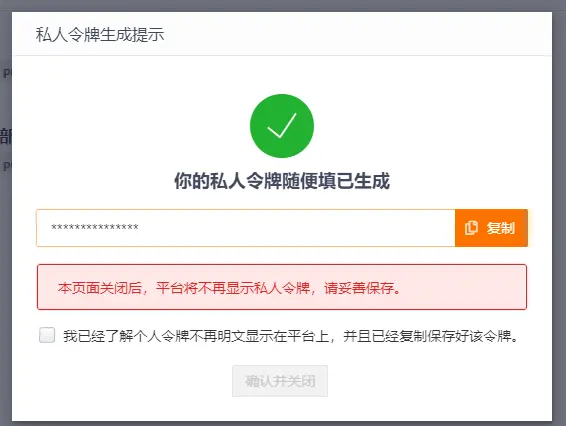
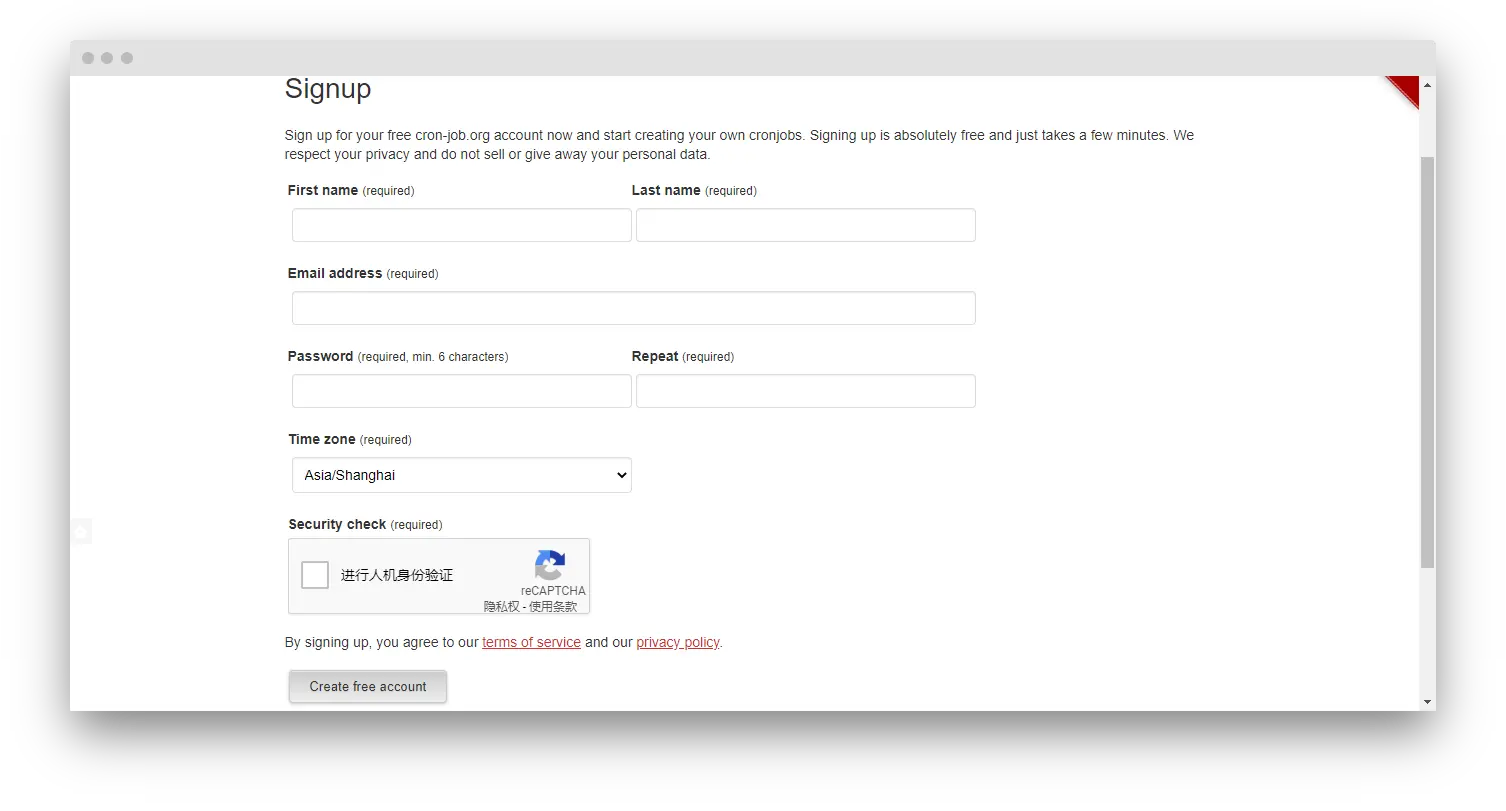
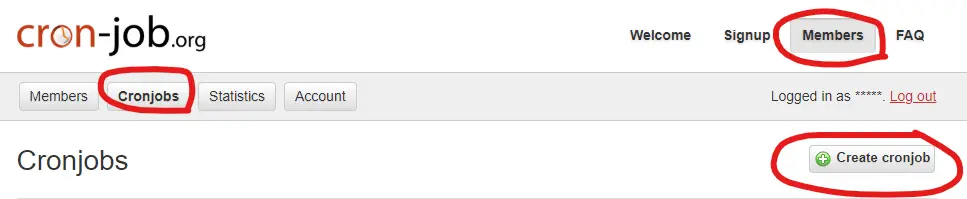
<?xml version="1.0" encoding="utf-8"?>

<feed xmlns="http://www.w3.org/2005/Atom">
  <title>HCLonely Blog</title>
  <icon>https://www.gravatar.com/avatar/f8c7afb61aea2c203160e90cd3b3a26a</icon>
  <subtitle>一个懒人的博客</subtitle>
  <link href="https://blog.hclonely.com/atom.xml" rel="self"/>
  
  <link href="https://blog.hclonely.com/"/>
  <updated>2026-03-01T12:56:46.444Z</updated>
  <id>https://blog.hclonely.com/</id>
  
  <author>
    <name>HCLonely</name>
    <email>h1606051253@gmail.com</email>
  </author>
  
  <generator uri="https://hexo.io/">Hexo</generator>
  
  <entry>
    <title>树莓派搭建私有在线PS网站</title>
    <link href="https://blog.hclonely.com/posts/42ca118e/"/>
    <id>https://blog.hclonely.com/posts/42ca118e/</id>
    <published>2025-06-05T06:57:09.000Z</published>
    <updated>2026-03-01T12:56:46.444Z</updated>
    
    <content type="html"><![CDATA[<p>厌倦了大型图像编辑软件对电脑性能的压榨？担心在线工具泄露敏感设计？让你的树莓派不在吃灰！只需一台树莓派，你就能拥有完全私有的、功能媲美 Photoshop 的在线编辑利器——<strong>Photopea</strong>！通过部署Docker项目 <code>photopea</code>，我们将把强大的图像处理能力装进小小的树莓派里。</p><h2 id="为什么选择树莓派-photopea"><a class="markdownIt-Anchor" href="#为什么选择树莓派-photopea"></a> 为什么选择树莓派 + Photopea？</h2><ul><li><strong>隐私至上：</strong> 所有图片处理都在你的本地网络或树莓派上进行，敏感设计稿绝不外流。</li><li><strong>离线可用：</strong> 无需连接官方服务器，断网也能畅快编辑。</li><li><strong>轻量低耗：</strong> 树莓派功耗极低，7x24 小时运行也毫无压力，静音环保。</li><li><strong>成本低廉：</strong> 利用闲置树莓派，无需额外投入高性能电脑或订阅费用。</li><li><strong>跨平台访问：</strong> 家里任何设备（电脑、平板、手机）的浏览器都能随时使用。</li><li><strong>开源自由：</strong> 基于开源项目部署，掌控自己的工具。</li></ul><p><strong>所需设备：</strong></p><ol><li><strong>树莓派：</strong> 推荐树莓派 4B (2GB/4GB/8GB 内存均可) 或树莓派 5，性能更佳。树莓派 3B+ 也可尝试（性能稍弱）。</li><li><strong>操作系统：</strong> ubuntu 22.04 (理论上能运行Docker的系统均可)。</li><li><strong>网络：</strong> 树莓派接入你的家庭/办公室局域网。</li><li><strong>存储：</strong> 一张容量足够的 microSD 卡 (建议 16GB 或以上)。</li><li><strong>电源：</strong> 合适的电源适配器。</li></ol><h2 id="手把手搭建指南-基于-docker"><a class="markdownIt-Anchor" href="#手把手搭建指南-基于-docker"></a> 手把手搭建指南 (基于 Docker)</h2><p>Docker 让部署变得异常简单。如果你的树莓派还没安装 Docker，请先安装：<a href="https://docs.docker.com/engine/install/">https://docs.docker.com/engine/install/</a></p><h3 id="核心步骤一键部署-photopea"><a class="markdownIt-Anchor" href="#核心步骤一键部署-photopea"></a> 核心步骤：一键部署 Photopea</h3><pre class="highlight"><code class="bash"><span class="hljs-comment"># 运行 Photopea 容器 (将内部 8887 端口映射到树莓派的 8080 端口)</span>sudo docker run -d --name ps-online --restart always -p 8080:8887 ramuses/photopea:latest</code></pre><h2 id="访问你的私有-photopea"><a class="markdownIt-Anchor" href="#访问你的私有-photopea"></a> 访问你的私有 Photopea</h2><ol><li><strong>本地测试：</strong> 在树莓派本身的浏览器中访问：<code>http://localhost:8080</code></li><li><strong>局域网访问：</strong> 在同一局域网内的其他设备浏览器中，输入你的树莓派 IP 地址 + <code>:8080</code>，例如：<code>http://192.168.1.100:8080</code></li></ol><h2 id="重要提示"><a class="markdownIt-Anchor" href="#重要提示"></a> 重要提示</h2><ul><li><strong>性能考虑：</strong> Photopea 在浏览器中运行，主要依赖访问设备的 CPU/内存。树莓派本身主要负责提供服务。树莓派 4/5 能流畅服务多个客户端。复杂操作（如超大图、大量滤镜）在客户端设备上可能变慢。</li><li><strong>数据存储：</strong> 默认部署下，用户上传或处理的图片<strong>仅保存在浏览器缓存中</strong>。关闭浏览器标签页或清理缓存可能导致未保存的更改丢失！务必养成使用 <code>File &gt; Save As PSD</code> (或导出其他格式) 保存到本地设备的习惯。</li><li><strong>首次加载：</strong> 镜像较大，首次拉取和启动可能需要几分钟，请耐心等待。</li></ul>]]></content>


    <summary type="html">&lt;p&gt;厌倦了大型图像编辑软件对电脑性能的压榨？担心在线工具泄露敏感设计？让你的树莓派不在吃灰！只需一台树莓派，你就能拥有完全私有的、功能媲美 Photoshop 的在线编辑利器——&lt;strong&gt;Photopea&lt;/strong&gt;！通过部署Docker项目 &lt;code&gt;photo</summary>


    <category term="树莓派" scheme="https://blog.hclonely.com/categories/%E6%A0%91%E8%8E%93%E6%B4%BE/"/>
    
    
    <category term="树莓派" scheme="https://blog.hclonely.com/tags/%E6%A0%91%E8%8E%93%E6%B4%BE/"/>
    
    <category term="Docker" scheme="https://blog.hclonely.com/tags/Docker/"/>
    
  </entry>
  
  <entry>
    <title>将 Node.js 项目打包为一个可执行文件</title>
    <link href="https://blog.hclonely.com/posts/b04e535f/"/>
    <id>https://blog.hclonely.com/posts/b04e535f/</id>
    <published>2024-03-05T03:22:49.000Z</published>
    <updated>2026-03-01T12:56:46.444Z</updated>
    
    <content type="html"><![CDATA[<h2 id="简介"><a class="markdownIt-Anchor" href="#简介"></a> 简介</h2><p>Node.js 从<code>v18.16.0</code>,<code>v19.7.0</code>版本开始原生支持了打包为可执行文件(Single executable applications), 常用的打包工具<a href="https://github.com/vercel/pkg">pkg</a>也因此不在更新，下面介绍一下我在使用 NodeJs <code>Single executable applications</code>功能时的一些经验和问题。</p><h2 id="使用"><a class="markdownIt-Anchor" href="#使用"></a> 使用</h2><h3 id="创建并打包你的项目文件"><a class="markdownIt-Anchor" href="#创建并打包你的项目文件"></a> 创建并打包你的项目文件</h3><p>因为目前该功能只能将单个 js 文件封装为可执行文件，所以我们要借助打包工具（如 <a href="https://webpack.js.org/">webpack</a>, <a href="https://rollupjs.org/">rollup</a> 等）将 js 项目大包围一个 js 文件。由于 wenpack 的配置过于繁杂，这里介绍使用 rollup 工具进行打包。</p><ol><li><p>安装 rollup: <code>npm install --global rollup</code>;</p></li><li><p>在项目根目录新建<code>rollup.config.js</code>文件，内容如下（根据项目内容进行调整）：</p><pre class="highlight"><code class="javascript"><span class="hljs-keyword">const</span> commonjs  = <span class="hljs-built_in">require</span>(<span class="hljs-string">'@rollup/plugin-commonjs'</span>); <span class="hljs-comment">// commonjs支持，使用es模块可不使用此插件，安装：npm install @rollup/plugin-commonjs -D</span><span class="hljs-keyword">const</span> &#123; nodeResolve &#125; = <span class="hljs-built_in">require</span>(<span class="hljs-string">'@rollup/plugin-node-resolve'</span>);<span class="hljs-keyword">const</span> json = <span class="hljs-built_in">require</span>(<span class="hljs-string">'@rollup/plugin-json'</span>); <span class="hljs-comment">// 将静态json文件作为模块导入，按需安装，安装：npm install @rollup/plugin-json -D</span><span class="hljs-keyword">const</span> &#123; string &#125; = <span class="hljs-built_in">require</span>(<span class="hljs-string">'rollup-plugin-string'</span>); <span class="hljs-comment">// 将静态文件文本作为模块导入，按需安装，安装：npm install @rollup/plugin-json -D</span><span class="hljs-keyword">const</span> terser = <span class="hljs-built_in">require</span>(<span class="hljs-string">'@rollup/plugin-terser'</span>);<span class="hljs-comment">// 压缩打包后的文件大小，按需安装，安装：npm install @rollup/plugin-json -D</span><span class="hljs-built_in">module</span>.exports = &#123;  <span class="hljs-attr">input</span>: <span class="hljs-string">'dist/main.js'</span>, <span class="hljs-comment">// 项目入口文件</span>  <span class="hljs-attr">output</span>: &#123;    <span class="hljs-attr">dir</span>: <span class="hljs-string">'output'</span>, <span class="hljs-comment">// 输出文件目录</span>    <span class="hljs-attr">format</span>: <span class="hljs-string">'cjs'</span> <span class="hljs-comment">// 输出文件格式</span>  &#125;,  <span class="hljs-attr">plugins</span>: [terser(&#123;    <span class="hljs-attr">format</span>: &#123;      <span class="hljs-attr">comments</span>: <span class="hljs-literal">false</span>    &#125;  &#125;), nodeResolve(&#123;    <span class="hljs-attr">preferBuiltins</span>: <span class="hljs-literal">true</span>,    <span class="hljs-attr">exportConditions</span>: [<span class="hljs-string">'node'</span>]  &#125;),  commonjs(),  json(),  string(&#123;    <span class="hljs-attr">include</span>: [<span class="hljs-string">'**/*.html'</span>, <span class="hljs-string">'**/*.yml'</span>]  &#125;)]&#125;;</code></pre></li><li><p>打包项目：<code>rollup -c</code>。</p></li></ol><h2 id="封装为可执行文件"><a class="markdownIt-Anchor" href="#封装为可执行文件"></a> 封装为可执行文件</h2><ol><li><p>在项目根目录新建<code>your-project-config.json</code>文件，内容如下（根据项目需求进行调整，<a href="https://nodejs.org/api/single-executable-applications.html#generating-single-executable-preparation-blobs">官方说明</a>）：</p><pre class="highlight"><code class="json">&#123;  <span class="hljs-attr">"main"</span>: <span class="hljs-string">"output/main.js"</span>, <span class="hljs-comment">// 打包后的项目入口文件</span>  <span class="hljs-attr">"output"</span>: <span class="hljs-string">"your-project.blob"</span>,  <span class="hljs-attr">"disableExperimentalSEAWarning"</span>: <span class="hljs-literal">true</span>,  <span class="hljs-attr">"useCodeCache"</span>: <span class="hljs-literal">true</span>,  <span class="hljs-attr">"disableExperimentalSEAWarning"</span>: <span class="hljs-literal">true</span>, <span class="hljs-comment">// 禁用Nodejs的试验性更能警告</span>  <span class="hljs-attr">"useSnapshot"</span>: <span class="hljs-literal">false</span>,  <span class="hljs-comment">// 使用快照</span>  <span class="hljs-attr">"useCodeCache"</span>: <span class="hljs-literal">true</span> <span class="hljs-comment">// 使用代码缓存</span>&#125;</code></pre></li><li><p>封装文件：</p><ul><li>Windows:</li></ul><pre class="highlight"><code class="bash">node --experimental-sea-config your-project-config.jsonnode -e <span class="hljs-string">"require('fs').copyFileSync(process.execPath, 'your-project.exe')"</span>npx postject your-project.exe NODE_SEA_BLOB your-project.blob --sentinel-fuse NODE_SEA_FUSE_fce680ab2cc467b6e072b8b5df1996b2</code></pre><ul><li>Linux:</li></ul><pre class="highlight"><code class="bash">node --experimental-sea-config your-project-config.jsoncp $(<span class="hljs-built_in">command</span> -v node) your-projectnpx postject your-project.exe NODE_SEA_BLOB your-project.blob --sentinel-fuse NODE_SEA_FUSE_fce680ab2cc467b6e072b8b5df1996b2</code></pre></li><li><p>等待封装完成。</p></li></ol>]]></content>


    <summary type="html">&lt;h2 id=&quot;简介&quot;&gt;&lt;a class=&quot;markdownIt-Anchor&quot; href=&quot;#简介&quot;&gt;&lt;/a&gt; 简介&lt;/h2&gt;
&lt;p&gt;Node.js 从&lt;code&gt;v18.16.0&lt;/code&gt;,&lt;code&gt;v19.7.0&lt;/code&gt;版本开始原生支持了打包为可执行文件(Sin</summary>


    <category term="JavaScript" scheme="https://blog.hclonely.com/categories/JavaScript/"/>
    
    <category term="NodeJs" scheme="https://blog.hclonely.com/categories/JavaScript/NodeJs/"/>
    
    
    <category term="NodeJs" scheme="https://blog.hclonely.com/tags/NodeJs/"/>
    
    <category term="exe" scheme="https://blog.hclonely.com/tags/exe/"/>
    
    <category term="可执行文件" scheme="https://blog.hclonely.com/tags/%E5%8F%AF%E6%89%A7%E8%A1%8C%E6%96%87%E4%BB%B6/"/>
    
  </entry>
  
  <entry>
    <title>哔哩哔哩硬核会员搜题脚本</title>
    <link href="https://blog.hclonely.com/posts/c1ef618c/"/>
    <id>https://blog.hclonely.com/posts/c1ef618c/</id>
    <published>2023-05-29T13:11:39.000Z</published>
    <updated>2026-03-01T12:56:46.444Z</updated>
    
    <content type="html"><![CDATA[<div id="badge-container-HCLonely-bili-senior-newbie-qa-b4c3b3c" class="hexo-github" style="width: 100%"></div><script src="/hexo-github/badge.js"></script><script type="text/javascript">  loadStyle("/hexo-github/style.css");  loadStyle("/hexo-github/octicons/octicons.css");  new Badge("#badge-container-HCLonely-bili-senior-newbie-qa-b4c3b3c", "HCLonely", "bili-senior-newbie-qa", "b4c3b3c", false);</script><blockquote><p>一个用于哔哩哔哩硬核会员搜题的 Tampermonkey 脚本。</p></blockquote><h2 id="安装"><a class="markdownIt-Anchor" href="#安装"></a> 安装</h2><ol><li>安装<a href="https://www.tampermonkey.net/index.php">Tampermonkey</a>(建议)或其他脚本管理器；</li><li><a href="https://github.com/HCLonely/bili-senior-newbie-qa/blob/main/bili-senior-newbie-qa.user.js?raw=true">点此安装</a>搜题脚本。</li></ol><h2 id="使用"><a class="markdownIt-Anchor" href="#使用"></a> 使用</h2><ol><li>手机哔哩哔哩客户端进入答题；</li><li>浏览器登录哔哩哔哩(已登录可跳过此步骤)；；</li><li>浏览器打开调试工具(<code>F12</code>), 将浏览器切换为移动设备(<code>Ctrl+Shift+M</code>)；</li><li>在地址栏输入<code>https://www.bilibili.com/h5/senior-newbie/qa</code>并回车，等待网页加载完成；</li><li>启动脚本(<code>Alt+N</code>)；<ul><li>加载题库(需要题目完全匹配)：可从本地加载题库(支持<code>txt</code>,<code>doc</code>,<code>docx</code>,<code>xls</code>,<code>xlsx</code>格式)，题库中搜索不到则使用搜索引擎搜索</li><li>直接运行：使用搜索引擎搜索(支持<code>百度</code>，<code>搜狗</code>，<code>必应</code>，<code>谷歌</code>)</li></ul></li><li>点击<strong>题目</strong>即可进行搜索。</li></ol><h2 id="注意事项"><a class="markdownIt-Anchor" href="#注意事项"></a> 注意事项</h2><ol><li>使用此脚本时建议关闭其他插件/脚本，避免冲突；</li><li>建议选择<code>文史</code>，<code>知识</code>，<code>音乐</code>等答案比较好搜索判断的类型。</li></ol>]]></content>


    <summary type="html">&lt;div id=&quot;badge-container-HCLonely-bili-senior-newbie-qa-b4c3b3c&quot; class=&quot;hexo-github&quot; style=&quot;width: 100%&quot;&gt;&lt;/div&gt;
&lt;script src=&quot;/hexo-github/ba</summary>


    <category term="JavaScript" scheme="https://blog.hclonely.com/categories/JavaScript/"/>
    
    <category term="Tampermonkey 脚本" scheme="https://blog.hclonely.com/categories/JavaScript/Tampermonkey-%E8%84%9A%E6%9C%AC/"/>
    
    
    <category term="bilibili" scheme="https://blog.hclonely.com/tags/bilibili/"/>
    
    <category term="哔哩哔哩" scheme="https://blog.hclonely.com/tags/%E5%93%94%E5%93%A9%E5%93%94%E5%93%A9/"/>
    
    <category term="脚本" scheme="https://blog.hclonely.com/tags/%E8%84%9A%E6%9C%AC/"/>
    
  </entry>
  
  <entry>
    <title>在静态网站上实现浏览记录功能</title>
    <link href="https://blog.hclonely.com/posts/4167bc7b/"/>
    <id>https://blog.hclonely.com/posts/4167bc7b/</id>
    <published>2023-02-03T09:29:56.000Z</published>
    <updated>2026-03-01T12:56:46.444Z</updated>
    
    <content type="html"><![CDATA[<div id="badge-container-HCLonely-all-pusher-api-6e6e3b2" class="hexo-github" style="width: 100%"></div><script src="/hexo-github/badge.js"></script><script type="text/javascript">  loadStyle("/hexo-github/style.css");  loadStyle("/hexo-github/octicons/octicons.css");  new Badge("#badge-container-HCLonely-all-pusher-api-6e6e3b2", "HCLonely", "all-pusher-api", "6e6e3b2", false);</script><p>在静态网站上实现浏览记录功能，<strong>浏览记录保存在用户本地</strong>。</p><h2 id="安装"><a class="markdownIt-Anchor" href="#安装"></a> 安装</h2><ol><li><p>下载<a href="dist/visit-history.min.js">visit-history.min.js</a>文件；</p></li><li><p>在你的网页中插入</p><pre class="highlight"><code class="html"><span class="hljs-tag">&lt;<span class="hljs-name">script</span> <span class="hljs-attr">src</span>=<span class="hljs-string">"path/to/visit-history.min.js"</span>&gt;</span><span class="hljs-tag">&lt;/<span class="hljs-name">script</span>&gt;</span></code></pre></li></ol><p>或直接使用CND</p><pre class="highlight"><code class="html"><span class="hljs-tag">&lt;<span class="hljs-name">script</span> <span class="hljs-attr">src</span>=<span class="hljs-string">"https://cdn.jsdelivr.net/gh/HCLonely/visit-history@1visit-history.min.js"</span>&gt;</span><span class="hljs-tag">&lt;/<span class="hljs-name">script</span>&gt;</span></code></pre><h2 id="使用"><a class="markdownIt-Anchor" href="#使用"></a> 使用</h2><h3 id="保存浏览记录"><a class="markdownIt-Anchor" href="#保存浏览记录"></a> 保存浏览记录</h3><pre class="highlight"><code class="javascript"><span class="hljs-keyword">const</span> &#123; visitHistory &#125; = <span class="hljs-built_in">require</span>(<span class="hljs-string">'visit-history'</span>);visitHistory.set(&#123;  <span class="hljs-attr">data</span>: &#123; &#125;, <span class="hljs-comment">// [必需]保存的数据</span>  <span class="hljs-attr">identifier</span>: <span class="hljs-function"><span class="hljs-params">()</span> =&gt;</span> <span class="hljs-built_in">window</span>.location.pathname, <span class="hljs-comment">// [可选]网页的位移标识符, 默认为 () =&gt; window.location.pathname</span>  <span class="hljs-attr">limit</span>: <span class="hljs-number">20</span> <span class="hljs-comment">// [可选]最大保存的浏览历史数量，默认为 20</span>&#125;);</code></pre><p>Example:</p><pre class="highlight"><code class="javascript"><span class="hljs-keyword">const</span> &#123; visitHistory &#125; = <span class="hljs-built_in">require</span>(<span class="hljs-string">'visit-history'</span>);visitHistory.set(&#123;  <span class="hljs-attr">data</span>: &#123;    <span class="hljs-attr">title</span>: <span class="hljs-built_in">document</span>.querySelector(<span class="hljs-string">'title'</span>).innerText.trim(),    <span class="hljs-attr">link</span>: <span class="hljs-built_in">window</span>.location.href  &#125;,  <span class="hljs-attr">identifier</span>: <span class="hljs-function"><span class="hljs-params">()</span> =&gt;</span> <span class="hljs-built_in">window</span>.location.href,  <span class="hljs-attr">limit</span>: <span class="hljs-number">30</span>&#125;);</code></pre><h3 id="读取浏览记录"><a class="markdownIt-Anchor" href="#读取浏览记录"></a> 读取浏览记录</h3><pre class="highlight"><code class="javascript"><span class="hljs-keyword">const</span> &#123; visitHistory &#125; = <span class="hljs-built_in">require</span>(<span class="hljs-string">'visit-history'</span>);visitHistory.get(&#123;  <span class="hljs-attr">htmlTemplate</span>: <span class="hljs-string">''</span>, <span class="hljs-comment">// [可选]Html模板, 使用'&#123;&#123;key&#125;&#125;'替换data中的变量. 留空则返回保存的data数据, 默认为空</span>  <span class="hljs-attr">limit</span>: <span class="hljs-number">10</span> <span class="hljs-comment">// [可选]读取的浏览记录数量, 留空则返回所有数据, 默认为空</span>&#125;);</code></pre><p>Example:</p><pre class="highlight"><code class="javascript"><span class="hljs-keyword">const</span> &#123; visitHistory &#125; = <span class="hljs-built_in">require</span>(<span class="hljs-string">'visit-history'</span>);<span class="hljs-keyword">const</span> history = visitHistory.get(&#123;  <span class="hljs-attr">htmlTemplate</span>: <span class="hljs-string">'&lt;div class="title&gt;&lt;a href="&#123;&#123;link&#125;&#125;"&gt;&#123;&#123;title&#125;&#125;&lt;/a&gt;&lt;/div&gt;'</span>,  <span class="hljs-attr">limit</span>: <span class="hljs-number">10</span>&#125;);<span class="hljs-built_in">document</span>.querySelector(<span class="hljs-string">'.history'</span>).innerHTML = history.join(<span class="hljs-string">''</span>);</code></pre><h2 id="鸣谢"><a class="markdownIt-Anchor" href="#鸣谢"></a> 鸣谢</h2><ul><li><a href="https://github.com/marcuswestin/store.js">store.js</a></li></ul>]]></content>


    <summary type="html">&lt;div id=&quot;badge-container-HCLonely-all-pusher-api-6e6e3b2&quot; class=&quot;hexo-github&quot; style=&quot;width: 100%&quot;&gt;&lt;/div&gt;
&lt;script src=&quot;/hexo-github/badge.js&quot;</summary>


    <category term="JavaScript" scheme="https://blog.hclonely.com/categories/JavaScript/"/>
    
    
    <category term="JavaScript" scheme="https://blog.hclonely.com/tags/JavaScript/"/>
    
    <category term="浏览记录" scheme="https://blog.hclonely.com/tags/%E6%B5%8F%E8%A7%88%E8%AE%B0%E5%BD%95/"/>
    
  </entry>
  
  <entry>
    <title>统一推送服务Nodejs API</title>
    <link href="https://blog.hclonely.com/posts/423d7da8/"/>
    <id>https://blog.hclonely.com/posts/423d7da8/</id>
    <published>2022-12-21T07:32:55.000Z</published>
    <updated>2026-03-01T12:56:46.445Z</updated>
    
    <content type="html"><![CDATA[<div id="badge-container-HCLonely-all-pusher-api-f15d9c8" class="hexo-github" style="width: 100%"></div><script src="/hexo-github/badge.js"></script><script type="text/javascript">  loadStyle("/hexo-github/style.css");  loadStyle("/hexo-github/octicons/octicons.css");  new Badge("#badge-container-HCLonely-all-pusher-api-f15d9c8", "HCLonely", "all-pusher-api", "f15d9c8", false);</script><h2 id="介绍"><a class="markdownIt-Anchor" href="#介绍"></a> 介绍</h2><div class="tip inlineBlock warning">            <p>注意：此模块仅作推送使用，不可交互 ！！！</p>          </div><p>统一化推送服务Nodejs API. 已支持钉钉, Discord, 邮件, 飞书, PushDeer, PushPlus, QQ, QQ 频道机器人, Server 酱, Showdoc Push, Telegram Bot, 企业微信群机器人, 息知, WxPusher, NowPush, iGot, Chanify, Bark, Push, Slack, Pushback, Zulip, RocketChat, Gitter等平台.</p><h2 id="已支持平台"><a class="markdownIt-Anchor" href="#已支持平台"></a> 已支持平台</h2><ul><li><a href="https://github.com/Mrs4s/go-cqhttp">QQ(go-cqhttp)</a> – GoCqhttp</li><li><s><a href="https://qmsg.zendee.cn/api">QQ(Qmsg)</a> – Qmsg</s></li><li><a href="https://bot.q.qq.com/wiki/develop/api/openapi/message/post_messages.html">QQ 频道机器人</a> – QqChannel</li><li><a href="https://developers.dingtalk.com/document/app/custom-robot-access">钉钉群机器人</a> – DingTalk</li><li><a href="https://discord.com/developers/docs/resources/webhook#edit-webhook-message">Discord</a> – Discord</li><li><a href="https://nodemailer.com/">邮件</a> – Mail</li><li><a href="https://www.feishu.cn/hc/zh-CN/articles/360024984973">飞书群机器人</a> – FeiShu</li><li><a href="https://open.work.weixin.qq.com/api/doc/90000/90136/91770">企业微信</a> – WorkWeixin</li><li><a href="https://developer.work.weixin.qq.com/document/path/91770">企业微信群机器人</a> – WorkWeixinBot</li><li><a href="https://core.telegram.org/bots/api#sendmessage">Telegram Bot</a> – TelegramBot</li><li><a href="http://pushdeer.com">PushDeer</a> – PushDeer</li><li><a href="http://www.pushplus.plus/">PushPlus</a> – PushPlus</li><li><a href="https://sct.ftqq.com">Server 酱</a> – ServerChanTurbo</li><li><a href="https://push.showdoc.com.cn/#/">Showdoc Push</a> – Showdoc</li><li><a href="https://xz.qqoq.net/#/index">息知</a> – Xizhi</li><li><a href="https://wxpusher.zjiecode.com/docs/">WxPusher</a> – WxPusher</li><li><s><a href="https://www.nowpush.app/index.html">NowPush</a> – NowPush</s></li><li><a href="http://hellyw.com/">iGot</a> – IGot</li><li><a href="https://github.com/chanify/chanify-ios">Chanify</a> – Chanify</li><li><a href="https://github.com/Finb/Bark">Bark</a> – Bark</li><li><a href="https://developers.google.com/chat/how-tos/webhooks">GoogleChat</a> – GoogleChat</li><li><a href="https://docs.push.techulus.com/api-documentation">Push</a> – Push</li><li><a href="https://api.slack.com/messaging/webhooks">Slack</a> – Slack</li><li><a href="https://pushback.io/docs/getting-started">Pushback</a> – Pushback</li><li><a href="https://zulip.com/api/send-message">Zulip</a> – Zulip</li><li><a href="https://docs.rocket.chat/guides/administration/admin-panel/integrations#incoming-webhook-script">RocketChat</a> – RocketChat</li><li><a href="https://developer.gitter.im/docs/messages-resource">Gitter</a> – Gitter</li><li><a href="https://pushover.net/">Pushover</a> – Pushover</li></ul><h2 id="安装"><a class="markdownIt-Anchor" href="#安装"></a> 安装</h2><pre class="highlight"><code class="shell">npm install all-pusher-api -S</code></pre><h2 id="使用"><a class="markdownIt-Anchor" href="#使用"></a> 使用</h2><h3 id="example"><a class="markdownIt-Anchor" href="#example"></a> Example</h3><h4 id="多平台推送"><a class="markdownIt-Anchor" href="#多平台推送"></a> 多平台推送</h4><pre class="highlight"><code class="javascript"><span class="hljs-keyword">const</span> &#123; PushApi &#125; = <span class="hljs-built_in">require</span>(<span class="hljs-string">'all-pusher-api'</span>); <span class="hljs-comment">// 多平台同时推送</span><span class="hljs-function">(<span class="hljs-params"><span class="hljs-keyword">async</span> (</span>) =&gt;</span> &#123;  <span class="hljs-built_in">console</span>.log((<span class="hljs-keyword">await</span> <span class="hljs-keyword">new</span> PushApi([    &#123;      <span class="hljs-attr">name</span>: <span class="hljs-string">'ServerChanTurbo'</span>,      <span class="hljs-attr">config</span>: &#123;        <span class="hljs-attr">key</span>: &#123;          <span class="hljs-attr">token</span>: <span class="hljs-string">'******'</span>        &#125;      &#125;    &#125;,    &#123;      <span class="hljs-attr">name</span>: <span class="hljs-string">'PushDeer'</span>,      <span class="hljs-attr">config</span>: &#123;        <span class="hljs-attr">key</span>: &#123;          <span class="hljs-attr">token</span>: <span class="hljs-string">'******'</span>        &#125;      &#125;    &#125;,    &#123;      <span class="hljs-attr">name</span>: <span class="hljs-string">'WxPusher'</span>,      <span class="hljs-attr">config</span>: &#123;        <span class="hljs-attr">key</span>: &#123;          <span class="hljs-attr">token</span>: <span class="hljs-string">'******'</span>,          <span class="hljs-attr">uids</span>: [<span class="hljs-string">'******'</span>]        &#125;      &#125;    &#125;  ])    .send(&#123; <span class="hljs-attr">message</span>: <span class="hljs-string">'测试文本'</span> &#125;)).map(<span class="hljs-function">(<span class="hljs-params">e</span>) =&gt;</span> (e.result.status &gt;= <span class="hljs-number">200</span> &amp;&amp; e.result.status &lt; <span class="hljs-number">300</span>) ? <span class="hljs-string">`<span class="hljs-subst">$&#123;e.name&#125;</span> 测试成功`</span> : e));&#125;)();</code></pre><h4 id="单平台推送"><a class="markdownIt-Anchor" href="#单平台推送"></a> 单平台推送</h4><pre class="highlight"><code class="javascript">(<span class="hljs-keyword">async</span> () =&gt; &#123;  <span class="hljs-comment">// Example 1</span>  <span class="hljs-keyword">const</span> &#123; PushApi &#125; = <span class="hljs-built_in">require</span>(<span class="hljs-string">'all-pusher-api'</span>); <span class="hljs-comment">// 多平台同时推送</span>  <span class="hljs-keyword">const</span> result = <span class="hljs-keyword">await</span> <span class="hljs-keyword">new</span> PushApi([    &#123;      <span class="hljs-attr">name</span>: <span class="hljs-string">'ServerChanTurbo'</span>,      <span class="hljs-attr">config</span>: &#123;        <span class="hljs-attr">key</span>: &#123;          <span class="hljs-attr">token</span>: <span class="hljs-string">'******'</span>        &#125;      &#125;    &#125;  ])    .send(&#123; <span class="hljs-attr">message</span>: <span class="hljs-string">'测试文本'</span> &#125;);  <span class="hljs-built_in">console</span>.log(result.map(<span class="hljs-function">(<span class="hljs-params">e</span>) =&gt;</span> (e.result.status &gt;= <span class="hljs-number">200</span> &amp;&amp; e.result.status &lt; <span class="hljs-number">300</span>) ? <span class="hljs-string">`<span class="hljs-subst">$&#123;e.name&#125;</span> 测试成功`</span> : e));  <span class="hljs-comment">// Example 2</span>  <span class="hljs-keyword">const</span> &#123; WxPusher &#125; = <span class="hljs-built_in">require</span>(<span class="hljs-string">'all-pusher-api/dist/WxPusher'</span>); <span class="hljs-comment">// 单平台推送可选</span>  <span class="hljs-keyword">const</span> wxPusherResult = <span class="hljs-keyword">await</span> <span class="hljs-keyword">new</span> WxPusher(&#123;    <span class="hljs-attr">token</span>: <span class="hljs-string">'******'</span>,    <span class="hljs-attr">uids</span>: [<span class="hljs-string">'******'</span>]  &#125;)    .send(&#123; <span class="hljs-attr">message</span>: <span class="hljs-string">'测试文本'</span> &#125;);  <span class="hljs-built_in">console</span>.log(wxPusherResult);&#125;)();</code></pre><h4 id="extraoptions"><a class="markdownIt-Anchor" href="#extraoptions"></a> extraOptions</h4><pre class="highlight"><code class="javascript">(<span class="hljs-keyword">async</span> () =&gt; &#123;  <span class="hljs-keyword">const</span> &#123; DingTalk &#125; = <span class="hljs-built_in">require</span>(<span class="hljs-string">'all-pusher-api/dist/DingTalk'</span>);  <span class="hljs-keyword">const</span> result = <span class="hljs-keyword">await</span> <span class="hljs-keyword">new</span> DingTalk(&#123;    <span class="hljs-attr">key</span>: &#123;      <span class="hljs-attr">token</span>: <span class="hljs-string">'******'</span>,      <span class="hljs-attr">secret</span>: <span class="hljs-string">'******'</span>    &#125;  &#125;)    .send(&#123;      <span class="hljs-attr">message</span>: <span class="hljs-string">'这条消息@了所有人'</span>,      <span class="hljs-attr">extraOptions</span>: &#123;        <span class="hljs-attr">isAtAll</span>: <span class="hljs-literal">true</span>      &#125;    &#125;);  <span class="hljs-built_in">console</span>.log(result);&#125;)();</code></pre><h4 id="customoptions"><a class="markdownIt-Anchor" href="#customoptions"></a> customOptions</h4><blockquote><p>这里以钉钉为例</p></blockquote><pre class="highlight"><code class="javascript">(<span class="hljs-keyword">async</span> () =&gt; &#123;  <span class="hljs-keyword">const</span> &#123; DingTalk &#125; = <span class="hljs-built_in">require</span>(<span class="hljs-string">'all-pusher-api/dist/DingTalk'</span>);  <span class="hljs-keyword">const</span> result = <span class="hljs-keyword">await</span> <span class="hljs-keyword">new</span> DingTalk(&#123;    <span class="hljs-attr">key</span>: &#123;      <span class="hljs-attr">token</span>: <span class="hljs-string">'******'</span>,      <span class="hljs-attr">secret</span>: <span class="hljs-string">'******'</span>    &#125;  &#125;)    .send(&#123;      <span class="hljs-attr">customOptions</span>: &#123;        <span class="hljs-string">"msgtype"</span>: <span class="hljs-string">"actionCard"</span>,        <span class="hljs-string">"actionCard"</span>: &#123;          <span class="hljs-string">"title"</span>: <span class="hljs-string">"我 20 年前想打造一间苹果咖啡厅, 而它正是 Apple Store 的前身"</span>,          <span class="hljs-string">"text"</span>: <span class="hljs-string">"![screenshot](https://img.alicdn.com/tfs/TB1NwmBEL9TBuNjy1zbXXXpepXa-2400-1218.png) \n\n #### 乔布斯 20 年前想打造的苹果咖啡厅 \n\n Apple Store 的设计正从原来满满的科技感走向生活化, 而其生活化的走向其实可以追溯到 20 年前苹果一个建立咖啡馆的计划"</span>,          <span class="hljs-string">"btnOrientation"</span>: <span class="hljs-string">"0"</span>,          <span class="hljs-string">"btns"</span>: [            &#123;                <span class="hljs-string">"title"</span>: <span class="hljs-string">"内容不错"</span>,                <span class="hljs-string">"actionURL"</span>: <span class="hljs-string">"https://www.dingtalk.com/"</span>            &#125;,            &#123;                <span class="hljs-string">"title"</span>: <span class="hljs-string">"不感兴趣"</span>,                <span class="hljs-string">"actionURL"</span>: <span class="hljs-string">"https://www.dingtalk.com/"</span>            &#125;          ]        &#125;      &#125;    &#125;);  <span class="hljs-built_in">console</span>.log(result);&#125;)();</code></pre><h4 id="自定义接口"><a class="markdownIt-Anchor" href="#自定义接口"></a> 自定义接口</h4><pre class="highlight"><code class="javascript">(<span class="hljs-keyword">async</span> () =&gt; &#123;  <span class="hljs-keyword">const</span> &#123; Custom &#125; = <span class="hljs-built_in">require</span>(<span class="hljs-string">'all-pusher-api/dist/Custom'</span>); <span class="hljs-comment">// 自定义接口只能通过此方法引入</span>  <span class="hljs-keyword">const</span> &#123; createHmac &#125; = <span class="hljs-built_in">require</span>(<span class="hljs-string">'crypto'</span>); <span class="hljs-keyword">const</span> sign = <span class="hljs-function"><span class="hljs-params">()</span> =&gt;</span> &#123;    <span class="hljs-keyword">const</span> timestamp = <span class="hljs-keyword">new</span> <span class="hljs-built_in">Date</span>().getTime();    <span class="hljs-keyword">const</span> secret = <span class="hljs-string">'******'</span>;    <span class="hljs-keyword">const</span> stringToSign = <span class="hljs-string">`<span class="hljs-subst">$&#123;timestamp&#125;</span>\n<span class="hljs-subst">$&#123;secret&#125;</span>`</span>;    <span class="hljs-keyword">const</span> hash = createHmac(<span class="hljs-string">'sha256'</span>, secret)      .update(stringToSign, <span class="hljs-string">'utf8'</span>)      .digest();    <span class="hljs-keyword">return</span> <span class="hljs-string">`timestamp=<span class="hljs-subst">$&#123;timestamp&#125;</span>&amp;sign=<span class="hljs-subst">$&#123;<span class="hljs-built_in">encodeURIComponent</span>(hash.toString(<span class="hljs-string">'base64'</span>))&#125;</span>`</span>;  &#125;;  <span class="hljs-built_in">console</span>.log(<span class="hljs-keyword">await</span> <span class="hljs-keyword">new</span> Custom(&#123;    <span class="hljs-attr">url</span>: <span class="hljs-string">`https://oapi.dingtalk.com/robot/send?access_token=******&amp;<span class="hljs-subst">$&#123;sign()&#125;</span>`</span>,    <span class="hljs-attr">success</span>: &#123;      <span class="hljs-attr">key</span>: <span class="hljs-string">'responseData.errcode'</span>,      <span class="hljs-attr">value</span>: <span class="hljs-number">0</span>    &#125;  &#125;).send(&#123;    <span class="hljs-attr">msgtype</span>: <span class="hljs-string">'text'</span>,    <span class="hljs-attr">text</span>: &#123;      <span class="hljs-attr">content</span>: <span class="hljs-string">'测试文本'</span>    &#125;  &#125;));  <span class="hljs-comment">/* 返回值  &#123;    status: 200,    statusText: 'Success',    extraMessage: &lt;AxiosResponse&gt;  &#125;  */</span>&#125;);</code></pre><h3 id="参数"><a class="markdownIt-Anchor" href="#参数"></a> 参数</h3><h4 id="pusherconfig"><a class="markdownIt-Anchor" href="#pusherconfig"></a> pusherConfig</h4><div class="tip inlineBlock warning">            <p>这部分写的比较乱，建议配合<a href="https://configer.hclonely.com/?fileLink=https%3A%2F%2Fraw.githubusercontent.com%2FHCLonely%2Fall-pusher-api%2Fmain%2Fconfig%2Ftemplate.yaml.js">参数生成器</a>使用！</p>          </div><blockquote><p>const pusher = new WxPusher(<em>pusherConfig</em>);</p></blockquote><table><thead><tr><th>参数</th><th>类型</th><th>默认值</th><th>说明</th></tr></thead><tbody><tr><td><code>token</code></td><td><code>string</code></td><td><code>null</code></td><td>大部分平台的授权token, 如果有授权信息有多个, 请使用<code>key</code></td></tr><tr><td><code>baseUrl</code></td><td><code>string</code></td><td><code>null</code></td><td>对于部分支持搭建服务端的平台, 如果使用自建服务端, 需配置此选项</td></tr><tr><td><code>webhook</code></td><td><code>string</code></td><td><code>null</code></td><td><code>Discord</code>, <code>企业微信机器人</code>, <code>RocketChat</code>和<code>GoogleChat</code> 的 webhook 地址, 该平台请使用<code>webhook</code>而不是<code>token</code></td></tr><tr><td><code>userId</code></td><td><code>string</code></td><td><code>null</code></td><td><code>Pushback</code> 平台的 User_id</td></tr><tr><td><code>chat_id</code></td><td><code>string</code></td><td><code>null</code></td><td><code>Telegram</code> 平台的 chat_id</td></tr><tr><td><code>email</code></td><td><code>string</code></td><td><code>null</code></td><td><code>Zulip</code> 平台的 bot email</td></tr><tr><td><code>domain</code></td><td><code>string</code></td><td><code>null</code></td><td><code>Zulip</code> 平台的 domain</td></tr><tr><td><code>to</code></td><td><code>Array&lt;number\|string&gt;</code></td><td><code>null</code></td><td><code>Zulip</code> 平台的<a href="https://zulip.com/api/send-message#parameter-to">发送对象</a></td></tr><tr><td><code>roomId</code></td><td><code>string</code></td><td><code>null</code></td><td><code>Gitter</code> 平台发送对象的 roomid</td></tr><tr><td><code>baseUrl</code></td><td><code>string</code></td><td><code>null</code></td><td>go-cqhttp 的http通信地址, 以<code>http://</code>或<code>https://</code>开头</td></tr><tr><td><code>user_id</code></td><td><code>number</code></td><td><code>null</code></td><td>使用 go-cqhttp 推送时的目标 QQ 号, 此参数与<code>group_id</code>, <code>channel_id</code>二选一</td></tr><tr><td><code>group_id</code></td><td><code>number</code></td><td><code>null</code></td><td>使用 go-cqhttp 推送时的目标群号, 此参数与<code>user_id</code>, <code>channel_id</code>二选一</td></tr><tr><td><code>channel_id</code></td><td><code>string</code></td><td><code>null</code></td><td>使用 go-cqhttp 推送时的目标频道ID, 此参数与<code>user_id</code>, <code>group_id</code>二选一, 且必须与<code>guild_id</code>同时存在</td></tr><tr><td><code>guild_id</code></td><td><code>string</code></td><td><code>null</code></td><td>使用 go-cqhttp 推送时的目标子频道ID, 此参数必须与<code>channel_id</code>同时存在</td></tr><tr><td><code>corpid</code></td><td><code>string</code></td><td><code>null</code></td><td>企业微信群机器人的<a href="https://developer.work.weixin.qq.com/document/path/90665#corpid">corpid</a></td></tr><tr><td><code>agentid</code></td><td><code>string</code></td><td><code>null</code></td><td>企业微信群机器人的<a href="https://developer.work.weixin.qq.com/document/path/90665#agentid">agentid</a></td></tr><tr><td><code>secret</code></td><td><code>string</code></td><td><code>null</code></td><td>钉钉、飞书加签的密钥[可选]/企业微信群机器人的<a href="https://developer.work.weixin.qq.com/document/path/90665#secret">secret</a></td></tr><tr><td><code>touser</code></td><td><code>string</code></td><td><code>null</code></td><td>企业微信群机器人<a href="https://developer.work.weixin.qq.com/document/path/90236#%E6%96%87%E6%9C%AC%E6%B6%88%E6%81%AF">指定接收消息的成员</a>, 也可在<a href="#sendOptions">sendOptions</a>中配置</td></tr><tr><td><code>uids</code></td><td><code>Array&lt;string&gt;</code></td><td><code>null</code></td><td>WxPusher 发送目标的 UID, 也可在<a href="#sendOptions">sendOptions</a>中配置</td></tr><tr><td><code>topicIds</code></td><td><code>Array&lt;number&gt;</code></td><td><code>null</code></td><td>WxPusher 发送目标的 topicId, 也可在<a href="#sendOptions">sendOptions</a>中配置</td></tr><tr><td><code>appID</code></td><td><code>string</code></td><td><code>null</code></td><td>QQ频道机器人的 ID, 使用QQ频道推送时此选项为<strong>必选</strong></td></tr><tr><td><code>token</code></td><td><code>string</code></td><td><code>null</code></td><td>QQ频道机器人的 token, 使用QQ频道推送时此选项为<strong>必选</strong></td></tr><tr><td><code>sandbox</code></td><td><code>boolean</code></td><td><code>false</code></td><td>使用QQ频道推送时是否启用沙箱, 可选</td></tr><tr><td><code>channelID</code></td><td><code>string</code></td><td><code>null</code></td><td>QQ频道的子频道 ID, 使用QQ频道推送时此选项为<strong>必选</strong></td></tr><tr><td><code>user</code></td><td><code>string</code></td><td><code>null</code></td><td>Pushover 的 user key, 使用 Pushover 推送时此选项为<strong>必选</strong></td></tr><tr><td><code>key</code></td><td><code>object</code></td><td><code>null</code></td><td>以上参数都可以放到<code>key</code>中, <a href="#%E5%A4%9A%E5%B9%B3%E5%8F%B0%E6%8E%A8%E9%80%81">示例</a></td></tr><tr><td>- <code>key.host</code></td><td><code>string</code></td><td><code>null</code></td><td>邮件发送服务器地址, 使用邮件推送时此选项为<strong>必选</strong></td></tr><tr><td>- <code>key.port</code></td><td><code>number</code></td><td><code>null</code></td><td>邮件发送服务器端口, 使用邮件推送时此选项为<strong>必选</strong></td></tr><tr><td>- <code>key.secure</code></td><td><code>boolean</code></td><td><code>false</code></td><td>邮件发送服务器是否启用TLS/SSL, 可选</td></tr><tr><td>- <code>key.auth</code></td><td><code>object</code></td><td><code>null</code></td><td>邮件发送服务器的验证信息, 使用邮件推送时此选项为<strong>必选</strong></td></tr><tr><td>- <code>key.auth.user</code></td><td><code>string</code></td><td><code>null</code></td><td>邮件发送服务器的用户名, 使用邮件推送时此选项为<strong>必选</strong></td></tr><tr><td>- <code>key.auth.pass</code></td><td><code>string</code></td><td><code>null</code></td><td>邮件发送服务器的密码, 使用邮件推送时此选项为<strong>必选</strong></td></tr><tr><td><code>proxy</code></td><td><code>object</code></td><td><code>null</code></td><td>代理配置, 可选, 部分支持</td></tr><tr><td>- <code>proxy.enable</code></td><td><code>boolean</code></td><td><code>false</code></td><td>是否启用代理</td></tr><tr><td>- <code>proxy.protocol</code></td><td><code>string</code></td><td><code>'http'</code></td><td>代理协议</td></tr><tr><td>- <code>proxy.host</code></td><td><code>string</code></td><td><code>null</code></td><td>代理主机地址</td></tr><tr><td>- <code>proxy.port</code></td><td><code>number</code></td><td><code>null</code></td><td>代理端口</td></tr><tr><td>- <code>proxy.username</code></td><td><code>string</code></td><td><code>null</code></td><td>代理用户名</td></tr><tr><td>- <code>proxy.password</code></td><td><code>string</code></td><td><code>null</code></td><td>代理密码</td></tr></tbody></table><h4 id="customconfig"><a class="markdownIt-Anchor" href="#customconfig"></a> CustomConfig</h4><blockquote><p>自定义接口</p><p>const customPusher = new Custom(<em>CustomConfig</em>);</p></blockquote><table><thead><tr><th>参数</th><th>类型</th><th>默认值</th><th>说明</th></tr></thead><tbody><tr><td><code>url</code></td><td><code>string</code></td><td><code>null</code></td><td>请求链接, 必需</td></tr><tr><td><code>method</code></td><td><code>string</code></td><td><code>'POST'</code></td><td>请求方式, 可选</td></tr><tr><td><code>contentType</code></td><td><code>string</code></td><td><code>'application/json'</code></td><td>发送的数据类型, 等同于<code>hreders['Content-type']</code></td></tr><tr><td><code>headers</code></td><td><code>AxiosRequestHeaders</code></td><td><code>null</code></td><td>请求头, 可选</td></tr><tr><td><code>success</code></td><td><code>object</code></td><td><code>null</code></td><td>推送成功的判断方式, 必需</td></tr><tr><td>- <code>success.key</code></td><td><code>string</code></td><td><code>null</code></td><td><a href="#%E8%87%AA%E5%AE%9A%E4%B9%89%E6%8E%A5%E5%8F%A3">请看示例</a></td></tr><tr><td>- <code>success.value</code></td><td><code>any</code></td><td><code>null</code></td><td><a href="#%E8%87%AA%E5%AE%9A%E4%B9%89%E6%8E%A5%E5%8F%A3">请看示例</a></td></tr><tr><td><code>key</code></td><td><code>object</code></td><td><code>null</code></td><td>以上参数都可以放到key中</td></tr><tr><td><code>proxy</code></td><td><code>object</code></td><td><code>null</code></td><td>代理配置, 同上</td></tr></tbody></table><h4 id="pushersconfig"><a class="markdownIt-Anchor" href="#pushersconfig"></a> pushersConfig</h4><blockquote><p>const pushers = new PushApi(<em>pushersConfig</em>);</p></blockquote><pre class="highlight"><code class="typescript"><span class="hljs-keyword">const</span> pushersConfig: <span class="hljs-built_in">Array</span>&lt;&#123;  name: <span class="hljs-built_in">string</span>,  config: pusherConfig&#125;&gt;</code></pre><h4 id="sendoptions"><a class="markdownIt-Anchor" href="#sendoptions"></a> sendOptions</h4><blockquote><p>const result = await pusher.send(<em>sendOptions</em>);</p></blockquote><table><thead><tr><th>参数</th><th>类型</th><th>默认值</th><th>说明</th></tr></thead><tbody><tr><td><code>message</code></td><td><code>string</code></td><td><code>null</code></td><td>推送的消息内容, <code>message</code>与<code>customOptions</code>至少要有一个</td></tr><tr><td><code>title</code></td><td><code>string</code></td><td><code>null</code></td><td>部分平台支持消息标题, 不填则自动提取<code>message</code>第一行的前10个字符</td></tr><tr><td><code>type</code></td><td><code>string</code></td><td><code>'text'</code></td><td>仅支持<code>text</code>, <code>markdown</code>, <code>html</code>. 具体平台支持情况请查看<a href="#%E6%94%AF%E6%8C%81%E6%B6%88%E6%81%AF%E7%B1%BB%E5%9E%8B">支持的消息类型</a></td></tr><tr><td><code>extraOptions</code></td><td><code>object</code></td><td><code>null</code></td><td>附加内容, 此对象中的内容会附加到请求体中, <a href="#extraOptions">示例</a></td></tr><tr><td><code>customOptions</code></td><td><code>object</code></td><td><code>null</code></td><td>自定义请求内容, 推送时会POST<code>customOptions</code>, <a href="#customOptions">示例</a></td></tr></tbody></table><h4 id="customsendoptions"><a class="markdownIt-Anchor" href="#customsendoptions"></a> customSendOptions</h4><blockquote><p>const result = await customPusher.send(<em>customSendOptions</em>);</p></blockquote><p><code>customSendOptions</code>会直接作为请求体发送, 具体请<a href="#%E8%87%AA%E5%AE%9A%E4%B9%89%E6%8E%A5%E5%8F%A3">查看示例</a>.</p><h4 id="pusherssendconfig"><a class="markdownIt-Anchor" href="#pusherssendconfig"></a> pushersSendConfig</h4><blockquote><p>const results = await pushers.send(<em>pushersSendConfig</em>);</p></blockquote><pre class="highlight"><code class="typescript"><span class="hljs-keyword">const</span> pushersSendConfig: <span class="hljs-built_in">Array</span>&lt;&#123;  name: <span class="hljs-built_in">string</span>  config: pushersSendConfig&#125;&gt;</code></pre><h3 id="返回值"><a class="markdownIt-Anchor" href="#返回值"></a> 返回值</h3><h4 id="result"><a class="markdownIt-Anchor" href="#result"></a> result</h4><blockquote><p>const <em>result</em> = await pusher.send(sendOptions);</p></blockquote><table><thead><tr><th>参数</th><th>类型</th><th>默认值</th><th>说明</th></tr></thead><tbody><tr><td><code>status</code></td><td><code>number</code></td><td><code>null</code></td><td><a href="#%E7%8A%B6%E6%80%81%E7%A0%81">状态码</a></td></tr><tr><td><code>statusText</code></td><td><code>string</code></td><td><code>null</code></td><td>状态说明文本</td></tr><tr><td><code>extraMessage</code></td><td><code>AxiosResponse</code></td><td><code>Error</code></td><td><code>null</code></td></tr></tbody></table><h4 id="results"><a class="markdownIt-Anchor" href="#results"></a> results</h4><blockquote><p>const <em>results</em> = await pushers.send(pushersSendConfig);</p></blockquote><pre class="highlight"><code class="typescript"><span class="hljs-keyword">const</span> results: <span class="hljs-built_in">Array</span>&lt;&#123;  name: <span class="hljs-built_in">string</span>  result: result&#125;&gt;</code></pre><h2 id="支持的消息类型"><a class="markdownIt-Anchor" href="#支持的消息类型"></a> 支持的消息类型</h2><blockquote><p>所有平台支持均纯文本(<code>text</code>)格式消息, 大部分支持<code>markdown</code>格式消息, 部分支持<code>html</code>格式消息</p><p><code>markdown*</code>为支持<code>html</code>格式不支持<code>markdown</code>格式消息时自动将<code>markdown</code>转换为<code>html</code>格式</p><p><code>other</code>为部分平台支持特殊格式的消息, 可通过<code>customOptions</code>传入参数, 具体参数请查看相应平台的文档</p></blockquote><ul><li>Showdoc: <code>text</code></li><li>Pushover: <code>text</code></li><li>QQ(go-cqhttp): <code>text</code>, <code>other</code></li><li>Qmsg: <code>text</code>, <code>other</code></li><li>Discord: <code>text</code>, <code>other</code></li><li>飞书: <code>text</code>, <code>other</code></li><li>NowPush: <code>text</code>, <code>other</code></li><li>Chanify: <code>text</code>, <code>other</code></li><li>Bark: <code>text</code>, <code>other</code></li><li>Server酱Turbo: <code>text</code>, <code>markdown</code></li><li>息知: <code>text</code>, <code>markdown</code></li><li>PushDeer: <code>text</code>, <code>markdown</code>, <code>other</code></li><li>QQ频道: <code>text</code>, <code>markdown</code>, <code>other</code></li><li>企业微信: <code>text</code>, <code>markdown</code>, <code>other</code></li><li>企业微信群机器人: <code>text</code>, <code>markdown</code>, <code>other</code></li><li>钉钉: <code>text</code>, <code>markdown</code>, <code>other</code></li><li>TelegramBot: <code>text</code>, <code>markdown</code>, <code>html</code></li><li>邮件: <code>text</code>, <code>markdown*</code>, <code>html</code></li><li>PushPlus: <code>text</code>, <code>markdown*</code>, <code>html</code></li><li>WxPusher: <code>text</code>, <code>markdown*</code>, <code>html</code></li></ul><h2 id="状态码"><a class="markdownIt-Anchor" href="#状态码"></a> 状态码</h2><ul><li><code>0</code>-<code>Missing Parameter: ***</code>: 缺少必要参数</li><li><code>10</code>-<code>Missing Options</code>: 缺少发送消息配置</li><li><code>11</code>-<code>Unknown Error</code>: 未知错误</li><li><code>200</code>-<code>Success</code>: 推送成功</li><li><code>201</code>-<code>Waiting</code>: 待审核</li><li><code>100</code>-<code>Error</code>: 请求发送成功, 服务器返回错误信息</li><li><code>101</code>-<code>No Response Data</code>: 请求发送成功, 但没有接收到服务器返回的数据</li><li><code>102</code>-<code>Request Error</code>: 请求发送失败, 一般是网络问题</li><li><code>103</code>-<code>Options Format Error</code>: 参数格式错误</li><li><code>104</code>-<code>Get &quot;***&quot; Failed</code>: 获取参数失败</li><li><code>140</code>-<code>Check Sign Failed</code>: 签名校检失败</li></ul>]]></content>


    <summary type="html">&lt;div id=&quot;badge-container-HCLonely-all-pusher-api-f15d9c8&quot; class=&quot;hexo-github&quot; style=&quot;width: 100%&quot;&gt;&lt;/div&gt;
&lt;script src=&quot;/hexo-github/badge.js&quot;</summary>


    <category term="JavaScript" scheme="https://blog.hclonely.com/categories/JavaScript/"/>
    
    <category term="NodeJs" scheme="https://blog.hclonely.com/categories/JavaScript/NodeJs/"/>
    
    
    <category term="NodeJs" scheme="https://blog.hclonely.com/tags/NodeJs/"/>
    
    <category term="module" scheme="https://blog.hclonely.com/tags/module/"/>
    
    <category term="JavaScript" scheme="https://blog.hclonely.com/tags/JavaScript/"/>
    
  </entry>
  
  <entry>
    <title>在线答题搜答案脚本</title>
    <link href="https://blog.hclonely.com/posts/aba1b2db/"/>
    <id>https://blog.hclonely.com/posts/aba1b2db/</id>
    <published>2022-04-05T15:12:09.000Z</published>
    <updated>2026-03-01T12:56:46.444Z</updated>
    
    <content type="html"><![CDATA[<p>想必大家都经历过学校/公司要求在网上答题的情况，为了更方面的搜索答案，于是这个脚本就出现了。</p><h2 id="安装说明"><a class="markdownIt-Anchor" href="#安装说明"></a> 安装说明</h2><ol><li><p>安装<a href="https://www.tampermonkey.net/">Tampermonkey</a>或类似浏览器扩展(脚本基于此扩展使用)</p></li><li><p>安装此脚本</p><ul><li><a href="https://github.com/HCLonely/search-answer">Github</a></li><li><a href="https://greasyfork.org/zh-CN/scripts/442819">GreasyFork</a></li></ul></li></ol><h2 id="必读说明"><a class="markdownIt-Anchor" href="#必读说明"></a> 必读说明</h2><ul><li>不用时请关闭此脚本！</li><li>启用此脚本后刷新网页才会生效！</li><li>使用无题库模式时不要将弹出的窗口最大化</li><li>支持txt, html, word, excel格式的题库，其他格式自行转换成支持的格式</li><li>选择/复制受限时可配合<a href="https://greasyfork.org/zh-CN/scripts/28497">网页限制解除(改)</a>脚本使用</li></ul><h2 id="使用说明"><a class="markdownIt-Anchor" href="#使用说明"></a> 使用说明</h2><ol><li><p>使用前先在<code>Tampermonkey</code>中启用此脚本；</p></li><li><p>点击浏览器的<code>Tampermonkey</code>扩展图标，找到此脚本下面的启动启动选项并点击；</p></li><li><p>按要求选择模式</p><ul><li>题库模式[建议]: 如果你已经有该题目相关题库了就选这个，题库文件支持txt, html, word, excel格式，其他格式的题库请自行转换成支持的格式；</li><li>无题库模式: 搜索时会弹出使用百度/搜狗/必应/谷歌的搜索结果，弹出的窗口不要全屏显示；</li><li>直接运行: 之前使用题库模式导入过题库，并且题库不需要更新，避免重复导入题库操作；</li></ul></li><li><p>选择题目后会弹出<code>搜</code>按钮，点击此按钮即可搜索；</p></li><li><p>用完记得关闭此脚本，否则可能会造成访问其他网页出现BUG；</p></li></ol>]]></content>


    <summary type="html">&lt;p&gt;想必大家都经历过学校/公司要求在网上答题的情况，为了更方面的搜索答案，于是这个脚本就出现了。&lt;/p&gt;
&lt;h2 id=&quot;安装说明&quot;&gt;&lt;a class=&quot;markdownIt-Anchor&quot; href=&quot;#安装说明&quot;&gt;&lt;/a&gt; 安装说明&lt;/h2&gt;
&lt;ol&gt;
&lt;li&gt;
&lt;p&gt;安装</summary>


    <category term="JavaScript" scheme="https://blog.hclonely.com/categories/JavaScript/"/>
    
    <category term="Tampermonkey 脚本" scheme="https://blog.hclonely.com/categories/JavaScript/Tampermonkey-%E8%84%9A%E6%9C%AC/"/>
    
    
    <category term="脚本" scheme="https://blog.hclonely.com/tags/%E8%84%9A%E6%9C%AC/"/>
    
  </entry>
  
  <entry>
    <title>青年大学习安卓跳过方法</title>
    <link href="https://blog.hclonely.com/posts/a2a81abb/"/>
    <id>https://blog.hclonely.com/posts/a2a81abb/</id>
    <published>2022-03-03T11:09:21.000Z</published>
    <updated>2026-03-01T12:56:46.445Z</updated>
    
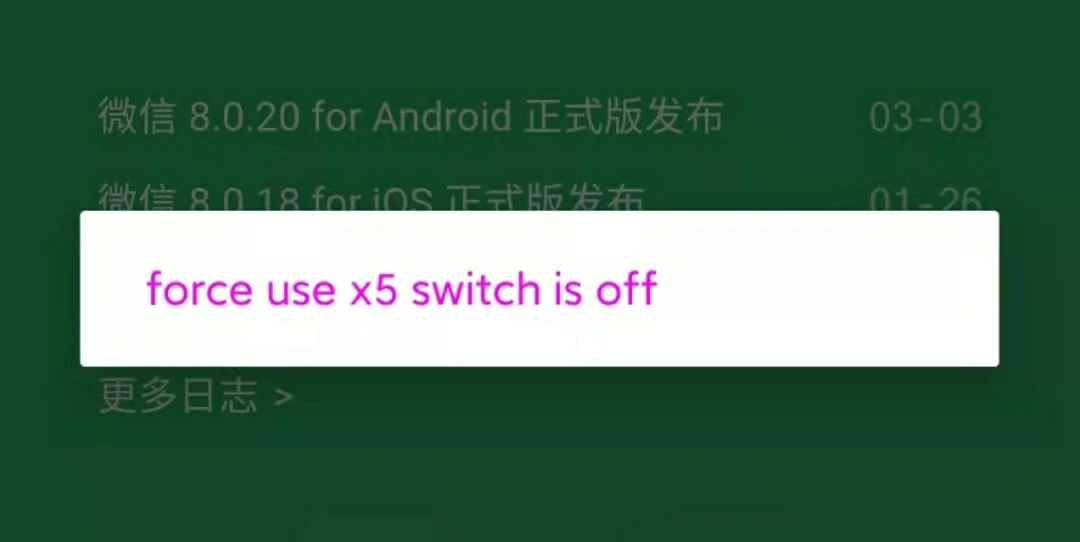
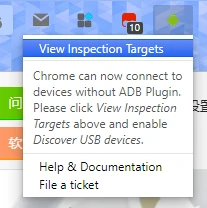
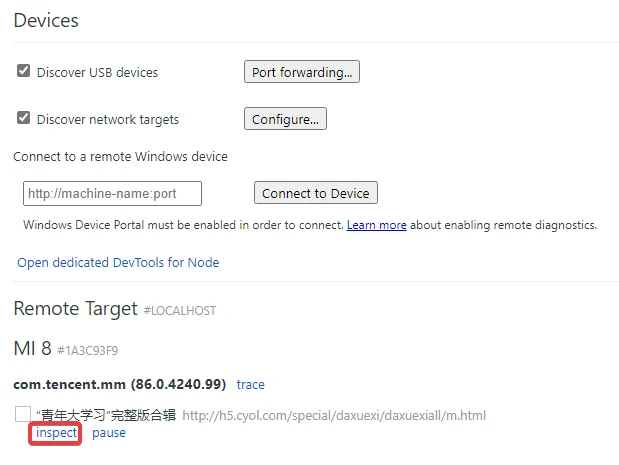
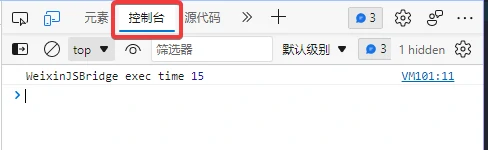
    <content type="html"><![CDATA[<h2 id="微信版本-8018"><a class="markdownIt-Anchor" href="#微信版本-8018"></a> 微信版本 &lt;= 8.0.18</h2><ol><li><p>开启 X5 内核: <code>debugmm.qq.com/?forcex5=true</code> 复制这个在微信团队后点开或用微信扫描二维码<br /><img src="https://cdn.jsdelivr.net/gh/HCLonely/images@latest/post/a2a81abb/openx5.webp" alt="二维码" /><br />出现下图说明开启成功<br /><img src="https://cdn.jsdelivr.net/gh/HCLonely/images@latest/post/a2a81abb/x5enabled.webp" alt="x5内核已开启" /></p></li><li><p>安装 X5 内核(以下线上与本地内核二选一)</p><ul><li>安装线上内核：<code>http://debugtbs.qq.com</code> 复制这个在微信发送出去后打开下载线上内核，重启即可；</li><li>安装本地内核：<a href="https://hclonely.lanzoul.com/ipz3g00uuggd">点此下载</a> 本地内核(不要直接打开)，下载完把文件复制到 <code>/sdcard/Android/data/com.tencent.mm/files/tbs</code> 目录(没有这个目录的话新建一个)，然后回到 <code>http://debugtbs.qq.com</code>  点击安装本地内核，安装完成后重启微信；</li></ul></li><li><p>打开vConsole调试功能：<code>http://debugx5.qq.com</code> 复制这个在微信发送出去后打开，选择顶部<code>信息</code>，下面勾选打开vConsole调试功能<br /><img src="https://cdn.jsdelivr.net/gh/HCLonely/images@latest/post/a2a81abb/openvconsole.webp" alt="打开vConsole调试功能" /></p></li><li><p>在大学习界面点击右下角的绿色按钮，在弹出的控制台输入下面的代码(最好等视频加载完开始播放后在执行，太快了可能没反应，没反应的话再输一遍就好了)</p><pre class="highlight"><code class="javascript"><span class="hljs-keyword">var</span> videoEle = <span class="hljs-built_in">document</span>.getElementsByTagName(<span class="hljs-string">'video'</span>)[<span class="hljs-number">0</span>]; <span class="hljs-comment">// 获取播放器元素</span>videoEle.controls = <span class="hljs-literal">true</span>; <span class="hljs-comment">// 显示进度条</span>videoEle.currentTime = videoEle.duration; <span class="hljs-comment">// 时间拉到最后</span>videoEle.ended = <span class="hljs-literal">true</span>; <span class="hljs-comment">// 视频播放结束</span>score = <span class="hljs-number">100</span>; <span class="hljs-comment">// 成绩</span>__vconsole.style.display = <span class="hljs-string">'none'</span>; <span class="hljs-comment">// 隐藏右下角绿色按钮</span></code></pre></li></ol><h2 id="全微信版本需电脑"><a class="markdownIt-Anchor" href="#全微信版本需电脑"></a> 全微信版本（需电脑）</h2><ol><li><p>启用Inspector调试功能：</p><ul><li>如果使用 x5 内核，按<a href="#%E5%BE%AE%E4%BF%A1%E7%89%88%E6%9C%AC%3C=8.0.18">上述</a>步骤走到第三步，勾选<code>打开TBS内核Inspector调试功能</code>;</li><li>如果不使用 x5 内核，<code>debugmm.qq.com/?forcex5=false</code> 复制这个在微信团队后点开或用微信扫描二维码<br /><img src="https://cdn.jsdelivr.net/gh/HCLonely/images@latest/post/a2a81abb/closex5.webp" alt="二维码" /><br />出现下图说明开启成功<br /><img src="https://cdn.jsdelivr.net/gh/HCLonely/images@latest/post/a2a81abb/x5closed.webp" alt="x5内核已关闭" /><br />然后复制这个在微信发送出去后打开<code>http://debugxweb.qq.com/?inspector=true</code>，等加载完关闭就行</li></ul></li><li><p>手机通过数据线连接电脑并启用 USB 调试功能（<a href="https://www.baidu.com/s?wd=%E5%AE%89%E5%8D%93%E6%89%93%E5%BC%80USB%E8%B0%83%E8%AF%95">如何打开?</a>）</p></li><li><p>下载 Chrome 或 Edge 浏览器，安装<a href="https://chrome.google.com/webstore/detail/adb/dpngiggdglpdnjdoaefidgiigpemgage/related?hl=zh-CN">ADB</a>扩展，网址打不开可以使用<a href="https://www.baidu.com/s?wd=chrome%20edge%20%E6%89%A9%E5%B1%95%E7%A6%BB%E7%BA%BF%E5%AE%89%E8%A3%85">离线安装</a></p></li><li><p>点击ADB扩展图标，点击<code>View Inspaction Targets</code>(如果手机上弹出是否允许调试，点击允许)<br /><img src="https://cdn.jsdelivr.net/gh/HCLonely/images@latest/post/a2a81abb/adb.webp" alt="ADB" /></p></li><li><p>在弹出的页面上勾选<code>Discover USB devices</code>和<code>Discover network targets</code></p></li><li><p>打开大学习页面，等待加载设备，出现如下图所示<br /><img src="https://cdn.jsdelivr.net/gh/HCLonely/images@latest/post/a2a81abb/devices.webp" alt="示例" /></p></li><li><p>手机上开始播放视频，电脑上点击<code>inspect</code>，在弹出的窗口右侧一栏点击<code>控制台</code>或<code>Console</code><br /><img src="https://cdn.jsdelivr.net/gh/HCLonely/images@latest/post/a2a81abb/console.webp" alt="控制台" /></p></li><li><p>在控制台输入以下代码：</p><pre class="highlight"><code class="javascript"><span class="hljs-keyword">var</span> videoEle = <span class="hljs-built_in">document</span>.getElementsByTagName(<span class="hljs-string">'video'</span>)[<span class="hljs-number">0</span>]; <span class="hljs-comment">// 获取播放器元素</span>videoEle.controls = <span class="hljs-literal">true</span>; <span class="hljs-comment">// 显示进度条</span></code></pre></li><li><p>手机上拖动进度条跳过</p></li></ol><h2 id="部分微信版本需root"><a class="markdownIt-Anchor" href="#部分微信版本需root"></a> 部分微信版本（需root）</h2><div class="tip inlineBlock warning">            <p>此方法需要手机 root, 并安装XPosed框架，这里建议安装<a href="https://github.com/LSPosed/LSPosed">LSPosed</a>框架！<br />具体支持情况<a href="https://github.com/Xposed-Modules-Repo/cn.wankkoree.xposed.enablewebviewdebugging#support-app--%E5%BA%94%E7%94%A8%E6%94%AF%E6%8C%81%E6%83%85%E5%86%B5">点此查看</a><br />如果你不了解 Root, XPosed, Lsposed, 刷机等内容，请不要使用此方法！<br />此方法默认你已安装 XPosed 框架并可用！</p>          </div><ol><li>安装<a href="https://github.com/WankkoRee/EnableWebViewDebugging">Enable WebView Debugging [启用 WebView 调试]</a>模块，可在 XPosed 和 LSPosed 官方仓库找到</li><li>启用此模块，LSPosed 需要勾选微信作用域并重启微信</li><li>按照<a href="#%E5%BE%AE%E4%BF%A1%E7%89%88%E6%9C%AC%3C=8.0.18">微信版本&lt;=8.0.18</a>的第四步进行操作</li></ol>]]></content>


    <summary type="html">&lt;h2 id=&quot;微信版本-8018&quot;&gt;&lt;a class=&quot;markdownIt-Anchor&quot; href=&quot;#微信版本-8018&quot;&gt;&lt;/a&gt; 微信版本 &amp;lt;= 8.0.18&lt;/h2&gt;
&lt;ol&gt;
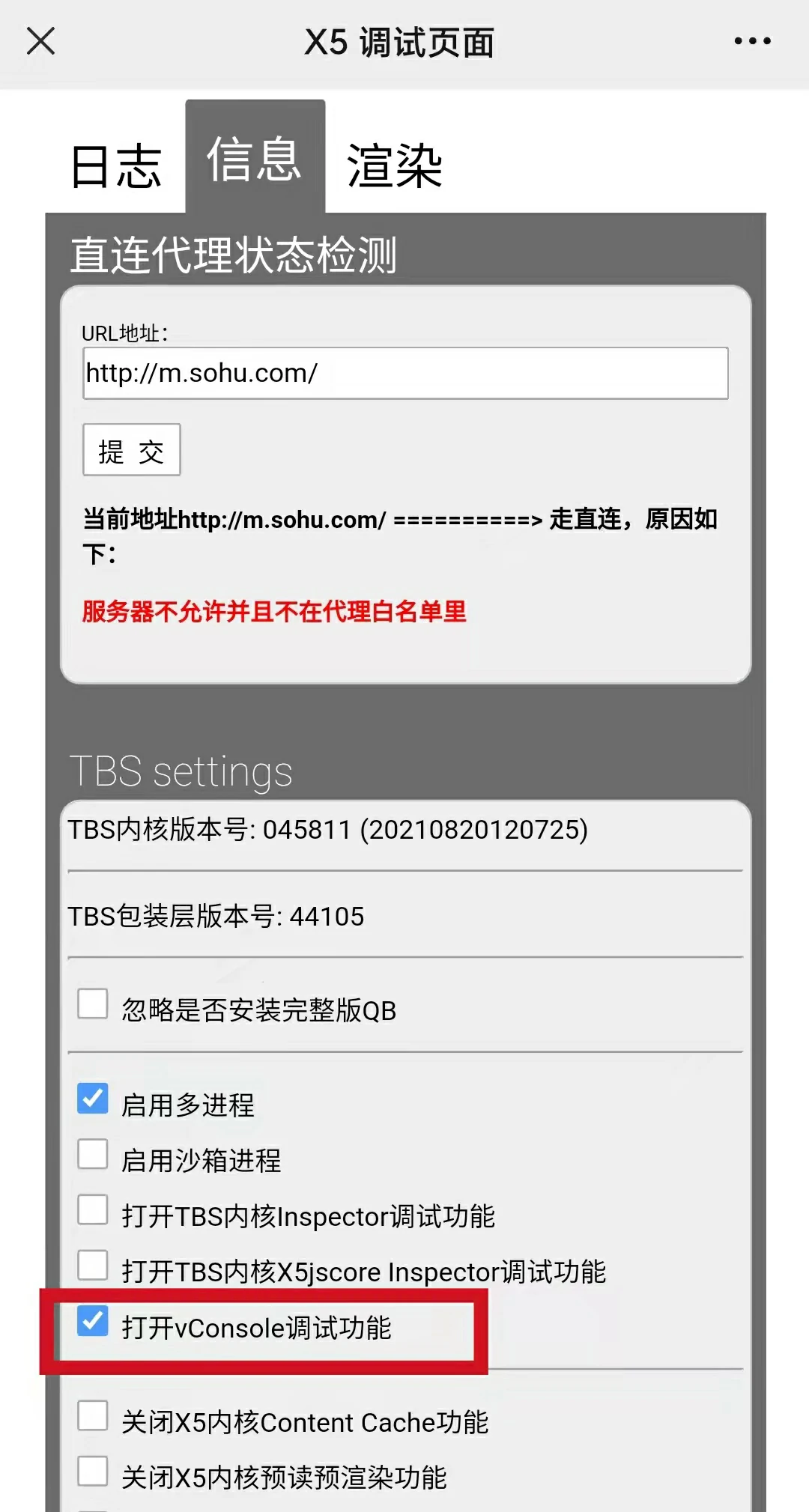
&lt;li&gt;
&lt;p&gt;开启 X5 内核: &lt;code&gt;debugmm.qq.com/?f</summary>


    <category term="安卓" scheme="https://blog.hclonely.com/categories/%E5%AE%89%E5%8D%93/"/>
    
    
    <category term="青年大学习" scheme="https://blog.hclonely.com/tags/%E9%9D%92%E5%B9%B4%E5%A4%A7%E5%AD%A6%E4%B9%A0/"/>
    
    <category term="安卓" scheme="https://blog.hclonely.com/tags/%E5%AE%89%E5%8D%93/"/>
    
  </entry>
  
  <entry>
    <title>公主连结 Re:Dive 中文输入法词库</title>
    <link href="https://blog.hclonely.com/posts/19a06541/"/>
    <id>https://blog.hclonely.com/posts/19a06541/</id>
    <published>2021-04-06T10:47:32.000Z</published>
    <updated>2026-03-01T12:56:46.444Z</updated>
    
    <content type="html"><![CDATA[<p>本文介绍一个适用于多种输入法的关于<code>公主连结Re:Dive</code>的词库<a href="https://github.com/HCLonely/pcr-dict">pcr-dict</a>。</p><h2 id="特色"><a class="markdownIt-Anchor" href="#特色"></a> 特色</h2><ul><li>支持多种输入法：<ul><li>搜狗拼音 txt</li><li>QQ 拼音</li><li>QQ 五笔</li><li>百度拼音</li><li>小小输入法</li><li>谷歌拼音</li><li>Gboard</li><li>拼音加加</li><li>Win10 微软拼音（自定义短语）</li><li>Win10 微软五笔（自定义短语）</li><li>Win10 微软拼音（自学习词库）</li><li>微软拼音</li><li>必应输入法</li><li>FIT 输入法</li><li>Mac 简体拼音</li><li>Rime 中州韵</li><li>华宇紫光拼音</li><li>libpinyin</li><li>Chinese-pyim</li><li>手心输入法</li><li>新浪拼音</li><li>极点五笔</li><li>极点郑码</li><li>小鸭五笔</li><li>雅虎奇摩</li><li>五笔 86 版</li><li>五笔 98 版</li><li>仓颉平台</li><li>百度手机或 Mac 版百度拼音</li><li>QQ 手机</li><li>讯飞输入法</li></ul></li><li>全面吃鱼更新的词汇：<ul><li>包括角色名，别名，公会名，声优名，装备名，专武名，技能名称等等</li><li>每周更新一次</li></ul></li></ul><h2 id="使用"><a class="markdownIt-Anchor" href="#使用"></a> 使用</h2><ul><li>到<a href="https://github.com/HCLonely/pcr-dict/releases">github releases</a>页面下载<code>pcr-dict.zip</code>文件，解压后导入即可。</li><li><a href="https://hclonely.lanzous.com/b01c999ne">蓝奏云下载</a> 密码:h1wg</li></ul><h2 id="数据来源"><a class="markdownIt-Anchor" href="#数据来源"></a> 数据来源</h2><ul><li>角色&amp;别名&amp;公会&amp;声优: <a href="https://github.com/Ice-Cirno/HoshinoBot">HoshinoBot</a></li><li>装备&amp;专武&amp;技能: <a href="https://wiki.biligame.com/pcr/%E9%A6%96%E9%A1%B5">公主连结 WIKI</a></li></ul><h2 id="词库转换工具"><a class="markdownIt-Anchor" href="#词库转换工具"></a> 词库转换工具</h2><ul><li><a href="https://github.com/studyzy/imewlconverter">imewlconverter</a></li></ul><h2 id="license"><a class="markdownIt-Anchor" href="#license"></a> LICENSE</h2><p><a href="https://github.com/HCLonely/pcr-dict/blob/master/LICENSE">MIT LICENSE</a></p>]]></content>


    <summary type="html">&lt;p&gt;本文介绍一个适用于多种输入法的关于&lt;code&gt;公主连结Re:Dive&lt;/code&gt;的词库&lt;a href=&quot;https://github.com/HCLonely/pcr-dict&quot;&gt;pcr-dict&lt;/a&gt;。&lt;/p&gt;
&lt;h2 id=&quot;特色&quot;&gt;&lt;a class=&quot;markdo</summary>


    <category term="游戏" scheme="https://blog.hclonely.com/categories/%E6%B8%B8%E6%88%8F/"/>
    
    <category term="手机游戏" scheme="https://blog.hclonely.com/categories/%E6%B8%B8%E6%88%8F/%E6%89%8B%E6%9C%BA%E6%B8%B8%E6%88%8F/"/>
    
    <category term="公主连结 Re:Dive" scheme="https://blog.hclonely.com/categories/%E6%B8%B8%E6%88%8F/%E6%89%8B%E6%9C%BA%E6%B8%B8%E6%88%8F/%E5%85%AC%E4%B8%BB%E8%BF%9E%E7%BB%93-Re-Dive/"/>
    
    
    <category term="手机游戏" scheme="https://blog.hclonely.com/tags/%E6%89%8B%E6%9C%BA%E6%B8%B8%E6%88%8F/"/>
    
    <category term="公主连结 Re:Dive" scheme="https://blog.hclonely.com/tags/%E5%85%AC%E4%B8%BB%E8%BF%9E%E7%BB%93-Re-Dive/"/>
    
    <category term="pcr" scheme="https://blog.hclonely.com/tags/pcr/"/>
    
  </entry>
  
  <entry>
    <title>基于 NodeJs 的 live2d 后端 Api 服务器</title>
    <link href="https://blog.hclonely.com/posts/f19bd1b6/"/>
    <id>https://blog.hclonely.com/posts/f19bd1b6/</id>
    <published>2021-01-27T10:18:50.000Z</published>
    <updated>2026-03-01T12:56:46.444Z</updated>
    
    <content type="html"><![CDATA[<p>适用于<a href="https://blog.hclonely.com/posts/f09c9fef/">live2d.user.js</a>,<a href="https://blog.hclonely.com/posts/e1f9f17c/">live2d_demo</a>的基于 Nodejs 的后端 Api.</p><h2 id="使用方法"><a class="markdownIt-Anchor" href="#使用方法"></a> 使用方法</h2><ol><li>安装<a href="https://nodejs.org/en/">NodeJs</a>,<a href="https://git-scm.com/">Git</a></li><li>克隆本项目<code>git clone https://github.com/HCLonely/live2dNodeApi.git</code></li><li>定位到项目目录<code>cd live2dNodeApi</code></li><li>安装依赖<code>npm i -S</code>或<code>cnpm i -S</code></li><li>启动服务器<code>npm start</code></li></ol><h2 id="命令"><a class="markdownIt-Anchor" href="#命令"></a> 命令</h2><table><thead><tr><th>命令</th><th>功能</th><th>额外说明</th></tr></thead><tbody><tr><td><code>npm start</code></td><td>启动 api 服务器</td><td></td></tr><tr><td><code>npm run update</code></td><td>重新生成<code>modelList.json</code>文件</td><td>用于增加或删除模型后更新模型列表</td></tr><tr><td><code>npm run check</code></td><td>检测模型的主配置文件格式及模型文件的完整性</td><td></td></tr><tr><td><code>npm run screenshot</code></td><td>生成模型的预览图，放在<code>preview</code>文件夹</td><td></td></tr><tr><td><code>npm run pre</code></td><td>在网页上查看模型的预览图，需要先生成</td><td></td></tr></tbody></table><h2 id="配置"><a class="markdownIt-Anchor" href="#配置"></a> 配置</h2><p>修改<code>config.json</code>文件进行配置：</p><pre class="highlight"><code class="json">&#123;  <span class="hljs-attr">"port"</span>: <span class="hljs-number">2333</span>, <span class="hljs-comment">// 监听端口，默认2333</span>  <span class="hljs-attr">"ssl"</span>:&#123;    <span class="hljs-attr">"enable"</span>:<span class="hljs-literal">false</span>, <span class="hljs-comment">// 是否启用ssl</span>    <span class="hljs-attr">"privateCrt"</span>:<span class="hljs-string">""</span>, <span class="hljs-comment">// ssl证书文件路径</span>    <span class="hljs-attr">"privateKey"</span>:<span class="hljs-string">""</span> <span class="hljs-comment">// ssl私钥文件路径</span>  &#125;&#125;</code></pre><h2 id="模型目录结构"><a class="markdownIt-Anchor" href="#模型目录结构"></a> 模型目录结构</h2><pre class="highlight"><code class="shell">models├─模型文件夹 # 同一角色不同皮肤，不同皮肤共用一个index.json文件│  ├─index.json # 必须，或model.json│  └─...├─模型文件夹 # 同一角色不同皮肤，每个皮肤都有各自的index.json文件│  ├─模型文件夹 # 单个模型│  │  ├─index.json # 必须，或model.json│  │  └─...│  └─模型文件夹 # 单个模型│      ├─index.json # 必须，或model.json│      └─...└─模型文件夹 # 单个模型    ├─index.json # 必须，或model.json    └─...</code></pre><blockquote><p>详情请参考<a href="https://github.com/HCLonely/live2dNodeApi/tree/master/models">models</a>目录</p></blockquote><h2 id="常见问题"><a class="markdownIt-Anchor" href="#常见问题"></a> 常见问题</h2><h3 id="依赖安装慢"><a class="markdownIt-Anchor" href="#依赖安装慢"></a> 依赖安装慢</h3><p><a href="https://www.baidu.com/s?ie=utf-8&amp;wd=npm%E5%AE%89%E8%A3%85%E6%85%A2">npm 安装慢</a></p><p><a href="https://www.baidu.com/s?ie=utf-8&amp;wd=puppeteer%E5%AE%89%E8%A3%85%E6%85%A2">下载 Chromium 慢</a></p><h3 id="更新模型后顺序乱了"><a class="markdownIt-Anchor" href="#更新模型后顺序乱了"></a> 更新模型后顺序乱了</h3><p>请重命名模型文件夹进行排序，参考<a href="https://github.com/HCLonely/live2dNodeApi/tree/master/models">models</a>目录。</p>]]></content>


    <summary type="html">&lt;p&gt;适用于&lt;a href=&quot;https://blog.hclonely.com/posts/f09c9fef/&quot;&gt;live2d.user.js&lt;/a&gt;,&lt;a href=&quot;https://blog.hclonely.com/posts/e1f9f17c/&quot;&gt;live2d_demo</summary>


    <category term="JavaScript" scheme="https://blog.hclonely.com/categories/JavaScript/"/>
    
    <category term="NodeJs" scheme="https://blog.hclonely.com/categories/JavaScript/NodeJs/"/>
    
    
    <category term="live2d" scheme="https://blog.hclonely.com/tags/live2d/"/>
    
    <category term="看板娘" scheme="https://blog.hclonely.com/tags/%E7%9C%8B%E6%9D%BF%E5%A8%98/"/>
    
    <category term="NodeJs" scheme="https://blog.hclonely.com/tags/NodeJs/"/>
    
  </entry>
  
  <entry>
    <title>百度分析和谷歌分析适配 pjax</title>
    <link href="https://blog.hclonely.com/posts/9b0e1025/"/>
    <id>https://blog.hclonely.com/posts/9b0e1025/</id>
    <published>2020-08-07T07:41:25.000Z</published>
    <updated>2026-03-01T12:56:46.444Z</updated>
    
    <content type="html"><![CDATA[<p>现在有很多网站使用 pjax, 包括本站也是。本站主题是从 Typecho 的 hansome 主题移植过来的，在移植过程中就遇到了这个问题：<br /><strong>开启 pjax 后百度分析和谷歌分析之统计首次访问的页面，之后的页面都不会统计。</strong><br />下面来说一下我是如何解决的。</p><h2 id="百度分析"><a class="markdownIt-Anchor" href="#百度分析"></a> 百度分析</h2><p>在<code>pjax:complete</code>添加以下回调：</p><pre class="highlight"><code class="javascript"><span class="hljs-keyword">if</span>(<span class="hljs-keyword">typeof</span> _hmt !== <span class="hljs-string">"undefined"</span> &amp;&amp; <span class="hljs-keyword">typeof</span> _hmt.push === <span class="hljs-string">"function"</span>) _hmt.push([<span class="hljs-string">'_trackPageview'</span>,<span class="hljs-built_in">window</span>.location.pathname]);</code></pre><h2 id="谷歌分析"><a class="markdownIt-Anchor" href="#谷歌分析"></a> 谷歌分析</h2><p>谷歌分析似乎有两种，请根据你引用的 js 库修改：</p><ul><li>ga: 使用<code>https://www.google-analytics.com/analytics.js</code></li><li>gtag: 使用<code>https://www.googletagmanager.com/gtag/js?id=UA-*******</code></li></ul><h3 id="ga"><a class="markdownIt-Anchor" href="#ga"></a> ga</h3><p>在<code>pjax:complete</code>添加以下回调：</p><pre class="highlight"><code class="javascript"><span class="hljs-keyword">if</span>(<span class="hljs-keyword">typeof</span> ga === <span class="hljs-string">"function"</span>) ga(<span class="hljs-string">'send'</span>, <span class="hljs-string">'pageview'</span>, <span class="hljs-built_in">window</span>.location.href);</code></pre><h3 id="gtag"><a class="markdownIt-Anchor" href="#gtag"></a> gtag</h3><p>在<code>pjax:complete</code>添加以下回调(感谢<a href="https://www.fghrsh.net/">@FGHRSH</a>)：</p><pre class="highlight"><code class="javascript"><span class="hljs-keyword">if</span>(<span class="hljs-keyword">typeof</span> gtag === <span class="hljs-string">"function"</span>) gtag(<span class="hljs-string">'event'</span>, <span class="hljs-string">'pageview'</span>, &#123;<span class="hljs-attr">page_location</span>: <span class="hljs-built_in">window</span>.location.href&#125;);</code></pre>]]></content>


    <summary type="html">&lt;p&gt;现在有很多网站使用 pjax, 包括本站也是。本站主题是从 Typecho 的 hansome 主题移植过来的，在移植过程中就遇到了这个问题：&lt;br /&gt;
&lt;strong&gt;开启 pjax 后百度分析和谷歌分析之统计首次访问的页面，之后的页面都不会统计。&lt;/strong&gt;&lt;b</summary>


    <category term="JavaScript" scheme="https://blog.hclonely.com/categories/JavaScript/"/>
    
    
    <category term="JavaScript" scheme="https://blog.hclonely.com/tags/JavaScript/"/>
    
    <category term="pjax" scheme="https://blog.hclonely.com/tags/pjax/"/>
    
    <category term="百度分析" scheme="https://blog.hclonely.com/tags/%E7%99%BE%E5%BA%A6%E5%88%86%E6%9E%90/"/>
    
    <category term="谷歌分析" scheme="https://blog.hclonely.com/tags/%E8%B0%B7%E6%AD%8C%E5%88%86%E6%9E%90/"/>
    
  </entry>
  
  <entry>
    <title>hexo-calendar 活动日历插件</title>
    <link href="https://blog.hclonely.com/posts/bdd7db89/"/>
    <id>https://blog.hclonely.com/posts/bdd7db89/</id>
    <published>2020-07-28T11:38:34.000Z</published>
    <updated>2026-03-01T12:56:46.443Z</updated>
    
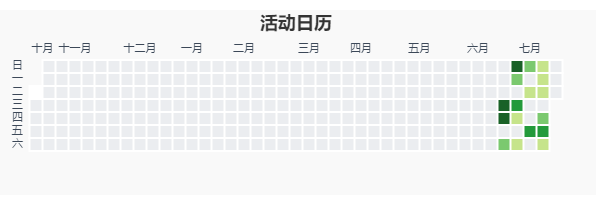
    <content type="html"><![CDATA[<p>在博客中插入类似 Github contributions 的活动日历。</p><div class="tip inlineBlock warning">            <p>注意：此插件会和<code>hexo g</code>命令冲突，请使用<code>hexo ge</code>或<code>hexo generate</code>替代<code>hexo g</code>命令！</p>          </div><h2 id="前提条件"><a class="markdownIt-Anchor" href="#前提条件"></a> 前提条件</h2><div class="tip inlineBlock error">            <p>注意：不满足前提条件的无法使用此插件，在不满足前提条件的情况下安装此插件出现的问题不予以处理，如何实现以下前提条件的问题不予以处理！</p>          </div><ol><li>Node.js &gt;= 12.0</li><li>使用<a href="https://git-scm.com/">Git</a>对博客**源码（不是使用 git 部署）**进行管理；</li><li>在博客根目录使用<code>git log -1 --date=iso --pretty=format:&quot;%ad&quot;</code>命令能够输出一个日期；</li><li>如何确定第一项是否符合：<ol><li>博客根目录含有<code>.git</code>文件夹，这是一个隐藏文件夹；</li><li>符合上面的第三项。</li></ol></li></ol><h2 id="安装"><a class="markdownIt-Anchor" href="#安装"></a> 安装</h2><pre class="highlight"><code class="shell">npm i hexo-calendar -S</code></pre><p>or</p><pre class="highlight"><code class="shell">cnpm i hexo-calendar -S</code></pre><h2 id="使用"><a class="markdownIt-Anchor" href="#使用"></a> 使用</h2><h3 id="作为辅助函数在主题模板中使用"><a class="markdownIt-Anchor" href="#作为辅助函数在主题模板中使用"></a> 作为辅助函数在主题模板中使用</h3><pre class="highlight"><code class="ejs">&lt;%- calendar(&#123;monthLang: 'cn', dayLang: 'cn', title: '活动日历'&#125;) %&gt;</code></pre><h3 id="作为标签在-md-文件中使用"><a class="markdownIt-Anchor" href="#作为标签在-md-文件中使用"></a> 作为标签在 md 文件中使用</h3><div class="tip inlineBlock warning">            <p>注意：这种方法请使用严格的 JSON 格式！</p>          </div><pre class="highlight"><code class="Nunjucks">&#123;% calendar %&#125;&#123;"monthLang": "cn", "dayLang": "cn", "title": "活动日历"&#125;&#123;% endcalendar %&#125;</code></pre><h3 id="如果你使用了自动部署"><a class="markdownIt-Anchor" href="#如果你使用了自动部署"></a> 如果你使用了自动部署</h3><p>如果你使用了<code>Travis CI</code>, <code>Github Action</code>之类的自动部署，那么你需要在推送源码之前使用<code>hexo gc -w=40</code>命令生成一个<code>calendar.json</code>文件。<code>-w=40</code>代表显示 40 周之前至今的活动记录。</p><h2 id="选项"><a class="markdownIt-Anchor" href="#选项"></a> 选项</h2><table><thead><tr><th style="text-align:center">名称</th><th style="text-align:center">类型</th><th style="text-align:center">默认值</th><th style="text-align:center">描述</th></tr></thead><tbody><tr><td style="text-align:center">width</td><td style="text-align:center"><code>String</code></td><td style="text-align:center"><code>&quot;600&quot;</code></td><td style="text-align:center">日历宽度，单位：<code>px</code></td></tr><tr><td style="text-align:center">height</td><td style="text-align:center"><code>String</code></td><td style="text-align:center"><code>&quot;165&quot;</code></td><td style="text-align:center">日历高度，单位：<code>px</code></td></tr><tr><td style="text-align:center">id</td><td style="text-align:center"><code>String</code></td><td style="text-align:center"><code>&quot;calendar&quot;</code></td><td style="text-align:center">日历元素 id</td></tr><tr><td style="text-align:center">monthLang</td><td style="text-align:center"><code>String</code> or <code>Array</code></td><td style="text-align:center"><code>&quot;en&quot;</code></td><td style="text-align:center">月份语言，可选：<code>en</code>, <code>cn</code>或<a href="https://echarts.apache.org/zh/option.html#calendar.monthLabel.nameMap">自定义</a></td></tr><tr><td style="text-align:center">dayLang</td><td style="text-align:center"><code>String</code> or <code>Array</code></td><td style="text-align:center"><code>&quot;en&quot;</code></td><td style="text-align:center">一周中每一天的语言，可选：<code>en</code>, <code>cn</code>或<a href="https://echarts.apache.org/zh/option.html#calendar.dayLabel.nameMap">自定义</a></td></tr><tr><td style="text-align:center">weeks</td><td style="text-align:center"><code>Number</code></td><td style="text-align:center"><code>40</code></td><td style="text-align:center">显示多少周之前至今的活动记录</td></tr><tr><td style="text-align:center">title</td><td style="text-align:center"><code>String</code></td><td style="text-align:center"><code>&quot;calendar&quot;</code></td><td style="text-align:center">日历标题</td></tr><tr><td style="text-align:center">insertScript</td><td style="text-align:center"><code>Boolean</code></td><td style="text-align:center"><code>true</code></td><td style="text-align:center">是否自动插入<code>echarts</code>库。如果你已全局引入<code>echarts</code>库，请将此项设为<code>false</code>；如果你的站点启用了<code>pjax</code>，请将此项设为<code>false</code>，并全局引用<code>echarts</code>库。</td></tr></tbody></table><h2 id="示例"><a class="markdownIt-Anchor" href="#示例"></a> 示例</h2><p><img src="https://cdn.jsdelivr.net/gh/HCLonely/hexo-calendar@latest/example.png" alt="示例" /></p>]]></content>


    <summary type="html">&lt;p&gt;在博客中插入类似 Github contributions 的活动日历。&lt;/p&gt;
&lt;div class=&quot;tip inlineBlock warning&quot;&gt;
            &lt;p&gt;注意：此插件会和&lt;code&gt;hexo g&lt;/code&gt;命令冲突，请使用&lt;code&gt;he</summary>


    <category term="Hexo" scheme="https://blog.hclonely.com/categories/Hexo/"/>
    
    <category term="插件" scheme="https://blog.hclonely.com/categories/Hexo/%E6%8F%92%E4%BB%B6/"/>
    
    
    <category term="插件" scheme="https://blog.hclonely.com/tags/%E6%8F%92%E4%BB%B6/"/>
    
    <category term="Hexo" scheme="https://blog.hclonely.com/tags/Hexo/"/>
    
    <category term="日历" scheme="https://blog.hclonely.com/tags/%E6%97%A5%E5%8E%86/"/>
    
    <category term="tag" scheme="https://blog.hclonely.com/tags/tag/"/>
    
    <category term="helper" scheme="https://blog.hclonely.com/tags/helper/"/>
    
  </entry>
  
  <entry>
    <title>Git 免密、免 SSH 进行 push &amp; pull</title>
    <link href="https://blog.hclonely.com/posts/8585e79a/"/>
    <id>https://blog.hclonely.com/posts/8585e79a/</id>
    <published>2020-07-03T02:13:44.000Z</published>
    <updated>2026-03-01T12:56:46.443Z</updated>
    
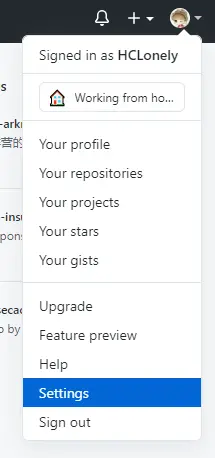
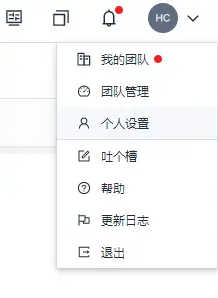
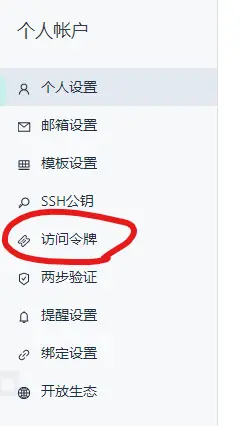
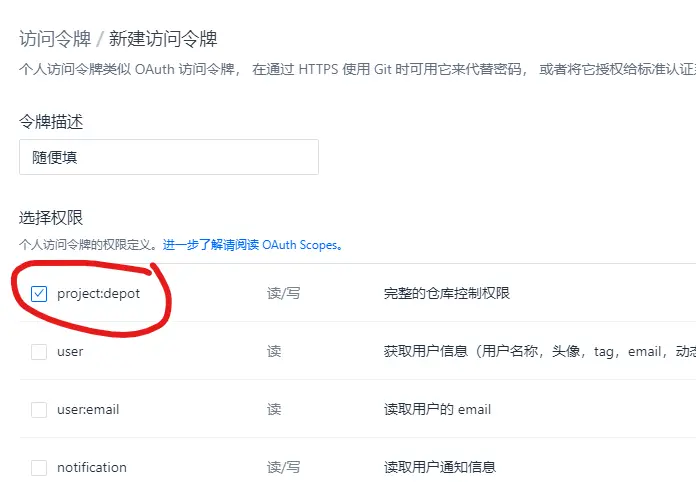
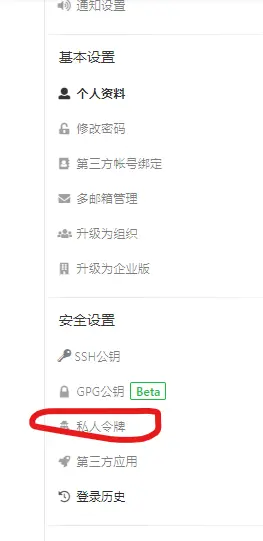
    <content type="html"><![CDATA[<p>本文介绍了如何不使用帐号密码，不配置 SSH 对 git 远程仓库进行拉取(pull)和推送(push), 如果你需要经常换电脑或使用公共电脑的话使用此方法比较安全。这里主要介绍 Github, Coding, 码云这三个比较主流的托管平台的配置方法。</p><h2 id="github"><a class="markdownIt-Anchor" href="#github"></a> Github</h2><ol><li>登录 Github, 点击右上角的头像-&gt;<code>Settings</code></li></ol><p><img src="https://cdn.jsdelivr.net/gh/HCLonely/images@latest/post/8585e79a/Github-1.webp" alt="Github-1" /></p><ol start="2"><li>点击<code>Developer settings</code></li></ol><p><img src="https://cdn.jsdelivr.net/gh/HCLonely/images@latest/post/8585e79a/Github-2.webp" alt="Github-2" /></p><ol start="3"><li>点击<code>Personal access tokens</code></li></ol><p><img src="https://cdn.jsdelivr.net/gh/HCLonely/images@latest/post/8585e79a/Github-3.webp" alt="Github-3" /></p><ol start="4"><li>点击<code>Generate new token</code>创建一个<code>token</code></li></ol><p><img src="https://cdn.jsdelivr.net/gh/HCLonely/images@latest/post/8585e79a/Github-4.webp" alt="Github-4" /></p><ol start="5"><li><code>Note</code>随便填就行，<code>Select scopes</code>勾选<code>repo</code>给与 repo 操作权限，然后拉到最下面点击<code>Generate token</code>即可</li></ol><p><img src="https://cdn.jsdelivr.net/gh/HCLonely/images@latest/post/8585e79a/Github-5.webp" alt="Github-5" /></p><ol start="6"><li>记住这个 token(我这里加密了，实际上是一串字母数字)</li></ol><p><img src="https://cdn.jsdelivr.net/gh/HCLonely/images@latest/post/8585e79a/Github-6.webp" alt="Github-6" /></p><ol start="7"><li><p>以<code>https://github.com/user/repo.git</code>仓库为例，只需要在仓库前面添加<code>x-access-token:**************@</code>即可，<code>************</code>替换成上一步的 token</p><pre class="highlight"><code class="code">https://x-access-token:**************@github.com/user/repo.git</code></pre></li></ol><h2 id="coding"><a class="markdownIt-Anchor" href="#coding"></a> Coding</h2><ol><li>登录 Coding, 点击右上角的头像-&gt;<code>个人设置</code></li></ol><p><img src="https://cdn.jsdelivr.net/gh/HCLonely/images@latest/post/8585e79a/Coding-1.webp" alt="Coding-1" /></p><ol start="2"><li>点击<code>访问令牌</code></li></ol><p><img src="https://cdn.jsdelivr.net/gh/HCLonely/images@latest/post/8585e79a/Coding-2.webp" alt="Coding-2" /></p><ol start="3"><li>点击<code>新建令牌</code>创建一个<code>令牌</code></li></ol><p><img src="https://cdn.jsdelivr.net/gh/HCLonely/images@latest/post/8585e79a/Coding-3.webp" alt="Coding-3" /></p><ol start="4"><li><code>令牌描述</code>随便填就行，<code>选择权限</code>勾选<code>project:depot</code>给与仓库操作权限，然后拉到最下面点击<code>创建令牌</code>即可</li></ol><p><img src="https://cdn.jsdelivr.net/gh/HCLonely/images@latest/post/8585e79a/Coding-4.webp" alt="Coding-4" /></p><ol start="6"><li>记住这个用户名和令牌(我这里加密了，实际上是一串字母数字)</li></ol><p><img src="https://cdn.jsdelivr.net/gh/HCLonely/images@latest/post/8585e79a/Coding-5.webp" alt="Coding-5" /></p><ol start="7"><li><p>以<code>https://e.coding.net/user/project/repo.git</code>仓库为例，只需要在仓库前面添加<code>用户名:令牌@</code>即可,<code>用户名</code>和<code>令牌</code>替换成上一步的用户名和令牌</p><pre class="highlight"><code class="code">https://*****:***********@e.coding.net/user/project/repo.git</code></pre></li></ol><h2 id="码云"><a class="markdownIt-Anchor" href="#码云"></a> 码云</h2><ol><li>登录码云, 点击右上角的头像-&gt;<code>设置</code></li></ol><p><img src="https://cdn.jsdelivr.net/gh/HCLonely/images@latest/post/8585e79a/Gitee-1.webp" alt="Gitee-1" /></p><ol start="2"><li>点击<code>私人令牌</code></li></ol><p><img src="https://cdn.jsdelivr.net/gh/HCLonely/images@latest/post/8585e79a/Gitee-2.webp" alt="Gitee-2" /></p><ol start="3"><li>点击<code>生成新令牌</code>创建一个<code>令牌</code></li></ol><p><img src="https://cdn.jsdelivr.net/gh/HCLonely/images@latest/post/8585e79a/Gitee-3.webp" alt="Gitee-3" /></p><ol start="4"><li><code>私人令牌描述</code>随便填就行，<code>请选择将要生成的私人令牌所拥有的权限</code>勾选<code>projects</code>给与仓库操作权限，如果弄需要<code>Pull Requests</code>那就把下面的<code>pull_requests</code>也勾选上，然后拉到最下面点击<code>提交</code>即可</li></ol><p><img src="https://cdn.jsdelivr.net/gh/HCLonely/images@latest/post/8585e79a/Gitee-4.webp" alt="Gitee-4" /></p><ol start="6"><li>记住这个令牌(我这里加密了，实际上是一串字母数字)</li></ol><p><img src="https://cdn.jsdelivr.net/gh/HCLonely/images@latest/post/8585e79a/Gitee-5.webp" alt="Gitee-5" /></p><ol start="7"><li><p>以<code>https://gitee.com/user/repo.git</code>仓库为例，只需要在仓库前面添加<code>oauth2:**********</code>即可,<code>**********</code>替换成上一步的令牌</p><pre class="highlight"><code class="code">https://oauth2:**********@gitee.com/user/repo.git</code></pre></li></ol><div class="tip inlineBlock warning">            <p>安全起见，如果你使用公共电脑进行仓库的 push&amp;pull 操作，请在离开时删除你的代码仓库，如果你之后还要用不想删除代码仓库，请使用<code>git remote rm</code>命令把仓库链接删掉！</p>          </div>]]></content>


    <summary type="html">&lt;p&gt;本文介绍了如何不使用帐号密码，不配置 SSH 对 git 远程仓库进行拉取(pull)和推送(push), 如果你需要经常换电脑或使用公共电脑的话使用此方法比较安全。这里主要介绍 Github, Coding, 码云这三个比较主流的托管平台的配置方法。&lt;/p&gt;
&lt;h2 id</summary>


    <category term="Git" scheme="https://blog.hclonely.com/categories/Git/"/>
    
    
    <category term="Git" scheme="https://blog.hclonely.com/tags/Git/"/>
    
    <category term="Github" scheme="https://blog.hclonely.com/tags/Github/"/>
    
    <category term="Coding" scheme="https://blog.hclonely.com/tags/Coding/"/>
    
    <category term="码云" scheme="https://blog.hclonely.com/tags/%E7%A0%81%E4%BA%91/"/>
    
  </entry>
  
  <entry>
    <title>一款基于 webstack 的 hexo 主题</title>
    <link href="https://blog.hclonely.com/posts/3cd4fb34/"/>
    <id>https://blog.hclonely.com/posts/3cd4fb34/</id>
    <published>2020-06-05T03:08:31.000Z</published>
    <updated>2026-03-01T12:56:46.444Z</updated>
    
    <content type="html"><![CDATA[<blockquote><p>一款基于<a href="https://github.com/WebStackPage/WebStackPage.github.io">WebStackPage</a>的 Hexo 主题。<a href="https://webstack.hclonely.com/">Demo</a></p></blockquote><p><img src="https://cdn.jsdelivr.net/gh/HCLonely/hexo-theme-webstack@latest/screenshot/screenshot.png" alt="screenshot" /></p><div id="badge-container-HCLonely-hexo-theme-webstack-fc2ec5e" class="hexo-github" style="width: 100%"></div><script src="/hexo-github/badge.js"></script><script type="text/javascript">  loadStyle("/hexo-github/style.css");  loadStyle("/hexo-github/octicons/octicons.css");  new Badge("#badge-container-HCLonely-hexo-theme-webstack-fc2ec5e", "HCLonely", "hexo-theme-webstack", "fc2ec5e", false);</script><h2 id="安装"><a class="markdownIt-Anchor" href="#安装"></a> 安装</h2><pre class="highlight"><code class="shell">git clone https://github.com/HCLonely/hexo-theme-webstack themes/webstack</code></pre><h2 id="配置"><a class="markdownIt-Anchor" href="#配置"></a> 配置</h2><h3 id="favicon"><a class="markdownIt-Anchor" href="#favicon"></a> favicon</h3><blockquote><p>网站图标</p></blockquote><p>示例：</p><pre class="highlight"><code class="yml"><span class="hljs-attr">favicon:</span> <span class="hljs-string">/favicon.ico</span></code></pre><h3 id="banner"><a class="markdownIt-Anchor" href="#banner"></a> banner</h3><blockquote><p>[可选]分享网站到 twitter 和 facebook 时的图片。</p></blockquote><p>示例：</p><pre class="highlight"><code class="yml"><span class="hljs-attr">banner:</span> <span class="hljs-string">/images/webstack_banner_cn.png</span></code></pre><h3 id="logo"><a class="markdownIt-Anchor" href="#logo"></a> logo</h3><blockquote><p>网站 logo</p></blockquote><ul><li><code>expanded</code>: 侧边栏展开时左上角的 logo<br /><img src="https://cdn.jsdelivr.net/gh/HCLonely/images@latest/post/3cd4fb34/expanded.webp" alt="expanded" /></li><li><code>collapsed</code>: 侧边栏收起时左上角的 logo<br /><img src="https://cdn.jsdelivr.net/gh/HCLonely/images@latest/post/3cd4fb34/collapsed.webp" alt="collapsed" /></li><li><code>dark</code>: 顶栏为暗色时左上角的 logo, 仅 <code>about</code> 页面生效<br /><img src="https://cdn.jsdelivr.net/gh/HCLonely/images@latest/post/3cd4fb34/dark.webp" alt="dark" /></li></ul><p>示例：</p><pre class="highlight"><code class="yml"><span class="hljs-attr">logo:</span>  <span class="hljs-attr">expanded:</span> <span class="hljs-string">/images/logo@2x.png</span>  <span class="hljs-attr">collapsed:</span> <span class="hljs-string">/images/logo-collapsed@2x.png</span>  <span class="hljs-attr">dark:</span> <span class="hljs-string">/images/logo_dark@2x.png</span></code></pre><h3 id="flag"><a class="markdownIt-Anchor" href="#flag"></a> flag</h3><blockquote><p>语言标识，多语言请配合<a href="#%E5%AD%90%E9%A1%B5%E9%9D%A2%E9%85%8D%E7%BD%AE">子页面</a>使用</p></blockquote><ul><li>icon: 语言图标，默认仅有<code>flag-cn</code>和<code>flag-us</code>, 其他图标自行寻找存放于<code>主题目录/source/images/flags/</code></li><li>name: 语言名称</li><li>default: 该语言是否为默认语言</li><li>index: 页面链接</li></ul><p>示例：</p><pre class="highlight"><code class="yml"><span class="hljs-attr">flag:</span>  <span class="hljs-bullet">-</span> <span class="hljs-attr">name:</span> <span class="hljs-string">Chinese</span>    <span class="hljs-attr">default:</span> <span class="hljs-literal">true</span>    <span class="hljs-attr">icon:</span> <span class="hljs-string">flag-cn</span>    <span class="hljs-attr">index:</span> <span class="hljs-string">/index.html</span></code></pre><p><img src="https://cdn.jsdelivr.net/gh/HCLonely/images@latest/post/3cd4fb34/flag.webp" alt="flag" /></p><h3 id="search"><a class="markdownIt-Anchor" href="#search"></a> search</h3><blockquote><p>是否显示搜索框</p></blockquote><p>示例：</p><pre class="highlight"><code class="yml"><span class="hljs-attr">search:</span> <span class="hljs-literal">true</span></code></pre><h3 id="userdefinedsearchdata"><a class="markdownIt-Anchor" href="#userdefinedsearchdata"></a> userDefinedSearchData</h3><blockquote><p>自定义搜索引擎</p></blockquote><ul><li>custom: 是否启用自定义配置</li><li>thisSearch: 当前搜索引擎的搜索链接</li><li>thisSearchIcon: 当前搜索引擎的图标链接，格式为<code>url(图片链接)</code></li><li>hotStatus: 是否启用搜热词功能</li><li>data: 多搜索引擎配置<ul><li>name: 搜索引擎名字<br />img: 搜索引擎的搜索链接<br />url: 搜索引擎的图标链接，格式为<code>url(图片链接)</code></li></ul></li></ul><p>示例：</p><pre class="highlight"><code class="yml"><span class="hljs-attr">userDefinedSearchData:</span>  <span class="hljs-attr">custom:</span> <span class="hljs-literal">true</span>  <span class="hljs-attr">thisSearch:</span> <span class="hljs-string">https://www.baidu.com/s?wd=</span>  <span class="hljs-attr">thisSearchIcon:</span> <span class="hljs-string">url(https://www.baidu.com/favicon.ico)</span>  <span class="hljs-attr">hotStatus:</span> <span class="hljs-literal">true</span>  <span class="hljs-attr">data:</span>    <span class="hljs-bullet">-</span> <span class="hljs-attr">name:</span> <span class="hljs-string">百度</span>      <span class="hljs-attr">img:</span> <span class="hljs-string">url(https://www.baidu.com/favicon.ico)</span>      <span class="hljs-attr">url:</span> <span class="hljs-string">https://www.baidu.com/s?wd=</span>    <span class="hljs-bullet">-</span> <span class="hljs-attr">name:</span> <span class="hljs-string">谷歌</span>      <span class="hljs-attr">img:</span> <span class="hljs-string">url(https://www.google.com/favicon.ico)</span>      <span class="hljs-attr">url:</span> <span class="hljs-string">https://www.google.com/search?q=</span></code></pre><h3 id="githubcorner"><a class="markdownIt-Anchor" href="#githubcorner"></a> githubCorner</h3><blockquote><p>右上角的 <a href="http://tholman.com/github-corners/">github corner</a></p></blockquote><p>示例：</p><pre class="highlight"><code class="yml"><span class="hljs-attr">githubCorner:</span> <span class="hljs-string">'&lt;a href="https://github.com/HCLonely/hexo-theme-webstack" class="github-corner" aria-label="View source on GitHub"&gt;&lt;svg width="80" height="80" viewBox="0 0 250 250" style="fill:#151513; color:#fff; position: absolute; top: 0; border: 0; right: 0;" aria-hidden="true"&gt;&lt;path d="M0,0 L115,115 L130,115 L142,142 L250,250 L250,0 Z"&gt;&lt;/path&gt;&lt;path d="M128.3,109.0 C113.8,99.7 119.0,89.6 119.0,89.6 C122.0,82.7 120.5,78.6 120.5,78.6 C119.2,72.0 123.4,76.3 123.4,76.3 C127.3,80.9 125.5,87.3 125.5,87.3 C122.9,97.6 130.6,101.9 134.4,103.2" fill="currentColor" style="transform-origin: 130px 106px;" class="octo-arm"&gt;&lt;/path&gt;&lt;path d="M115.0,115.0 C114.9,115.1 118.7,116.5 119.8,115.4 L133.7,101.6 C136.9,99.2 139.9,98.4 142.2,98.6 C133.8,88.0 127.5,74.4 143.8,58.0 C148.5,53.4 154.0,51.2 159.7,51.0 C160.3,49.4 163.2,43.6 171.4,40.1 C171.4,40.1 176.1,42.5 178.8,56.2 C183.1,58.6 187.2,61.8 190.9,65.4 C194.5,69.0 197.7,73.2 200.1,77.6 C213.8,80.2 216.3,84.9 216.3,84.9 C212.7,93.1 206.9,96.0 205.4,96.6 C205.1,102.4 203.0,107.8 198.3,112.5 C181.9,128.9 168.3,122.5 157.7,114.1 C157.9,116.9 156.7,120.9 152.7,124.9 L141.0,136.5 C139.8,137.7 141.6,141.9 141.8,141.8 Z" fill="currentColor" class="octo-body"&gt;&lt;/path&gt;&lt;/svg&gt;&lt;/a&gt;&lt;style&gt;.github-corner:hover .octo-arm&#123;animation:octocat-wave 560ms ease-in-out&#125;@keyframes octocat-wave&#123;0%,100<span class="hljs-template-variable">%&#123;transform:rotate(0)&#125;</span>20%,60<span class="hljs-template-variable">%&#123;transform:rotate(-25deg)&#125;</span>40%,80<span class="hljs-template-variable">%&#123;transform:rotate(10deg)&#125;</span>&#125;@media (max-width:500px)&#123;.github-corner:hover .octo-arm&#123;animation:none&#125;.github-corner .octo-arm&#123;animation:octocat-wave 560ms ease-in-out&#125;&#125;&lt;/style&gt;'</span></code></pre><p><img src="https://cdn.jsdelivr.net/gh/HCLonely/images@latest/post/3cd4fb34/github.webp" alt="github" /></p><h3 id="since"><a class="markdownIt-Anchor" href="#since"></a> since</h3><blockquote><p>建站年份，显示在页面底部</p></blockquote><p>示例：</p><pre class="highlight"><code class="yml"><span class="hljs-attr">since:</span> <span class="hljs-number">2020</span></code></pre><p><img src="https://cdn.jsdelivr.net/gh/HCLonely/images@latest/post/3cd4fb34/since.webp" alt="since" /></p><h3 id="menu"><a class="markdownIt-Anchor" href="#menu"></a> menu</h3><blockquote><p><strong>[主要]侧边栏菜单设置</strong></p></blockquote><ul><li>name: 分组名</li><li>icon: 分组图标</li><li>config: [主要]分组内容(详细设置查看<a href="#config">Config</a>)，如果有二级菜单则不需要此项！</li><li>submenu: 二级菜单，如果有二级菜单则不需要<code>config</code>, 此选项内容包含<code>name</code>, <code>icon</code>, <code>config</code>选项</li></ul><p>示例：</p><pre class="highlight"><code class="yml"><span class="hljs-attr">menu:</span>  <span class="hljs-bullet">-</span> <span class="hljs-attr">name:</span> <span class="hljs-string">常用工具</span>    <span class="hljs-attr">icon:</span> <span class="hljs-string">far</span> <span class="hljs-string">fa-star</span>    <span class="hljs-attr">config:</span> <span class="hljs-string">hotTools</span>  <span class="hljs-bullet">-</span> <span class="hljs-attr">name:</span> <span class="hljs-string">其他工具</span>    <span class="hljs-attr">icon:</span> <span class="hljs-string">fas</span> <span class="hljs-string">fa-tools</span>    <span class="hljs-attr">submenu:</span>      <span class="hljs-bullet">-</span> <span class="hljs-attr">name:</span> <span class="hljs-string">开发工具</span>        <span class="hljs-attr">icon:</span> <span class="hljs-string">fas</span> <span class="hljs-string">fa-tools</span>        <span class="hljs-attr">config:</span> <span class="hljs-string">devTools</span>      <span class="hljs-bullet">-</span> <span class="hljs-attr">name:</span> <span class="hljs-string">我的博客</span>        <span class="hljs-attr">icon:</span> <span class="hljs-string">fas</span> <span class="hljs-string">fa-blog</span>        <span class="hljs-attr">config:</span> <span class="hljs-string">myBlog</span></code></pre><p><img src="https://cdn.jsdelivr.net/gh/HCLonely/images@latest/post/3cd4fb34/menu.webp" alt="menu" /></p><h3 id="expandall"><a class="markdownIt-Anchor" href="#expandall"></a> expandAll</h3><blockquote><p>是否将侧边栏全部展开</p></blockquote><p>示例：</p><pre class="highlight"><code class="yml"><span class="hljs-attr">expandAll:</span> <span class="hljs-literal">true</span></code></pre><h3 id="about"><a class="markdownIt-Anchor" href="#about"></a> about</h3><blockquote><p>侧边栏的关于本站</p></blockquote><ul><li>url: 关于页面链接</li><li>name: 在侧边栏显示的文字</li><li>icon: 图标</li></ul><p>示例：</p><pre class="highlight"><code class="yml"><span class="hljs-attr">about:</span>  <span class="hljs-attr">url:</span> <span class="hljs-string">/about/</span>  <span class="hljs-attr">icon:</span> <span class="hljs-string">far</span> <span class="hljs-string">fa-heart</span>  <span class="hljs-attr">name:</span> <span class="hljs-string">关于本站</span></code></pre><p><img src="https://cdn.jsdelivr.net/gh/HCLonely/images@latest/post/3cd4fb34/about.webp" alt="about" /></p><h3 id="aboutpage"><a class="markdownIt-Anchor" href="#aboutpage"></a> aboutPage</h3><blockquote><p>关于页面设置</p></blockquote><ol><li>生成关于页面</li></ol><pre class="highlight"><code class="shell">hexo new page about</code></pre><ol start="2"><li>编辑<code>source/about/index.md</code>, 添加<code>type: 'about'</code></li></ol><pre class="highlight"><code class="yml"><span class="hljs-meta">---</span><span class="hljs-attr">title:</span> <span class="hljs-string">about</span><span class="hljs-attr">date:</span> <span class="hljs-number">2020</span><span class="hljs-number">-06</span><span class="hljs-number">-04</span> <span class="hljs-number">18</span><span class="hljs-string">:11:54</span><span class="hljs-attr">type:</span> <span class="hljs-string">'about'</span><span class="hljs-meta">---</span></code></pre><ol start="3"><li>编辑主题配置文件的<code>aboutPage</code></li></ol><ul><li>website: 关于本站内容<ul><li>head: 标题</li><li>html: 内容，支持<code>html</code>语法</li></ul></li><li>webmaster: 关于站长内容<ul><li>head: 标题</li><li>name: 站长名字</li><li>url: 链接</li><li>img: 头像</li><li>description: 描述</li><li>html: 其他内容，支持<code>html</code>语法</li></ul></li></ul><p>示例：</p><pre class="highlight"><code class="yml"><span class="hljs-attr">aboutPage:</span>  <span class="hljs-attr">website:</span>    <span class="hljs-attr">head:</span> <span class="hljs-string">关于本站</span>    <span class="hljs-attr">html:</span> <span class="hljs-string">'&lt;blockquote&gt;&lt;p&gt;本站是hexo主题&lt;a href="https://github.com/HCLonely/hexo-theme-webstack"&gt;hexo-theme-webstack&lt;/a&gt;的demo站。&lt;/p&gt;&lt;/blockquote&gt;'</span>  <span class="hljs-attr">webmaster:</span>    <span class="hljs-attr">head:</span> <span class="hljs-string">关于站长</span>    <span class="hljs-attr">name:</span> <span class="hljs-string">HCLonely</span>    <span class="hljs-attr">url:</span> <span class="hljs-string">https://blog.hclonely.com/</span>    <span class="hljs-attr">img:</span> <span class="hljs-string">/images/logos/myblog.png</span>    <span class="hljs-attr">description:</span> <span class="hljs-string">懒人一个</span>    <span class="hljs-attr">html:</span> <span class="hljs-string">'&lt;br /&gt;&lt;blockquote&gt;&lt;p&gt;本站是&lt;a href="https://github.com/HCLonely"&gt;HCLonely&lt;/a&gt;基于&lt;a href="https://github.com/WebStackPage/WebStackPage.github.io"&gt;WebStackPage&lt;/a&gt;项目做的一款&lt;a href="https://hexo.io/"&gt;Hexo&lt;/a&gt;主题。&lt;/p&gt;&lt;/blockquote&gt;'</span></code></pre><p><img src="https://cdn.jsdelivr.net/gh/HCLonely/images@latest/post/3cd4fb34/aboutPage.webp" alt="aboutPage" /></p><h3 id="busuanzi"><a class="markdownIt-Anchor" href="#busuanzi"></a> busuanzi</h3><blockquote><p>不蒜子统计</p></blockquote><ul><li>enable: 是否启用不蒜子统计</li><li>position: 访问量显示位置, <code>footer</code>显示在页脚, <code>sidebar</code>显示在侧边栏</li><li>pv: 访问量显示的内容, <code>$pv</code>会被替换为访问量</li><li>uv: 访客数显示的内容, <code>$uv</code>会被替换为访客数</li></ul><p>示例：</p><pre class="highlight"><code class="yml"><span class="hljs-attr">busuanzi:</span>  <span class="hljs-attr">enable:</span> <span class="hljs-literal">true</span>  <span class="hljs-attr">position:</span> <span class="hljs-string">sidebar</span>  <span class="hljs-attr">pv:</span> <span class="hljs-string">本站总访问量$pv</span>  <span class="hljs-attr">uv:</span> <span class="hljs-string">本站总访客数$uv</span></code></pre><p><img src="https://cdn.jsdelivr.net/gh/HCLonely/images@latest/post/3cd4fb34/sidebar.webp" alt="sidebar" /><br /><img src="https://cdn.jsdelivr.net/gh/HCLonely/images@latest/post/3cd4fb34/footer.webp" alt="footer" /></p><h3 id="custom"><a class="markdownIt-Anchor" href="#custom"></a> custom</h3><blockquote><p>自定义<code>html</code>内容</p></blockquote><ul><li>head: 插入到<code>&lt;head&gt;&lt;/head&gt;</code>标签内的内容</li><li>body: 插入到<code>&lt;/body&gt;</code>标签之前的内容</li></ul><p>示例：</p><pre class="highlight"><code class="yml"><span class="hljs-attr">custom:</span>  <span class="hljs-attr">head:</span> <span class="hljs-string">|-</span> <span class="hljs-comment"># 以下内容插入到&lt;head&gt;&lt;/head&gt;标签内，可设置多行，注意每行开头至少四个空格</span>    <span class="hljs-string">&lt;link</span> <span class="hljs-string">rel="stylesheet"</span> <span class="hljs-string">type="text/css"</span> <span class="hljs-string">href="custom.css"&gt;</span>    <span class="hljs-string">&lt;script</span> <span class="hljs-string">src="custom.js"&gt;&lt;/script&gt;</span>  <span class="hljs-attr">body:</span> <span class="hljs-string">|-</span> <span class="hljs-comment"># 以下内容插入到&lt;/body&gt;标签之前，可设置多行，注意每行开头至少四个空格</span>    <span class="hljs-string">&lt;div&gt;custom</span> <span class="hljs-string">text&lt;/div&gt;</span>    <span class="hljs-string">&lt;script</span> <span class="hljs-string">src="custom.js"&gt;&lt;/script&gt;</span></code></pre><h2 id="config"><a class="markdownIt-Anchor" href="#config"></a> config</h2><blockquote><p>[主要]网站内容设置</p></blockquote><h3 id="参数"><a class="markdownIt-Anchor" href="#参数"></a> 参数</h3><ul><li>name: 网站名称</li><li>url: 网站链接</li><li>img: 网站图标</li><li>description: 网站描述</li></ul><p>示例：</p><pre class="highlight"><code class="yml"><span class="hljs-bullet">-</span> <span class="hljs-attr">name:</span> <span class="hljs-string">HCLonely</span> <span class="hljs-string">Blog</span>  <span class="hljs-attr">url:</span> <span class="hljs-string">https://blog.hclonely.com/</span>  <span class="hljs-attr">img:</span> <span class="hljs-string">/images/logos/myBlog.png</span>  <span class="hljs-attr">description:</span> <span class="hljs-string">一个懒人的博客。</span></code></pre><h3 id="关联设置名称并添加网站"><a class="markdownIt-Anchor" href="#关联设置名称并添加网站"></a> 关联设置名称并添加网站</h3><p>在<code>menu</code>和<code>submenu</code>中设置的<code>config</code>的内容为此选项的名称。</p><p>例<code>menu</code>：</p><pre class="highlight"><code class="yml"><span class="hljs-attr">menu:</span>  <span class="hljs-bullet">-</span> <span class="hljs-attr">name:</span> <span class="hljs-string">常用工具</span>    <span class="hljs-attr">icon:</span> <span class="hljs-string">far</span> <span class="hljs-string">fa-star</span>    <span class="hljs-attr">config:</span> <span class="hljs-string">hotTools</span></code></pre><p>则<code>常用工具</code>分组里的网站有以下两种添加方式：</p><ul><li>在主题的<code>_config.yml</code>里添加：</li></ul><pre class="highlight"><code class="yml"><span class="hljs-attr">hotTools:</span>  <span class="hljs-bullet">-</span> <span class="hljs-attr">name:</span> <span class="hljs-string">HCLonely</span> <span class="hljs-string">Blog</span>    <span class="hljs-attr">url:</span> <span class="hljs-string">https://blog.hclonely.com/</span>    <span class="hljs-attr">img:</span> <span class="hljs-string">/images/logos/myBlog.png</span>    <span class="hljs-attr">description:</span> <span class="hljs-string">一个懒人的博客。</span>  <span class="hljs-bullet">-</span> <span class="hljs-attr">name:</span> <span class="hljs-string">Github</span>    <span class="hljs-attr">url:</span> <span class="hljs-string">https://github.com/</span>    <span class="hljs-attr">img:</span> <span class="hljs-string">/images/logos/github.png</span>    <span class="hljs-attr">description:</span> <span class="hljs-string">面向开源及私有软件项目的托管平台。</span></code></pre><ul><li>在<code>站点根目录/source/_data/</code>(没有自行创建)内新建<code>hotTools.yml</code>文件，文件内容如下：</li></ul><pre class="highlight"><code class="yml"><span class="hljs-bullet">-</span> <span class="hljs-attr">name:</span> <span class="hljs-string">HCLonely</span> <span class="hljs-string">Blog</span>  <span class="hljs-attr">url:</span> <span class="hljs-string">https://blog.hclonely.com/</span>  <span class="hljs-attr">img:</span> <span class="hljs-string">/images/logos/myBlog.png</span>  <span class="hljs-attr">description:</span> <span class="hljs-string">一个懒人的博客。</span><span class="hljs-bullet">-</span> <span class="hljs-attr">name:</span> <span class="hljs-string">Github</span>  <span class="hljs-attr">url:</span> <span class="hljs-string">https://github.com/</span>  <span class="hljs-attr">img:</span> <span class="hljs-string">/images/logos/github.png</span>  <span class="hljs-attr">description:</span> <span class="hljs-string">面向开源及私有软件项目的托管平台。</span></code></pre><p>以上两种方式任选一种即可，建议使用第二种。</p><h2 id="子页面配置"><a class="markdownIt-Anchor" href="#子页面配置"></a> 子页面配置</h2><h3 id="创建子页面"><a class="markdownIt-Anchor" href="#创建子页面"></a> 创建子页面</h3><p>使用<code>hexo new page xxx</code>创建子页面，这里包括下面的说明都以<code>hexo new page child</code>为例。</p><h3 id="修改子页面配置文件"><a class="markdownIt-Anchor" href="#修改子页面配置文件"></a> 修改子页面配置文件</h3><p>使用上面的命令生成子页面后，打开<code>根目录/source/child/index.md</code>文件（子页面配置文件），在两个<code>---</code>之间添加一行<code>type: 'child'</code>使此配置文件生效，子页面默认使用主页的配置，子页面优先使用子页面配置文件两个<code>---</code>之间的配置，各配置项和主页的配置功能相同。</p><p>示例请看<a href="https://github.com/HCLonely/hexo-theme-webstack/tree/gh-pages/source/child/index.md">https://github.com/HCLonely/hexo-theme-webstack/tree/gh-pages/source/child/index.md</a></p><blockquote><p>由于子页面在很久之前就基本做完了，后来比较忙就鸽了，可能有些配置或 bug 给忘了，有问题请及时反馈！</p></blockquote>]]></content>


    <summary type="html">&lt;blockquote&gt;
&lt;p&gt;一款基于&lt;a href=&quot;https://github.com/WebStackPage/WebStackPage.github.io&quot;&gt;WebStackPage&lt;/a&gt;的 Hexo 主题。&lt;a href=&quot;https://webstack.hcl</summary>


    <category term="Hexo" scheme="https://blog.hclonely.com/categories/Hexo/"/>
    
    <category term="主题" scheme="https://blog.hclonely.com/categories/Hexo/%E4%B8%BB%E9%A2%98/"/>
    
    
    <category term="Hexo" scheme="https://blog.hclonely.com/tags/Hexo/"/>
    
    <category term="主题" scheme="https://blog.hclonely.com/tags/%E4%B8%BB%E9%A2%98/"/>
    
  </entry>
  
  <entry>
    <title>使用 cron-job 解决 LeanCloud 因流控原因自动唤醒失败的问题</title>
    <link href="https://blog.hclonely.com/posts/ac04080d/"/>
    <id>https://blog.hclonely.com/posts/ac04080d/</id>
    <published>2020-05-17T14:10:34.000Z</published>
    <updated>2026-03-01T12:56:46.444Z</updated>
    
    <content type="html"><![CDATA[<p>Valine-admin 由于 Leancloud 流控原因，自动唤醒任务可能会失败，详情：<a href="https://forum.leancloud.cn/t/topic/22595">https://forum.leancloud.cn/t/topic/22595</a></p><p>所以这里介绍一个使用第三方计划任务网站进行定时唤醒 Valine-admin 的方法。</p><h2 id="注册cron-job帐号"><a class="markdownIt-Anchor" href="#注册cron-job帐号"></a> 注册<a href="https://cron-job.org/">cron-job</a>帐号</h2><p>注册地址：<a href="https://cron-job.org/en/signup/">https://cron-job.org/en/signup/</a></p><div class="tip inlineBlock warning">            <p>注册时的时区请选择<code>Asia/Shanghai</code></p>          </div><p><img src="https://cdn.jsdelivr.net/gh/HCLonely/images@latest/post/ac04080d/1.webp" alt="注册" /></p><h2 id="添加一个计划任务"><a class="markdownIt-Anchor" href="#添加一个计划任务"></a> 添加一个计划任务</h2><ol><li><p>登陆之后依次点击<code>Members</code>,<code>cronjobs</code>,<code>Create cronjob</code></p><p><img src="https://cdn.jsdelivr.net/gh/HCLonely/images@latest/post/ac04080d/2.webp" alt="First" /></p></li><li><p>Title, Address</p><ul><li><code>Title</code>可以随便填一个</li><li><code>Address</code>填写你的云引擎环境变量的<code>ADMIN_URL</code>，也就是 Leancloud 的<code>Web 主机域名</code>。如果你用的我<a href="/posts/409d3090/">Valine 添加博主标签及评论微信、QQ 通知</a>文章里的最新版的仓库，还需要在后面加上<code>/start</code>，当然也可以不加，加上会有唤醒日志。</li></ul></li><li><p>Schedule</p><ul><li>选择<code>User-defined</code>进行自定义设置</li><li><code>Days of month</code>: 全选</li><li><code>Days of week</code>: 全选</li><li><code>Months</code>: 全选</li><li><code>Hours</code>: 你需要在哪个时间段唤醒就选择什么</li><li><code>Minutes</code>: 选择<code>0</code>,<code>20</code>,<code>40</code></li><li>按住<kbd>Ctrl</kbd>可多选</li></ul></li><li><p>Notifications</p><ul><li>可以不用修改，也可以根据自己的需要修改</li></ul></li><li><p>Common</p><ul><li>勾选<code>Save responses</code>, 保存唤醒日志</li></ul></li><li><p>点击<code>Create cronjob</code></p></li></ol>]]></content>


    <summary type="html">&lt;p&gt;Valine-admin 由于 Leancloud 流控原因，自动唤醒任务可能会失败，详情：&lt;a href=&quot;https://forum.leancloud.cn/t/topic/22595&quot;&gt;https://forum.leancloud.cn/t/topic/22595</summary>


    <category term="Valine" scheme="https://blog.hclonely.com/categories/Valine/"/>
    
    
    <category term="Valine" scheme="https://blog.hclonely.com/tags/Valine/"/>
    
  </entry>
  
  <entry>
    <title>Valine 添加验证码、博主标签及评论微信、QQ 通知</title>
    <link href="https://blog.hclonely.com/posts/409d3090/"/>
    <id>https://blog.hclonely.com/posts/409d3090/</id>
    <published>2020-04-23T11:01:09.000Z</published>
    <updated>2026-03-01T12:56:46.443Z</updated>
    
    <content type="html"><![CDATA[<div class="tip inlineBlock success">            <p>本教程介绍了如何给 Valine 评论系统添加<code>博主</code>、<code>小伙伴</code>、 <code>访客</code>标签，添加<code>浏览器</code>及<code>操作系统图标</code>，以及评论<code>微信</code>及<code>QQ</code>通知。</p>          </div><div class="tip inlineBlock warning">            <p>建议有一定 JS 基础的用户根据本教程进行自定义修改，至少能够自己找到为什么会报错，否则不建议修改！</p>          </div><h2 id="添加标签及图标"><a class="markdownIt-Anchor" href="#添加标签及图标"></a> 添加标签及图标</h2><div class="tip inlineBlock warning">            <p>基于<a href="https://github.com/xCss/Valine">https://github.com/xCss/Valine</a>修改。</p><p>由于 1.4.0 以后 Valine 作者不再发布源码，所以这里不说如何修改了，只放出我修改好的 js 链接及使用方法。</p>          </div><div class="tip inlineBlock error">            <p>参数如何添加请查看 Demo 站源码的<a href="https://github.com/HCLonely/hexo-demo/blob/master/source/_data/butterfly.yml">butterfly.yml 文件</a>和<a href="https://github.com/HCLonely/hexo-demo/blob/master/themes/Butterfly/layout/includes/comments/valine.pug">valine.pug 文件</a></p>          </div><h3 id="链接"><a class="markdownIt-Anchor" href="#链接"></a> 链接</h3><p><a href="https://cdn.jsdelivr.net/gh/HCLonely/Valine@latest/dist/Valine.min.js">https://cdn.jsdelivr.net/gh/HCLonely/Valine@latest/dist/Valine.min.js</a></p><h3 id="与原版相比"><a class="markdownIt-Anchor" href="#与原版相比"></a> 与原版相比</h3><ul><li>添加<code>博主</code>，<code>小伙伴</code>，<code>访客</code>标签</li><li>添加<code>浏览器</code>和<code>操作系统</code>图标，需<code>fontawesomeV5</code>支持</li><li>邮箱检测更严格</li><li><code>meta placeholder</code>可自定义</li></ul><h3 id="使用方法"><a class="markdownIt-Anchor" href="#使用方法"></a> 使用方法</h3><div class="tip inlineBlock warning">            <p>基本方法同原版相同，请先查看<a href="https://valine.js.org/">原版使用文档</a>并配置好。</p><p>Butterfly 主题可以根据<a href="/posts/57bd67ce/#valine%E8%AF%84%E8%AE%BA%E6%B7%BB%E5%8A%A0%E5%8D%9A%E4%B8%BB%E7%AD%89%E6%A0%87%E7%AD%BE(%E4%BB%85Butterfly%E4%B8%BB%E9%A2%98)">这篇文章</a>修改，其他主题请自行修改！</p>          </div><p>本版比原版多了以下参数：</p><table><thead><tr><th style="text-align:center">参数</th><th style="text-align:center">类型</th><th style="text-align:center">说明</th><th style="text-align:center">默认</th><th style="text-align:center">示例</th></tr></thead><tbody><tr><td style="text-align:center">tagMeta</td><td style="text-align:center">Array</td><td style="text-align:center">标签要显示的文字</td><td style="text-align:center">[“博主”,“小伙伴”,“访客”]</td><td style="text-align:center">[“博主”,“小伙伴”,“访客”]</td></tr><tr><td style="text-align:center">master</td><td style="text-align:center">Array/String</td><td style="text-align:center">md5 加密后的博主邮箱</td><td style="text-align:center">[]</td><td style="text-align:center">[“fe01ce2a7fbac8fafaed7c982a04e229”]</td></tr><tr><td style="text-align:center">friends</td><td style="text-align:center">Array</td><td style="text-align:center">md5 加密后的小伙伴邮箱</td><td style="text-align:center">[]</td><td style="text-align:center">[“fe01ce2a7fbac8fafaed7c982a04e229”]</td></tr><tr><td style="text-align:center">metaPlaceholder</td><td style="text-align:center">Object</td><td style="text-align:center">meta placeholder 内容</td><td style="text-align:center">{}</td><td style="text-align:center">{“nick”:“昵称/QQ 号”,“mail”:“邮箱(必填)”}</td></tr></tbody></table><h3 id="示例"><a class="markdownIt-Anchor" href="#示例"></a> 示例</h3><p><img src="https://cdn.jsdelivr.net/gh/HCLonely/images@latest/post/409d3090/bz.webp" alt="博主" /><br /><img src="https://cdn.jsdelivr.net/gh/HCLonely/images@latest/post/409d3090/xhb.webp" alt="小伙伴" /><br /><img src="https://cdn.jsdelivr.net/gh/HCLonely/images@latest/post/409d3090/fk.webp" alt="访客" /></p><h2 id="评论微信通知及-qq-通知"><a class="markdownIt-Anchor" href="#评论微信通知及-qq-通知"></a> 评论微信通知及 QQ 通知</h2><div class="tip inlineBlock warning">            <p>基于<a href="https://github.com/DesertsP/Valine-Admin">https://github.com/DesertsP/Valine-Admin</a>修改。</p><p>修改方法不在多说，直接使用我的源码即可，如果你有一定的 NodeJS 知识，可以参考我的源码自行修改。</p>          </div><div class="tip inlineBlock error">            <p>注意！由于 leancloud 的原因，自动唤醒任务可能会失败！</p><p>详情：<a href="https://forum.leancloud.cn/t/topic/22595">https://forum.leancloud.cn/t/topic/22595</a></p><p>解决办法: <a href="https://blog.hclonely.com/posts/ac04080d/">https://blog.hclonely.com/posts/ac04080d/</a></p>          </div><h3 id="仓库地址"><a class="markdownIt-Anchor" href="#仓库地址"></a> 仓库地址</h3><p><a href="https://github.com/HCLonely/Valine-Admin.git">https://github.com/HCLonely/Valine-Admin.git</a></p><h3 id="与原版相比-2"><a class="markdownIt-Anchor" href="#与原版相比-2"></a> 与原版相比</h3><ul><li>添加微信提醒功能</li><li>添加 QQ 提醒功能</li><li>添加禁止邮件提醒功能</li></ul><h3 id="使用方法-2"><a class="markdownIt-Anchor" href="#使用方法-2"></a> 使用方法</h3><div class="tip inlineBlock warning">            <p>基本方法同原版相同，请先查看<a href="https://github.com/DesertsP/Valine-Admin">原版使用文档</a>并配置好。</p>          </div><p>本版比原版多了以下参数：</p><table><thead><tr><th>变量</th><th>示例</th><th>说明</th></tr></thead><tbody><tr><td>SERVER_KEY</td><td>SCUxxxxxxxx</td><td>[可选]<a href="http://sc.ftqq.com/">Server酱</a> SCKEY 用于微信通知</td></tr><tr><td>SERVER_TURBO_KEY</td><td>SCTxxxxxxxx</td><td>[可选]<a href="https://sct.ftqq.com/">Server酱·Turbo版</a> SendKey 用于微信通知</td></tr><tr><td>SERVER_TURBO_MD</td><td>true</td><td>[可选]使用<a href="https://sct.ftqq.com/">Server酱·Turbo版</a>通知时是否使用 MD 模板，默认为<code>false</code></td></tr><tr><td>QMSG_KEY</td><td>xxxxxxxx</td><td>[可选]<a href="https://qmsg.zendee.cn/">Qmsg</a> key 用于 QQ 通知</td></tr><tr><td>QQ_SHAKE(已失效)</td><td>true</td><td>[可选]QQ 通知时发送<code>戳一戳</code></td></tr><tr><td>DISABLE_EMAIL</td><td>true</td><td>[可选]禁止邮件通知<strong>博主</strong>，@仍然会提醒</td></tr><tr><td>TEMPLATE_NAME</td><td>rainbow</td><td>[可选]<code>rainbow</code>或<code>default</code>邮件通知模板</td></tr></tbody></table><h3 id="邮件通知模板模板变量与原版不同"><a class="markdownIt-Anchor" href="#邮件通知模板模板变量与原版不同"></a> 邮件通知模板(模板变量与原版不同)</h3><p>邮件通知模板在云引擎环境变量中设定，可自定义通知邮件标题及内容模板。</p><table><thead><tr><th>环境变量</th><th>示例</th><th>说明</th></tr></thead><tbody><tr><td>MAIL_SUBJECT</td><td><code>$&#123;PARENT_NICK&#125;，您在$&#123;SITE_NAME&#125;上的评论收到了回复</code></td><td>[可选]@通知邮件主题（标题）模板</td></tr><tr><td>MAIL_TEMPLATE</td><td>见下文</td><td>[可选]@通知邮件内容模板</td></tr><tr><td>MAIL_SUBJECT_ADMIN</td><td><code>$&#123;SITE_NAME&#125;上有新评论了</code></td><td>[可选]博主邮件通知主题模板</td></tr><tr><td>MAIL_TEMPLATE_ADMIN</td><td>见下文</td><td>[可选]博主邮件通知内容模板</td></tr></tbody></table><p>邮件通知包含两种，分别是被@通知和博主通知，这两种模板都可以完全自定义。默认使用经典的蓝色风格模板（样式来源未知）。</p><p>默认被@通知邮件内容模板如下：</p><pre class="highlight"><code class="html"><span class="hljs-tag">&lt;<span class="hljs-name">html</span>&gt;</span> <span class="hljs-tag">&lt;<span class="hljs-name">head</span>&gt;</span><span class="hljs-tag">&lt;/<span class="hljs-name">head</span>&gt;</span> <span class="hljs-tag">&lt;<span class="hljs-name">body</span>&gt;</span> <span class="hljs-tag">&lt;<span class="hljs-name">table</span> <span class="hljs-attr">style</span>=<span class="hljs-string">"width: 99.8%;height:99.8% "</span>&gt;</span> <span class="hljs-tag">&lt;<span class="hljs-name">tbody</span>&gt;</span> <span class="hljs-tag">&lt;<span class="hljs-name">tr</span>&gt;</span> <span class="hljs-tag">&lt;<span class="hljs-name">td</span>&gt;</span> <span class="hljs-tag">&lt;<span class="hljs-name">div</span> <span class="hljs-attr">style</span>=<span class="hljs-string">"border-radius: 10px 10px 10px 10px;font-size:13px;    color: #555555;width: 666px;font-family:'Century Gothic','Trebuchet MS','Hiragino Sans GB',微软雅黑,'Microsoft Yahei',Tahoma,Helvetica,Arial,'SimSun',sans-serif;margin:50px auto;border:1px solid #eee;max-width:100%;background: #ffffff repeating-linear-gradient(-45deg,#fff,#fff 1.125rem,transparent 1.125rem,transparent 2.25rem);box-shadow: 0 1px 5px rgba(0, 0, 0, 0.15);"</span>&gt;</span> <span class="hljs-tag">&lt;<span class="hljs-name">div</span> <span class="hljs-attr">style</span>=<span class="hljs-string">"width:100%;background:#49BDAD;color:#ffffff;border-radius: 10px 10px 0 0;background-image: -moz-linear-gradient(0deg, rgb(67, 198, 184), rgb(255, 209, 244));background-image: -webkit-linear-gradient(0deg, rgb(67, 198, 184), rgb(255, 209, 244));height: 66px;"</span>&gt;</span> <span class="hljs-tag">&lt;<span class="hljs-name">p</span> <span class="hljs-attr">style</span>=<span class="hljs-string">"font-size:15px;word-break:break-all;padding: 23px 32px;margin:0;background-color: hsla(0,0%,100%,.4);border-radius: 10px 10px 0 0;"</span>&gt;</span>您在<span class="hljs-tag">&lt;<span class="hljs-name">a</span> <span class="hljs-attr">style</span>=<span class="hljs-string">"text-decoration:none;color: #ffffff;"</span> <span class="hljs-attr">href</span>=<span class="hljs-string">"&lt;%=siteUrl%&gt;"</span>&gt;</span> <span class="hljs-tag">&lt;<span class="hljs-name">%=siteName%</span>&gt;</span> <span class="hljs-tag">&lt;/<span class="hljs-name">a</span>&gt;</span>上的留言有新回复啦！ <span class="hljs-tag">&lt;/<span class="hljs-name">p</span>&gt;</span> <span class="hljs-tag">&lt;/<span class="hljs-name">div</span>&gt;</span> <span class="hljs-tag">&lt;<span class="hljs-name">div</span> <span class="hljs-attr">style</span>=<span class="hljs-string">"margin:40px auto;width:90%"</span>&gt;</span> <span class="hljs-tag">&lt;<span class="hljs-name">p</span>&gt;</span><span class="hljs-tag">&lt;<span class="hljs-name">%=pname%</span>&gt;</span> 同学，您曾在文章上发表评论：<span class="hljs-tag">&lt;/<span class="hljs-name">p</span>&gt;</span> <span class="hljs-tag">&lt;<span class="hljs-name">div</span> <span class="hljs-attr">style</span>=<span class="hljs-string">"background: #fafafa repeating-linear-gradient(-45deg,#fff,#fff 1.125rem,transparent 1.125rem,transparent 2.25rem);box-shadow: 0 2px 5px rgba(0, 0, 0, 0.15);margin:20px 0px;padding:15px;border-radius:5px;font-size:14px;color:#555555;"</span>&gt;</span><span class="hljs-tag">&lt;<span class="hljs-name">%-ptext%</span>&gt;</span><span class="hljs-tag">&lt;/<span class="hljs-name">div</span>&gt;</span> <span class="hljs-tag">&lt;<span class="hljs-name">p</span>&gt;</span><span class="hljs-tag">&lt;<span class="hljs-name">%=name%</span>&gt;</span> 给您的回复如下：<span class="hljs-tag">&lt;/<span class="hljs-name">p</span>&gt;</span> <span class="hljs-tag">&lt;<span class="hljs-name">div</span> <span class="hljs-attr">style</span>=<span class="hljs-string">"background: #fafafa repeating-linear-gradient(-45deg,#fff,#fff 1.125rem,transparent 1.125rem,transparent 2.25rem);box-shadow: 0 2px 5px rgba(0, 0, 0, 0.15);margin:20px 0px;padding:15px;border-radius:5px;font-size:14px;color:#555555;"</span>&gt;</span><span class="hljs-tag">&lt;<span class="hljs-name">%-text%</span>&gt;</span><span class="hljs-tag">&lt;/<span class="hljs-name">div</span>&gt;</span> <span class="hljs-tag">&lt;<span class="hljs-name">p</span>&gt;</span>您可以点击 <span class="hljs-tag">&lt;<span class="hljs-name">a</span> <span class="hljs-attr">style</span>=<span class="hljs-string">"text-decoration:none; color:#12addb"</span> <span class="hljs-attr">href</span>=<span class="hljs-string">"&lt;%=url%&gt;"</span>&gt;</span>查看回复的完整內容 <span class="hljs-tag">&lt;/<span class="hljs-name">a</span>&gt;</span>，欢迎再次光临 <span class="hljs-tag">&lt;<span class="hljs-name">a</span> <span class="hljs-attr">style</span>=<span class="hljs-string">"text-decoration:none; color:#12addb"</span> <span class="hljs-attr">href</span>=<span class="hljs-string">"&lt;%=siteUrl%&gt;"</span>&gt;</span> <span class="hljs-tag">&lt;<span class="hljs-name">%=siteName%</span>&gt;</span> <span class="hljs-tag">&lt;/<span class="hljs-name">a</span>&gt;</span>。<span class="hljs-tag">&lt;/<span class="hljs-name">p</span>&gt;</span> <span class="hljs-tag">&lt;<span class="hljs-name">style</span> <span class="hljs-attr">type</span>=<span class="hljs-string">"text/css"</span>&gt;</span><span class="css"><span class="hljs-selector-tag">a</span><span class="hljs-selector-pseudo">:link</span>&#123;<span class="hljs-attribute">text-decoration</span>:none&#125;<span class="hljs-selector-tag">a</span><span class="hljs-selector-pseudo">:visited</span>&#123;<span class="hljs-attribute">text-decoration</span>:none&#125;<span class="hljs-selector-tag">a</span><span class="hljs-selector-pseudo">:hover</span>&#123;<span class="hljs-attribute">text-decoration</span>:none&#125;<span class="hljs-selector-tag">a</span><span class="hljs-selector-pseudo">:active</span>&#123;<span class="hljs-attribute">text-decoration</span>:none&#125;</span><span class="hljs-tag">&lt;/<span class="hljs-name">style</span>&gt;</span> <span class="hljs-tag">&lt;/<span class="hljs-name">div</span>&gt;</span> <span class="hljs-tag">&lt;/<span class="hljs-name">div</span>&gt;</span> <span class="hljs-tag">&lt;/<span class="hljs-name">td</span>&gt;</span> <span class="hljs-tag">&lt;/<span class="hljs-name">tr</span>&gt;</span> <span class="hljs-tag">&lt;/<span class="hljs-name">tbody</span>&gt;</span> <span class="hljs-tag">&lt;/<span class="hljs-name">table</span>&gt;</span> <span class="hljs-tag">&lt;/<span class="hljs-name">body</span>&gt;</span> <span class="hljs-tag">&lt;/<span class="hljs-name">html</span>&gt;</span></code></pre><p>@通知模板中的可用变量如下（注，这是邮件模板变量，请勿与云引擎环境变量混淆）：</p><table><thead><tr><th>模板变量</th><th>说明</th></tr></thead><tbody><tr><td>&lt;%=siteName%&gt;</td><td>博客名称</td></tr><tr><td>&lt;%=siteUrl%&gt;</td><td>博客首页地址</td></tr><tr><td>&lt;%=url%&gt;</td><td>文章地址（完整路径）</td></tr><tr><td>&lt;%=pname%&gt;</td><td>收件人昵称（被@者，父级评论人）</td></tr><tr><td>&lt;%-ptext%&gt;</td><td>父级评论内容</td></tr><tr><td>&lt;%=name%&gt;</td><td>新评论者昵称</td></tr><tr><td>&lt;%-text%&gt;</td><td>新评论内容</td></tr></tbody></table><p>默认博主通知邮件内容模板如下：</p><pre class="highlight"><code class="html"><span class="hljs-tag">&lt;<span class="hljs-name">html</span>&gt;</span> <span class="hljs-tag">&lt;<span class="hljs-name">head</span>&gt;</span> <span class="hljs-tag">&lt;<span class="hljs-name">style</span>&gt;</span><span class="css"> <span class="hljs-selector-class">.wrap</span> <span class="hljs-selector-tag">span</span> &#123; <span class="hljs-attribute">display</span>: inline-block; &#125; <span class="hljs-selector-class">.w260</span>&#123; <span class="hljs-attribute">width</span>: <span class="hljs-number">260px</span>;&#125; <span class="hljs-selector-class">.w20</span>&#123; <span class="hljs-attribute">width</span>: <span class="hljs-number">20px</span>;&#125; <span class="hljs-selector-class">.wauto</span>&#123; <span class="hljs-attribute">width</span>: auto;&#125; </span><span class="hljs-tag">&lt;/<span class="hljs-name">style</span>&gt;</span> <span class="hljs-tag">&lt;/<span class="hljs-name">head</span>&gt;</span> <span class="hljs-tag">&lt;<span class="hljs-name">body</span>&gt;</span> <span class="hljs-tag">&lt;<span class="hljs-name">table</span> <span class="hljs-attr">style</span>=<span class="hljs-string">"width: 99.8%;height:99.8% "</span>&gt;</span> <span class="hljs-tag">&lt;<span class="hljs-name">tbody</span>&gt;</span> <span class="hljs-tag">&lt;<span class="hljs-name">tr</span>&gt;</span> <span class="hljs-tag">&lt;<span class="hljs-name">td</span>&gt;</span> <span class="hljs-tag">&lt;<span class="hljs-name">div</span> <span class="hljs-attr">style</span>=<span class="hljs-string">"border-radius: 10px 10px 10px 10px;font-size:13px;    color: #555555;width: 666px;font-family:'Century Gothic','Trebuchet MS','Hiragino Sans GB',微软雅黑,'Microsoft Yahei',Tahoma,Helvetica,Arial,'SimSun',sans-serif;margin:50px auto;border:1px solid #eee;max-width:100%;background: #ffffff repeating-linear-gradient(-45deg,#fff,#fff 1.125rem,transparent 1.125rem,transparent 2.25rem);box-shadow: 0 1px 5px rgba(0, 0, 0, 0.15);"</span>&gt;</span> <span class="hljs-tag">&lt;<span class="hljs-name">div</span> <span class="hljs-attr">style</span>=<span class="hljs-string">"width:100%;background:#49BDAD;color:#ffffff;border-radius: 10px 10px 0 0;background-image: -moz-linear-gradient(0deg, rgb(67, 198, 184), rgb(255, 209, 244));background-image: -webkit-linear-gradient(0deg, rgb(67, 198, 184), rgb(255, 209, 244));height: 66px;"</span>&gt;</span> <span class="hljs-tag">&lt;<span class="hljs-name">p</span> <span class="hljs-attr">style</span>=<span class="hljs-string">"font-size:15px;word-break:break-all;padding: 23px 32px;margin:0;background-color: hsla(0,0%,100%,.4);border-radius: 10px 10px 0 0;"</span>&gt;</span>您的<span class="hljs-tag">&lt;<span class="hljs-name">a</span> <span class="hljs-attr">style</span>=<span class="hljs-string">"text-decoration:none;color: #ffffff;"</span> <span class="hljs-attr">href</span>=<span class="hljs-string">"&lt;%=siteUrl%&gt;"</span>&gt;</span> <span class="hljs-tag">&lt;<span class="hljs-name">%=siteName%</span>&gt;</span> <span class="hljs-tag">&lt;/<span class="hljs-name">a</span>&gt;</span>上有新的评论啦！ <span class="hljs-tag">&lt;/<span class="hljs-name">p</span>&gt;</span> <span class="hljs-tag">&lt;/<span class="hljs-name">div</span>&gt;</span> <span class="hljs-tag">&lt;<span class="hljs-name">div</span> <span class="hljs-attr">style</span>=<span class="hljs-string">"margin:40px auto;width:90%"</span>&gt;</span> <span class="hljs-tag">&lt;<span class="hljs-name">p</span>&gt;</span><span class="hljs-tag">&lt;<span class="hljs-name">%=name%</span>&gt;</span> 发表评论：<span class="hljs-tag">&lt;/<span class="hljs-name">p</span>&gt;</span> <span class="hljs-tag">&lt;<span class="hljs-name">div</span> <span class="hljs-attr">style</span>=<span class="hljs-string">"background: #fafafa repeating-linear-gradient(-45deg,#fff,#fff 1.125rem,transparent 1.125rem,transparent 2.25rem);box-shadow: 0 2px 5px rgba(0, 0, 0, 0.15);margin:20px 0px;padding:15px;border-radius:5px;font-size:14px;color:#555555;"</span>&gt;</span><span class="hljs-tag">&lt;<span class="hljs-name">%-text%</span>&gt;</span><span class="hljs-tag">&lt;/<span class="hljs-name">div</span>&gt;</span> <span class="hljs-tag">&lt;<span class="hljs-name">p</span>&gt;</span><span class="hljs-tag">&lt;<span class="hljs-name">a</span> <span class="hljs-attr">style</span>=<span class="hljs-string">"text-decoration:none; color:#12addb"</span> <span class="hljs-attr">href</span>=<span class="hljs-string">"&lt;%=url%&gt;"</span> <span class="hljs-attr">target</span>=<span class="hljs-string">"_blank"</span>&gt;</span>[查看评论]<span class="hljs-tag">&lt;/<span class="hljs-name">a</span>&gt;</span><span class="hljs-tag">&lt;/<span class="hljs-name">p</span>&gt;</span> <span class="hljs-tag">&lt;<span class="hljs-name">style</span> <span class="hljs-attr">type</span>=<span class="hljs-string">"text/css"</span>&gt;</span><span class="css"><span class="hljs-selector-tag">a</span><span class="hljs-selector-pseudo">:link</span>&#123;<span class="hljs-attribute">text-decoration</span>:none&#125;<span class="hljs-selector-tag">a</span><span class="hljs-selector-pseudo">:visited</span>&#123;<span class="hljs-attribute">text-decoration</span>:none&#125;<span class="hljs-selector-tag">a</span><span class="hljs-selector-pseudo">:hover</span>&#123;<span class="hljs-attribute">text-decoration</span>:none&#125;<span class="hljs-selector-tag">a</span><span class="hljs-selector-pseudo">:active</span>&#123;<span class="hljs-attribute">text-decoration</span>:none&#125;</span><span class="hljs-tag">&lt;/<span class="hljs-name">style</span>&gt;</span> <span class="hljs-tag">&lt;/<span class="hljs-name">div</span>&gt;</span> <span class="hljs-tag">&lt;/<span class="hljs-name">div</span>&gt;</span> <span class="hljs-tag">&lt;/<span class="hljs-name">td</span>&gt;</span> <span class="hljs-tag">&lt;/<span class="hljs-name">tr</span>&gt;</span> <span class="hljs-tag">&lt;/<span class="hljs-name">tbody</span>&gt;</span> <span class="hljs-tag">&lt;/<span class="hljs-name">table</span>&gt;</span> <span class="hljs-tag">&lt;/<span class="hljs-name">body</span>&gt;</span> <span class="hljs-tag">&lt;/<span class="hljs-name">html</span>&gt;</span></code></pre><p>博主通知邮件模板中的可用变量与@通知中的基本一致，<strong><code>&lt;%=pname%&gt;</code>和 <code>&lt;%-ptext%&gt;</code>变量不再可用。</strong></p><h3 id="示例-2"><a class="markdownIt-Anchor" href="#示例-2"></a> 示例</h3><p><img src="https://cdn.jsdelivr.net/gh/HCLonely/images@latest/post/409d3090/wechat.webp" alt="微信" /><br /><img src="https://cdn.jsdelivr.net/gh/HCLonely/images@latest/post/409d3090/qq.webp" alt="QQ" /></p>]]></content>


    <summary type="html">&lt;div class=&quot;tip inlineBlock success&quot;&gt;
            &lt;p&gt;本教程介绍了如何给 Valine 评论系统添加&lt;code&gt;博主&lt;/code&gt;、&lt;code&gt;小伙伴&lt;/code&gt;、 &lt;code&gt;访客&lt;/code&gt;标签，添加&lt;code&gt;浏览器&lt;</summary>


    <category term="Hexo" scheme="https://blog.hclonely.com/categories/Hexo/"/>
    
    <category term="Valine" scheme="https://blog.hclonely.com/categories/Hexo/Valine/"/>
    
    
    <category term="Hexo" scheme="https://blog.hclonely.com/tags/Hexo/"/>
    
    <category term="Valine" scheme="https://blog.hclonely.com/tags/Valine/"/>
    
  </entry>
  
  <entry>
    <title>使用 Cloud Studio 在线搭建、编辑、部署 Hexo</title>
    <link href="https://blog.hclonely.com/posts/a7676fbe/"/>
    <id>https://blog.hclonely.com/posts/a7676fbe/</id>
    <published>2020-04-03T09:02:42.000Z</published>
    <updated>2026-03-01T12:56:46.443Z</updated>
    
    <content type="html"><![CDATA[<h2 id="创建工作空间"><a class="markdownIt-Anchor" href="#创建工作空间"></a> 创建工作空间</h2><ol><li><p>前往<a href="https://coding.net/">Coding</a>注册一个帐号</p></li><li><p>登录后点击右上角的<code>Cloud Studio</code></p><p><img src="https://cdn.jsdelivr.net/gh/HCLonely/images@latest/post/a7676fbe/1.webp" alt="Cloud Studio" /></p></li><li><p>点击设置，将 ssh 公钥添加到<code>Coding</code>或<code>Github</code>或者其他的 Git 仓库的个人公钥列表</p><p><img src="https://cdn.jsdelivr.net/gh/HCLonely/images@latest/post/a7676fbe/2.webp" alt="SSH" /></p></li><li><p>点击工作空间，新建工作空间</p><p><img src="https://cdn.jsdelivr.net/gh/HCLonely/images@latest/post/a7676fbe/3.webp" alt="工作空间" /></p></li></ol><h2 id="从零开始搭建-hexo"><a class="markdownIt-Anchor" href="#从零开始搭建-hexo"></a> 从零开始搭建 Hexo</h2><ol><li><p><code>工作空间名称</code>能自己看懂就行，<code>运行环境</code>选择<code>预置环境</code>、<code>Node.js</code>，<code>代码来源</code>选<code>空</code>，然后创建</p><p><img src="https://cdn.jsdelivr.net/gh/HCLonely/images@latest/post/a7676fbe/4.webp" alt="从零开始" /></p></li><li><p>点击刚刚创建的工作空间</p></li><li><p>按下键盘<kbd>Ctrl</kbd>+<kbd>~</kbd>打开终端</p></li><li><p>按照官方教程依次输入以下命令就可以了</p><pre class="highlight"><code class="shell">npm install hexo-cli -ghexo init blogcd blognpm install</code></pre></li><li><p>到这里一个博客就基本搭建完成了，其他的去看<a href="https://hexo.io/zh-cn/">Hexo 官方文档</a>就可以了</p></li></ol><h2 id="已经搭建好了-hexo"><a class="markdownIt-Anchor" href="#已经搭建好了-hexo"></a> 已经搭建好了 Hexo</h2><ol><li><p><code>工作空间名称</code>能自己看懂就行，<code>运行环境</code>选择<code>预置环境</code>、<code>Node.js</code>，<code>代码来源</code>选<code>仓库</code>，并在下面输入你源码仓库的<code>SSH</code>地址，然后创建</p><p><img src="https://cdn.jsdelivr.net/gh/HCLonely/images@latest/post/a7676fbe/5.webp" alt="我已经搭建好了" /></p></li><li><p>点击刚刚创建的工作空间，它会自动克隆你的源码，你只需要运行<code>npm install</code>命令安装所需依赖就可以了</p></li></ol><h2 id="预览"><a class="markdownIt-Anchor" href="#预览"></a> 预览</h2><p>我们在本地只需运行<code>hexo server</code>就可以在<code>http://localhost:4000</code>预览了，不过用<code>Cloud Studio</code>的话运行<code>hexo server</code>命令后，需要<kbd>Ctrl</kbd>+<kbd>Shift</kbd>+<kbd>P</kbd>打开命令面板，输入<code>preview</code>,选择<code>Preview: Open Preview Tab</code>输入端口号（默认 4000）回车就可以了</p><h2 id="插件可选"><a class="markdownIt-Anchor" href="#插件可选"></a> 插件（可选）</h2><blockquote><p>如果你用过 Vscode, 下面可以不用看了，安装你喜欢的插件就可以了</p></blockquote><p>点击左边的<code>Extensions</code>可以安装扩展，这里推荐几个适用于编辑 Hexo 的插件</p><h3 id="javascript-支持"><a class="markdownIt-Anchor" href="#javascript-支持"></a> JavaScript 支持</h3><p>在<code>欢迎使用</code>页面点击安装对<code>JavaScript</code>的支持，右下角会有弹窗，确定即可</p><p><img src="https://cdn.jsdelivr.net/gh/HCLonely/images@latest/post/a7676fbe/6.webp" alt="Extensions" /></p><h3 id="markdown-preview-enhanced"><a class="markdownIt-Anchor" href="#markdown-preview-enhanced"></a> Markdown Preview Enhanced</h3><p>Markdown 预览插件</p>]]></content>


    <summary type="html">&lt;h2 id=&quot;创建工作空间&quot;&gt;&lt;a class=&quot;markdownIt-Anchor&quot; href=&quot;#创建工作空间&quot;&gt;&lt;/a&gt; 创建工作空间&lt;/h2&gt;
&lt;ol&gt;
&lt;li&gt;
&lt;p&gt;前往&lt;a href=&quot;https://coding.net/&quot;&gt;Coding&lt;/a&gt;注册一个帐号&lt;/</summary>


    <category term="Hexo" scheme="https://blog.hclonely.com/categories/Hexo/"/>
    
    
    <category term="Hexo" scheme="https://blog.hclonely.com/tags/Hexo/"/>
    
    <category term="Cloud Studio" scheme="https://blog.hclonely.com/tags/Cloud-Studio/"/>
    
  </entry>
  
  <entry>
    <title>给你的网页添加一个 moc3 格式的 Live2d 模型</title>
    <link href="https://blog.hclonely.com/posts/8a7f7919/"/>
    <id>https://blog.hclonely.com/posts/8a7f7919/</id>
    <published>2020-03-26T03:34:30.000Z</published>
    <updated>2026-03-01T12:56:46.444Z</updated>
    
    <content type="html"><![CDATA[<h2 id="前言"><a class="markdownIt-Anchor" href="#前言"></a> 前言</h2><blockquote><p>之前搞网页 Live2d 模型的时候在网上找了很多文章，但大部分都只支持<code>moc</code>格式的模型，不支持<code>moc3</code>格式的模型。</p></blockquote><blockquote><p>如果你的模型是<code>moc</code>格式，请参考<a href="https://blog.hclonely.com/posts/e1f9f17c/">给网页添加一个 Live2D 看板娘（前端）</a></p></blockquote><blockquote><p>最近在<a href="https://github.com/">Github</a>上看到这个项目<a href="https://github.com/Yukariin/AzurLaneL2DViewer">AzurLaneL2DViewer</a>, 根据这个项目做成了 JS 库。</p></blockquote><div class="tip inlineBlock warning">            <p>使用前请查看<code>live2dcubismcore</code>的<a href="https://www.live2d.com/download/cubism-sdk/download-web/">许可协议</a></p>          </div><div id="badge-container-HCLonely-Live2dV3-021efa5" class="hexo-github" style="width: 100%"></div><script src="/hexo-github/badge.js"></script><script type="text/javascript">  loadStyle("/hexo-github/style.css");  loadStyle("/hexo-github/octicons/octicons.css");  new Badge("#badge-container-HCLonely-Live2dV3-021efa5", "HCLonely", "Live2dV3", "021efa5", false);</script><h2 id="使用方法"><a class="markdownIt-Anchor" href="#使用方法"></a> 使用方法</h2><ol><li><p>在<code>&lt;body&gt;</code>标签内添加如下内容：</p><pre class="highlight"><code class="html"><span class="hljs-comment">&lt;!-- 用于存放Live2d的元素，可自定义 --&gt;</span><span class="hljs-tag">&lt;<span class="hljs-name">div</span> <span class="hljs-attr">class</span>=<span class="hljs-string">"Canvas"</span> <span class="hljs-attr">style</span>=<span class="hljs-string">"position: fixed; right: 10px; bottom: 10px;z-index: 99999999"</span> <span class="hljs-attr">id</span>=<span class="hljs-string">"L2dCanvas"</span>&gt;</span><span class="hljs-tag">&lt;/<span class="hljs-name">div</span>&gt;</span></code></pre></li><li><p>在<code>&lt;/body&gt;</code>之前添加以下内容：</p><pre class="highlight"><code class="html"><span class="hljs-comment">&lt;!------ 位置可自定义 ------&gt;</span><span class="hljs-tag">&lt;<span class="hljs-name">div</span> <span class="hljs-attr">class</span>=<span class="hljs-string">"Canvas"</span> <span class="hljs-attr">style</span>=<span class="hljs-string">"position: fixed; right: 10px; bottom: 10px;z-index: 99999999"</span> <span class="hljs-attr">id</span>=<span class="hljs-string">"L2dCanvas"</span>&gt;</span><span class="hljs-tag">&lt;/<span class="hljs-name">div</span>&gt;</span><span class="hljs-comment">&lt;!------ 依赖 JS ------&gt;</span><span class="hljs-comment">&lt;!---- 可选 ----&gt;</span><span class="hljs-comment">&lt;!-- 兼容低版本浏览器 --&gt;</span><span class="hljs-tag">&lt;<span class="hljs-name">script</span> <span class="hljs-attr">src</span>=<span class="hljs-string">"https://cdn.jsdelivr.net/npm/promise-polyfill@8/dist/polyfill.min.js"</span>&gt;</span> <span class="hljs-tag">&lt;/<span class="hljs-name">script</span>&gt;</span><span class="hljs-comment">&lt;!-- 音频播放兼容 --&gt;</span><span class="hljs-tag">&lt;<span class="hljs-name">script</span> <span class="hljs-attr">src</span>=<span class="hljs-string">"https://cdn.jsdelivr.net/npm/howler@2.1.3/dist/howler.min.js"</span>&gt;</span><span class="hljs-tag">&lt;/<span class="hljs-name">script</span>&gt;</span><span class="hljs-comment">&lt;!---- 必需 ----&gt;</span><span class="hljs-tag">&lt;<span class="hljs-name">script</span> <span class="hljs-attr">src</span>=<span class="hljs-string">"https://cubism.live2d.com/sdk-web/cubismcore/live2dcubismcore.min.js"</span>&gt;</span><span class="hljs-tag">&lt;/<span class="hljs-name">script</span>&gt;</span><span class="hljs-tag">&lt;<span class="hljs-name">script</span> <span class="hljs-attr">src</span>=<span class="hljs-string">"https://cdn.jsdelivr.net/npm/pixi.js@4.6.1/dist/pixi.min.js"</span>&gt;</span><span class="hljs-tag">&lt;/<span class="hljs-name">script</span>&gt;</span><span class="hljs-comment">&lt;!-- live2dv3.js --&gt;</span><span class="hljs-tag">&lt;<span class="hljs-name">script</span> <span class="hljs-attr">src</span>=<span class="hljs-string">"https://cdn.jsdelivr.net/npm/live2dv3@1.2.2/live2dv3.min.js"</span>&gt;</span><span class="hljs-tag">&lt;/<span class="hljs-name">script</span>&gt;</span><span class="hljs-comment">&lt;!------ 加载Live2d模型 ------&gt;</span><span class="hljs-tag">&lt;<span class="hljs-name">script</span>&gt;</span><span class="javascript"><span class="hljs-built_in">window</span>.onload = <span class="hljs-function"><span class="hljs-params">()</span> =&gt;</span> &#123;    <span class="hljs-keyword">new</span> l2dViewer(&#123;        <span class="hljs-attr">el</span>: <span class="hljs-built_in">document</span>.getElementById(<span class="hljs-string">'L2dCanvas'</span>), <span class="hljs-comment">// 要添加Live2d的元素, 支持dom选择器和jq选择器</span>        <span class="hljs-attr">basePath</span>: <span class="hljs-string">'https://cdn.jsdelivr.net/gh/HCLonely/Live2dV3/assets'</span>, <span class="hljs-comment">// 模型根目录</span>        <span class="hljs-attr">modelName</span>: <span class="hljs-string">'biaoqiang_3'</span>, <span class="hljs-comment">// 模型名称</span>        <span class="hljs-attr">sounds</span>: [ <span class="hljs-comment">// 触摸播放声音</span>            <span class="hljs-string">'sounds/demo.mp3'</span>, <span class="hljs-comment">// 相对路径是相对于模型文件夹</span>            <span class="hljs-string">'https://cdn.jsdelivr.net/npm/live2dv3@latest/assets/biaoqiang_3/sounds/demo.mp3'</span> <span class="hljs-comment">// 也可以是网址</span>        ]    &#125;)&#125;</span><span class="hljs-tag">&lt;/<span class="hljs-name">script</span>&gt;</span></code></pre></li></ol><h2 id="参数"><a class="markdownIt-Anchor" href="#参数"></a> 参数</h2><table><thead><tr><th style="text-align:center">参数</th><th style="text-align:center">类型</th><th style="text-align:center">描述</th><th style="text-align:center">默认</th></tr></thead><tbody><tr><td style="text-align:center"><code>el</code></td><td style="text-align:center">[必需] DOM 对象或 jQuery 对象</td><td style="text-align:center">要挂载 Live2d 模型的元素, 支持 DOM 选择器和 jQuery 选择器，例：<code>document.getElementById('L2dCanvas')</code>或<code>document.querySelector('#L2dCanvas')</code>或<code>$('#L2dCanvas')</code></td><td style="text-align:center"><code>null</code></td></tr><tr><td style="text-align:center"><code>basePath</code></td><td style="text-align:center">[必需] String</td><td style="text-align:center">模型根目录</td><td style="text-align:center"><code>null</code></td></tr><tr><td style="text-align:center"><code>modelName</code></td><td style="text-align:center">[必需] String</td><td style="text-align:center">模型目录</td><td style="text-align:center"><code>null</code></td></tr><tr><td style="text-align:center"><code>width</code></td><td style="text-align:center">[可选] Number</td><td style="text-align:center">Canvas 宽度，单位: <code>px</code></td><td style="text-align:center"><code>500</code></td></tr><tr><td style="text-align:center"><code>height</code></td><td style="text-align:center">[可选] Number</td><td style="text-align:center">Canvas 高度，单位: <code>px</code></td><td style="text-align:center"><code>300</code></td></tr><tr><td style="text-align:center"><code>sizeLimit</code></td><td style="text-align:center">[可选] Boolean</td><td style="text-align:center">当窗口大小小于设置的宽或高时不加载模型</td><td style="text-align:center"><code>false</code></td></tr><tr><td style="text-align:center"><code>mobileLimit</code></td><td style="text-align:center">[可选] Boolean</td><td style="text-align:center">移动端不加载模型</td><td style="text-align:center"><code>false</code></td></tr><tr><td style="text-align:center"><code>sounds</code></td><td style="text-align:center">[可选] Array</td><td style="text-align:center">触摸播放声音， 留空则不播放</td><td style="text-align:center"><code>null</code></td></tr></tbody></table><h2 id="方法"><a class="markdownIt-Anchor" href="#方法"></a> 方法</h2><h3 id="loadmodelmodelname"><a class="markdownIt-Anchor" href="#loadmodelmodelname"></a> loadModel(<code>modelName</code>?)</h3><p>重新加载/更换模型</p><h2 id="demo"><a class="markdownIt-Anchor" href="#demo"></a> Demo</h2><p><a href="https://live2dv3demo.hclonely.com/">https://live2dv3demo.hclonely.com/</a></p>]]></content>


    <summary type="html">&lt;h2 id=&quot;前言&quot;&gt;&lt;a class=&quot;markdownIt-Anchor&quot; href=&quot;#前言&quot;&gt;&lt;/a&gt; 前言&lt;/h2&gt;
&lt;blockquote&gt;
&lt;p&gt;之前搞网页 Live2d 模型的时候在网上找了很多文章，但大部分都只支持&lt;code&gt;moc&lt;/code&gt;格式的模型，不</summary>


    <category term="网页制作" scheme="https://blog.hclonely.com/categories/%E7%BD%91%E9%A1%B5%E5%88%B6%E4%BD%9C/"/>
    
    
    <category term="live2d" scheme="https://blog.hclonely.com/tags/live2d/"/>
    
    <category term="看板娘" scheme="https://blog.hclonely.com/tags/%E7%9C%8B%E6%9D%BF%E5%A8%98/"/>
    
  </entry>
  
  <entry>
    <title>Hexo-tag-steamgame 插件</title>
    <link href="https://blog.hclonely.com/posts/94295339/"/>
    <id>https://blog.hclonely.com/posts/94295339/</id>
    <published>2020-03-05T12:18:33.000Z</published>
    <updated>2026-03-01T12:56:46.443Z</updated>
    
    <content type="html"><![CDATA[<p><img src="https://nodei.co/npm/hexo-tag-steamgame.png?downloads=true&amp;downloadRank=true&amp;stars=true" alt="" /></p><div class="badge"></div><p><img src="https://img.shields.io/github/stars/HClonely/hexo-tag-steamgame?style=flat" alt="GitHub stars" /><img src="https://img.shields.io/github/languages/count/HCLonely/hexo-tag-steamgame" alt="GitHub language count" /><img src="https://img.shields.io/github/languages/top/HClonely/hexo-tag-steamgame" alt="GitHub top language" /><img src="https://img.shields.io/github/repo-size/HCLonely/hexo-tag-steamgame" alt="GitHub repo size" /><img src="https://img.shields.io/github/languages/code-size/HClonely/hexo-tag-steamgame" alt="GitHub code size in bytes" /><img src="https://img.shields.io/bundlephobia/min/hexo-tag-steamgame" alt="npm bundle size" /><img src="https://img.shields.io/npm/dw/hexo-tag-steamgame" alt="npm" /><img src="https://img.shields.io/github/issues/HClonely/hexo-tag-steamgame" alt="GitHub issues" /><img src="https://img.shields.io/github/commit-activity/m/HClonely/hexo-tag-steamgame" alt="GitHub commit activity" /><img src="https://img.shields.io/github/last-commit/HClonely/hexo-tag-steamgame" alt="GitHub last commit" /><img src="https://img.shields.io/npm/v/hexo-tag-steamgame" alt="npm" /><img src="https://img.shields.io/npm/l/hexo-tag-steamgame" alt="NPM" /></p><div id="badge-container-HCLonely-hexo-tag-steamgame-eb96928" class="hexo-github" style="width: 100%"></div><script src="/hexo-github/badge.js"></script><script type="text/javascript">  loadStyle("/hexo-github/style.css");  loadStyle("/hexo-github/octicons/octicons.css");  new Badge("#badge-container-HCLonely-hexo-tag-steamgame-eb96928", "HCLonely", "hexo-tag-steamgame", "eb96928", false);</script><p>用于在 Hexo 博客中嵌入 steam 游戏。</p><h2 id="安装"><a class="markdownIt-Anchor" href="#安装"></a> 安装</h2><pre class="highlight"><code class="shell">npm install hexo-tag-steamgame --save</code></pre><h2 id="使用方法"><a class="markdownIt-Anchor" href="#使用方法"></a> 使用方法</h2><ul><li>嵌入单个游戏</li></ul><pre class="highlight"><code class="Nunjucks">&#123;% steamgame appid description %&#125;```* 批量嵌入游戏```Nunjucks&#123;% steamgames %&#125;appidappidappidappidappidappid&#123;% endsteamgames %&#125;</code></pre><h2 id="参数"><a class="markdownIt-Anchor" href="#参数"></a> 参数</h2><pre class="highlight"><code class="code">appid: Steam 游戏 id.description(可选): 用于替换默认游戏简介。</code></pre><h2 id="demo"><a class="markdownIt-Anchor" href="#demo"></a> Demo</h2><pre class="highlight"><code class="Nunjucks">&#123;% steamgame 1057090 %&#125;```&#123;% steamgame 1057090 %&#125;```Nunjucks&#123;% steamgame 1057090 "I like it." %&#125;```&#123;% steamgame 1057090 "I like it." %&#125;```Nunjucks&#123;% steamgames %&#125;2615701057090&#123;% endsteamgames %&#125;</code></pre><iframe src="https://store.steampowered.com/widget/261570/" frameborder="0" width="100%" height="190"></iframe><iframe src="https://store.steampowered.com/widget/1057090/" frameborder="0" width="100%" height="190"></iframe><h2 id="license"><a class="markdownIt-Anchor" href="#license"></a> License</h2><p><a href="https://github.com/HCLonely/hexo-tag-steamgame/blob/master/LICENSE">MIT</a></p>]]></content>


    <summary type="html">&lt;p&gt;&lt;img src=&quot;https://nodei.co/npm/hexo-tag-steamgame.png?downloads=true&amp;amp;downloadRank=true&amp;amp;stars=true&quot; alt=&quot;&quot; /&gt;&lt;/p&gt;
&lt;div class=&quot;badg</summary>


    <category term="Hexo" scheme="https://blog.hclonely.com/categories/Hexo/"/>
    
    <category term="插件" scheme="https://blog.hclonely.com/categories/Hexo/%E6%8F%92%E4%BB%B6/"/>
    
    
    <category term="插件" scheme="https://blog.hclonely.com/tags/%E6%8F%92%E4%BB%B6/"/>
    
    <category term="Hexo" scheme="https://blog.hclonely.com/tags/Hexo/"/>
    
    <category term="steam" scheme="https://blog.hclonely.com/tags/steam/"/>
    
    <category term="tag" scheme="https://blog.hclonely.com/tags/tag/"/>
    
  </entry>
  
  <entry>
    <title>Hexo-online-server 在线编辑发布文章插件</title>
    <link href="https://blog.hclonely.com/posts/ebe9edfc/"/>
    <id>https://blog.hclonely.com/posts/ebe9edfc/</id>
    <published>2020-02-26T14:46:26.000Z</published>
    <updated>2026-03-01T12:56:46.443Z</updated>
    
    <content type="html"><![CDATA[<div class="tip inlineBlock error">            <p>本项目不再维护，在线编辑建议使用<a href="https://github.com/cdr/code-server">code-server</a>!</p>          </div><div id="badge-container-HCLonely-hexo-online-server-079d0a2" class="hexo-github" style="width: 100%"></div><script src="/hexo-github/badge.js"></script><script type="text/javascript">  loadStyle("/hexo-github/style.css");  loadStyle("/hexo-github/octicons/octicons.css");  new Badge("#badge-container-HCLonely-hexo-online-server-079d0a2", "HCLonely", "hexo-online-server", "079d0a2", false);</script><p>本插件已实现以下功能:</p><ul><li>在线新建，编辑，删除 post 和 page(默认路径)</li><li><code>hexo clean</code>,<code>hexo server</code>,<code>hexo deploy</code></li><li>源码同步</li></ul><h2 id="需求"><a class="markdownIt-Anchor" href="#需求"></a> 需求</h2><ul><li><a href="http://nodejs.org/">Node.js</a> &gt;= 10.0</li><li><a href="https://hexo.io/">Hexo</a> 4.X(只测试了 4.X)</li><li><a href="http://git-scm.com/">Git</a></li><li>mac 系统<code>close server</code>功能无法使用(我没有 mac 设备，无法测试)</li></ul><h2 id="准备工作"><a class="markdownIt-Anchor" href="#准备工作"></a> 准备工作</h2><ul><li>将<strong>源码</strong>托管到 Git 仓库(建议使用私人仓库, 只在本地使用可无视)</li><li>配置好 git, 确认可以使用以下默认命令进行同步:<ul><li><code>git pull</code></li><li><code>git add --all .</code></li><li><code>git commit -m &quot;...&quot;</code></li><li><code>git push</code></li></ul></li></ul><h2 id="使用"><a class="markdownIt-Anchor" href="#使用"></a> 使用</h2><h3 id="安装"><a class="markdownIt-Anchor" href="#安装"></a> 安装</h3><pre class="highlight"><code class="shell">npm install hexo-online-server</code></pre><h3 id="配置"><a class="markdownIt-Anchor" href="#配置"></a> 配置</h3><ol><li><p>新建<code>config.json</code>文件, 内容如下(注释删掉):</p><pre class="highlight"><code class="json">&#123;    <span class="hljs-attr">"indexPath"</span>:<span class="hljs-string">"/"</span>,<span class="hljs-comment">// 自定义主页路径, 以"/"结尾</span>    <span class="hljs-attr">"port"</span>: <span class="hljs-number">4001</span>,<span class="hljs-comment">// http监听端口</span>    <span class="hljs-attr">"wsPort"</span>: <span class="hljs-number">4002</span>,<span class="hljs-comment">//websocke监听端口</span>    <span class="hljs-attr">"secret"</span>:<span class="hljs-string">""</span>,<span class="hljs-comment">//用来签名session ID cookie,https://www.npmjs.com/package/express-session#secret</span>    <span class="hljs-attr">"user"</span>:<span class="hljs-string">""</span>,<span class="hljs-comment">//登录用户名</span>    <span class="hljs-attr">"passwordHash"</span>: <span class="hljs-string">""</span>,<span class="hljs-comment">//密码加密后的字符串</span>    <span class="hljs-attr">"autoSave"</span>: <span class="hljs-number">300000</span>,<span class="hljs-comment">//编辑文章时自动保存时间, 单位:ms, 0为不自动保存</span>    <span class="hljs-attr">"noticeUrl"</span>:<span class="hljs-string">""</span>,<span class="hljs-comment">//当有用户登录时向`此链接+message`发送get请求，留空则不通知</span>    <span class="hljs-attr">"pull"</span>:[<span class="hljs-string">"git pull"</span>],<span class="hljs-comment">//从git同步命令</span>    <span class="hljs-attr">"push"</span>:[<span class="hljs-string">"git add --all ."</span>,<span class="hljs-string">"git commit -m 'Update at &#123;time&#125;'"</span>,<span class="hljs-string">"git push"</span>],<span class="hljs-comment">//同步到git命令</span>    <span class="hljs-attr">"ssl"</span>:<span class="hljs-literal">false</span>,<span class="hljs-comment">//是否启用SSL</span>    <span class="hljs-attr">"private"</span>:&#123;<span class="hljs-comment">//启用ssl需配置此项</span>        <span class="hljs-attr">"key"</span>:<span class="hljs-string">""</span>,<span class="hljs-comment">//SSL证书key路径</span>        <span class="hljs-attr">"crt"</span>:<span class="hljs-string">""</span><span class="hljs-comment">//SSL证书路径</span>    &#125;&#125;</code></pre><p><strong>注意把后面的注释删掉！</strong></p></li><li><p>把<code>config.json</code>文件保存到你的博客目录以外的地方, 在<code>_config.yml</code>中添加:</p><pre class="highlight"><code class="yml"><span class="hljs-attr">onlineConfigPath:</span> <span class="hljs-string">'../config.json'</span> <span class="hljs-comment">#`config.json`文件路径</span></code></pre></li><li><p>使用以下命令获取加密密码, 将得到的<code>passwordHash</code>添加到<code>config.json</code>文件:</p><pre class="highlight"><code class="shell"><span class="hljs-meta">&gt;</span><span class="bash"> hexo bcrypt 你的密码</span></code></pre></li><li><p>运行<code>hexo online</code>, 浏览器打开<code>http://localhost:4001/</code></p></li></ol><h2 id="常见问题"><a class="markdownIt-Anchor" href="#常见问题"></a> 常见问题</h2><h3 id="源码同步"><a class="markdownIt-Anchor" href="#源码同步"></a> 源码同步</h3><ul><li>如果你只在本地或只在服务器使用，可以选择不进行同步，</li><li>如果你本地和服务器都使用，每次编辑前请<code>从git同步</code>，编辑完成后<code>同步到git</code></li></ul><h3 id="部署"><a class="markdownIt-Anchor" href="#部署"></a> 部署</h3><p>如果你使用的自动部署，直接将源码同步到 git 仓库即可，不用<code>hexo deploy</code></p><h2 id="license"><a class="markdownIt-Anchor" href="#license"></a> LICENSE</h2><p><a href="https://github.com/HCLonely/hexo-online-server/blob/master/LICENSE">MIT</a></p>]]></content>


    <summary type="html">&lt;div class=&quot;tip inlineBlock error&quot;&gt;
            &lt;p&gt;本项目不再维护，在线编辑建议使用&lt;a href=&quot;https://github.com/cdr/code-server&quot;&gt;code-server&lt;/a&gt;!&lt;/p&gt;

      </summary>


    <category term="Hexo" scheme="https://blog.hclonely.com/categories/Hexo/"/>
    
    <category term="插件" scheme="https://blog.hclonely.com/categories/Hexo/%E6%8F%92%E4%BB%B6/"/>
    
    
    <category term="插件" scheme="https://blog.hclonely.com/tags/%E6%8F%92%E4%BB%B6/"/>
    
    <category term="Hexo" scheme="https://blog.hclonely.com/tags/Hexo/"/>
    
    <category term="online" scheme="https://blog.hclonely.com/tags/online/"/>
    
    <category term="server" scheme="https://blog.hclonely.com/tags/server/"/>
    
  </entry>
  
  <entry>
    <title>Hexo 博客美化</title>
    <link href="https://blog.hclonely.com/posts/57bd67ce/"/>
    <id>https://blog.hclonely.com/posts/57bd67ce/</id>
    <published>2020-02-18T06:37:51.000Z</published>
    <updated>2026-03-01T12:56:46.443Z</updated>
    
    <content type="html"><![CDATA[<div class="tip inlineBlock warning">            <p>注意，本文方法主要用于 Butterfly 主题，其他主题需要有一定的前端知识 ！！！<br />DIY 前请先备份！！！</p>          </div><div class="tip inlineBlock error">            <p>本文基于 Butterfly 主题 3.0.0 之前的版本修改！<br />3.0.0 版本之后的部分内容可能需要调整！</p>          </div><div class="tip inlineBlock error">            <p>对前端及自己使用的主题不太了解的话建议不要随意修改！</p>          </div><div class="tip inlineBlock success">            <p>本文介绍的所有修改效果都可以在<a href="https://demo.hclonely.com">Demo 网站</a>中查看！<br />如果修改过程中出现问题请先查看<a href="https://github.com/HCLonely/hexo-demo">Demo 网站源码</a>对比一下有没有错误！</p>          </div><h2 id="pixiv-日榜"><a class="markdownIt-Anchor" href="#pixiv-日榜"></a> Pixiv 日榜</h2><h3 id="butterfly-主题"><a class="markdownIt-Anchor" href="#butterfly-主题"></a> Butterfly 主题</h3><ol><li><p>在<code>themes\Butterfly\layout\includes\widget</code>文件夹新建<code>card_pixiv.pug</code>文件，文件内容如下：</p><pre class="highlight"><code class="pug">.card-widget.card-pixiv  .card-content    .item-headline      i.fa.fa-image(aria-hidden=&quot;true&quot;)      span= _p('aside.card_pixiv')    iframe(src=&quot;https://cloud.mokeyjay.com/pixiv&quot; frameborder=&quot;0&quot; style=&quot;width:99%;height:380px;margin:0;&quot;)</code></pre><blockquote><p><code>https://cloud.mokeyjay.com/pixiv</code>使用的是<a href="https://www.mokeyjay.com/">超能小紫</a>提供的服务，也可以自行搭建，搭建方式请看<a href="https://www.mokeyjay.com/archives/1063">这里</a></p></blockquote></li><li><p>编辑<code>themes\Butterfly\layout\includes\widget\index.pug</code>文件，在你想要显示的位置插入以下代码：</p><pre class="highlight"><code class="pug">if theme.aside.card_pixiv  include ./card_pixiv.pug</code></pre></li><li><p>编辑<code>butterfly.yml</code>文件，在<code>card_webinfo</code>下面添加一行<code>card_pixiv: true</code></p></li><li><p>编辑<code>themes\Butterfly\languages\zh-CN.yml</code>文件(请根据你的网站语言选择)，找到<code>card_announcement: 公告</code>, 在下面添加一行<code>card_pixiv: Pixiv日榜Top50</code>(后面的文本可自定义)</p></li><li><p>如果不想显示，直接把<code>butterfly.yml</code>文件的<code>card_pixiv: true</code>改为<code>card_pixiv: false</code>即可</p></li></ol><h3 id="其他主题"><a class="markdownIt-Anchor" href="#其他主题"></a> 其他主题</h3><p>将以下内容插入到需要显示的地方：</p><pre class="highlight"><code class="html"><span class="hljs-tag">&lt;<span class="hljs-name">iframe</span> <span class="hljs-attr">src</span>=<span class="hljs-string">"https://cloud.mokeyjay.com/pixiv"</span> <span class="hljs-attr">frameborder</span>=<span class="hljs-string">"0"</span> <span class="hljs-attr">style</span>=<span class="hljs-string">"width:100%;height:380px;margin:0;"</span>&gt;</span><span class="hljs-tag">&lt;/<span class="hljs-name">iframe</span>&gt;</span></code></pre><h2 id="访客地图"><a class="markdownIt-Anchor" href="#访客地图"></a> 访客地图</h2><h3 id="butterfly-主题-2"><a class="markdownIt-Anchor" href="#butterfly-主题-2"></a> Butterfly 主题</h3><ol><li><p>前往<a href="https://clustrmaps.com/">clustrmaps</a>网站注册一个帐号</p></li><li><p>找到<code>Free Tools</code>下面的<code>Website Widget</code>, 点击<code>Get Map Widget</code></p></li><li><p>输入你的博客网址，点击<code>Next</code></p></li><li><p>根据你自己的喜好选择样式<code>Map widget</code>或<code>Globe Widget</code></p></li><li><p>找到如下代码，记住 src(<code>******</code>的部分):</p><pre class="highlight"><code class="html"><span class="hljs-tag">&lt;<span class="hljs-name">script</span> <span class="hljs-attr">type</span>=<span class="hljs-string">"text/javascript"</span> <span class="hljs-attr">id</span>=<span class="hljs-string">"clstr_globe"</span> <span class="hljs-attr">src</span>=<span class="hljs-string">"**********************"</span>&gt;</span></code></pre></li><li><p>在<code>themes\Butterfly\layout\includes\widget</code>文件夹新建<code>card_map.pug</code>文件，文件内容如下：</p><pre class="highlight"><code class="pug">.card-widget.card-map  .card-content    .item-headline      i.fas.fa-globe-asia(aria-hidden=&quot;true&quot;)      span= _p('aside.card_map')    //- 下面这行适用于3D地图(Globe Widget)    script#clstr_globe(type=&quot;text/javascript&quot; defer=&quot;defer&quot; src=&quot;******************&quot;)    //- 下面这行适用于平面地图(Map Widget)    script#clustrmaps(type=&quot;text/javascript&quot; defer=&quot;defer&quot; src=&quot;******************&quot;)</code></pre><blockquote><p><code>******</code>部分填写上面的 src, 3D 地图和平面地图任选一个，不用的把代码删掉</p></blockquote></li><li><p>编辑<code>themes\Butterfly\layout\includes\widget\index.pug</code>文件，在你想要显示的位置插入以下代码：</p><pre class="highlight"><code class="pug">if theme.aside.card_map  include ./card_map.pug</code></pre></li><li><p>编辑<code>butterfly.yml</code>文件，在<code>card_webinfo</code>下面添加一行<code>card_map: true</code></p></li><li><p>编辑<code>themes\Butterfly\languages\zh-CN.yml</code>文件(请根据你的网站语言选择)，找到<code>card_announcement: 公告</code>, 在下面添加一行<code>card_map: 访客地图</code>(后面的文本可自定义)</p></li><li><p>如果不想显示，直接把<code>butterfly.yml</code>文件的<code>card_map: true</code>改为<code>card_map: false</code>即可</p></li></ol><h3 id="其他主题-2"><a class="markdownIt-Anchor" href="#其他主题-2"></a> 其他主题</h3><p>将上面第 5 步中的代码插入到需要显示的地方。</p><h2 id="文章日历"><a class="markdownIt-Anchor" href="#文章日历"></a> 文章日历</h2><div class="tip inlineBlock warning">            <p>本方法只适用于 Butterfly 主题！</p>          </div><ol><li><p>安装<code>hexo-generator-calendar</code>插件</p><pre class="highlight"><code class="shell">npm install --save git://github.com/howiefh/hexo-generator-calendar.git</code></pre></li><li><p>下载<code>calendar.js</code>和<code>languages.js</code>文件，保存到<code>themes\Butterfly\source\js</code>目录</p><ul><li><a href="https://github.com/pengloo53/Hexo-theme-light_cn/blob/master/source/js/calendar.js">calendar.js</a></li><li><a href="https://github.com/pengloo53/Hexo-theme-light_cn/blob/master/source/js/languages.js">languages.js</a></li></ul></li><li><p>编辑<code>calendar.js</code>文件，在文件最后<code>&#125;(jQuery));</code>之前添加:</p><pre class="highlight"><code class="javascript">$(<span class="hljs-built_in">document</span>).ready(<span class="hljs-function"><span class="hljs-keyword">function</span> (<span class="hljs-params"></span>) </span>&#123;    $(<span class="hljs-string">'#calendar'</span>).aCalendar(<span class="hljs-string">'zh-CN'</span>);<span class="hljs-comment">//'zh-CN'请根据自己博客的语言选择</span>&#125;);</code></pre></li><li><p>编辑<code>butterfly.yml</code>文件, 以下两个你<code>butterfly.yml</code>文件里有哪个就用那个，不要都用！</p><ul><li>在<code>CDN_USE-&gt;js</code>下面添加如下内容：</li></ul><pre class="highlight"><code class="yml"><span class="hljs-bullet">-</span> <span class="hljs-string">/js/calendar.js</span><span class="hljs-bullet">-</span> <span class="hljs-string">/js/languages.js</span></code></pre><ul><li>在<code>inject-&gt;bottom</code>下面添加如下内容：</li></ul><pre class="highlight"><code class="yml"><span class="hljs-bullet">-</span> <span class="hljs-string">&lt;script</span> <span class="hljs-string">src="/js/calendar.js"&gt;&lt;/script&gt;</span><span class="hljs-bullet">-</span> <span class="hljs-string">&lt;script</span> <span class="hljs-string">src="/js/languages.js"&gt;&lt;/script&gt;</span></code></pre></li><li><p>下载<a href="https://github.com/HCLonely/images/raw/master/others/calendar.styl">calendar.styl</a>文件，保存到<code>themes\Butterfly\source\css\_layout</code>目录</p></li><li><p>在<code>themes\Butterfly\layout\includes\widget</code>文件夹新建<code>card_calendar.pug</code>文件，文件内容如下：</p><pre class="highlight"><code class="pug">.card-widget.card-calendar  .card-content    .item-headline      i.far.fa-calendar-alt(aria-hidden=&quot;true&quot;)      span= _p('aside.card_calendar')    div.widget-wrap    div#calendar.widget</code></pre></li><li><p>编辑<code>themes\Butterfly\layout\includes\widget\index.pug</code>文件，在你想要显示的位置插入以下代码：</p><pre class="highlight"><code class="pug">if theme.aside.card_calendar  include ./card_calendar.pug</code></pre></li><li><p>编辑<code>butterfly.yml</code>文件，在<code>card_webinfo</code>下面添加一行<code>card_calendar: true</code></p></li><li><p>编辑<code>themes\Butterfly\languages\zh-CN.yml</code>文件(请根据你的网站语言选择)，找到<code>card_announcement: 公告</code>, 在下面添加一行<code>card_calendar: 文章日历</code>(后面的文本可自定义)</p></li><li><p>如果不想显示，直接把<code>butterfly.yml</code>文件的<code>card_calendar: true</code>改为<code>card_calendar: false</code>即可</p></li></ol><h2 id="投票系统"><a class="markdownIt-Anchor" href="#投票系统"></a> 投票系统</h2><h3 id="butterfly-主题-3"><a class="markdownIt-Anchor" href="#butterfly-主题-3"></a> Butterfly 主题</h3><ol><li><p>前往<a href="https://widgetpack.com/">widgetpack</a>注册账号</p></li><li><p>登陆后在点击左侧侧边栏<code>Rating</code>-&gt;<code>Install</code>, 你会看到如下代码，记住<code>id</code>:</p><pre class="highlight"><code class="html"><span class="hljs-tag">&lt;<span class="hljs-name">div</span> <span class="hljs-attr">id</span>=<span class="hljs-string">"wpac-rating"</span>&gt;</span><span class="hljs-tag">&lt;/<span class="hljs-name">div</span>&gt;</span><span class="hljs-tag">&lt;<span class="hljs-name">script</span> <span class="hljs-attr">type</span>=<span class="hljs-string">"text/javascript"</span>&gt;</span><span class="javascript">wpac_init = <span class="hljs-built_in">window</span>.wpac_init || [];wpac_init.push(&#123;<span class="hljs-attr">widget</span>: <span class="hljs-string">'Rating'</span>, <span class="hljs-attr">id</span>: *****&#125;);(<span class="hljs-function"><span class="hljs-keyword">function</span>(<span class="hljs-params"></span>) </span>&#123;    <span class="hljs-keyword">if</span> (<span class="hljs-string">'WIDGETPACK_LOADED'</span> <span class="hljs-keyword">in</span> <span class="hljs-built_in">window</span>) <span class="hljs-keyword">return</span>;    WIDGETPACK_LOADED = <span class="hljs-literal">true</span>;    <span class="hljs-keyword">var</span> mc = <span class="hljs-built_in">document</span>.createElement(<span class="hljs-string">'script'</span>);    mc.type = <span class="hljs-string">'text/javascript'</span>;    mc.async = <span class="hljs-literal">true</span>;    mc.src = <span class="hljs-string">'https://embed.widgetpack.com/widget.js'</span>;    <span class="hljs-keyword">var</span> s = <span class="hljs-built_in">document</span>.getElementsByTagName(<span class="hljs-string">'script'</span>)[<span class="hljs-number">0</span>]; s.parentNode.insertBefore(mc, s.nextSibling);&#125;)();</span><span class="hljs-tag">&lt;/<span class="hljs-name">script</span>&gt;</span><span class="hljs-tag">&lt;<span class="hljs-name">a</span> <span class="hljs-attr">href</span>=<span class="hljs-string">"https://widgetpack.com"</span> <span class="hljs-attr">class</span>=<span class="hljs-string">"wpac-cr"</span>&gt;</span>Star Rating WIDGET PACK<span class="hljs-tag">&lt;/<span class="hljs-name">a</span>&gt;</span></code></pre></li><li><p>在<code>博客根目录/themes/Butterfly/layout/includes/post/</code>目录内新建文件<code>rate.pug</code>, 内容如下：</p><pre class="highlight"><code class="pug">#wpac-ratingscript.  wpac_init = window.wpac_init || [];  wpac_init.push(&#123;widget: 'Rating', id: #&#123;theme.rate.id&#125;&#125;);  (function() &#123;    if ('WIDGETPACK_LOADED' in window) return;    WIDGETPACK_LOADED = true;    var mc = document.createElement('script');    mc.type = 'text/javascript';    mc.async = true;    mc.src = '//embed.widgetpack.com/widget.js';    var s = document.getElementsByTagName('script')[0]; s.parentNode.insertBefore(mc, s.nextSibling);  &#125;)();style.  #wpac-rating &#123;    margin-top: 20px;    text-align: center;  &#125;</code></pre></li><li><p>编辑<code>博客根目录/themes/Butterfly/layout/post.pug</code>文件，在<code>!=partial('includes/post/reward', &#123;&#125;, &#123;cache:theme.fragment_cache&#125;)</code>下方添加：</p><pre class="highlight"><code class="pug">if theme.rate.enable  include includes/post/rate.pug</code></pre><p><strong>注意缩进<code>if</code>与上面的<code>if</code>对齐</strong></p></li><li><p>在<code>Butterfly.yml</code>文件内添加：</p><pre class="highlight"><code class="yml"><span class="hljs-attr">rate:</span>  <span class="hljs-attr">enable:</span> <span class="hljs-literal">true</span>  <span class="hljs-attr">id:</span> <span class="hljs-comment">#上面记住的id</span></code></pre></li></ol><h3 id="其他主题-3"><a class="markdownIt-Anchor" href="#其他主题-3"></a> 其他主题</h3><p>将第 2 步生成的代码插入到需要显示的位置。</p><h2 id="加载中动画"><a class="markdownIt-Anchor" href="#加载中动画"></a> 加载中动画</h2><h3 id="butterfly-主题-4"><a class="markdownIt-Anchor" href="#butterfly-主题-4"></a> Butterfly 主题</h3><p>更新到最新版即可。</p><h3 id="其他主题-4"><a class="markdownIt-Anchor" href="#其他主题-4"></a> 其他主题</h3><ol><li><p>将以下内容添加到<code>&lt;head&gt;&lt;/head&gt;</code>标签内：</p><pre class="highlight"><code class="html"><span class="hljs-tag">&lt;<span class="hljs-name">link</span> <span class="hljs-attr">rel</span>=<span class="hljs-string">"stylesheet"</span> <span class="hljs-attr">href</span>=<span class="hljs-string">"https://cdn.jsdelivr.net/gh/HCLonely/images@master/others/loading.min.css"</span>&gt;</span></code></pre></li><li><p>将以下内容添加到<code>&lt;body&gt;</code>标签后面：</p><pre class="highlight"><code class="html"><span class="hljs-tag">&lt;<span class="hljs-name">div</span> <span class="hljs-attr">id</span>=<span class="hljs-string">"loading-box"</span>&gt;</span>  <span class="hljs-tag">&lt;<span class="hljs-name">div</span> <span class="hljs-attr">class</span>=<span class="hljs-string">"loading-left-bg"</span>&gt;</span><span class="hljs-tag">&lt;/<span class="hljs-name">div</span>&gt;</span>  <span class="hljs-tag">&lt;<span class="hljs-name">div</span> <span class="hljs-attr">class</span>=<span class="hljs-string">"loading-right-bg"</span>&gt;</span><span class="hljs-tag">&lt;/<span class="hljs-name">div</span>&gt;</span>  <span class="hljs-tag">&lt;<span class="hljs-name">div</span> <span class="hljs-attr">class</span>=<span class="hljs-string">"spinner-box"</span>&gt;</span>    <span class="hljs-tag">&lt;<span class="hljs-name">div</span> <span class="hljs-attr">class</span>=<span class="hljs-string">"configure-border-1"</span>&gt;</span>      <span class="hljs-tag">&lt;<span class="hljs-name">div</span> <span class="hljs-attr">class</span>=<span class="hljs-string">"configure-core"</span>&gt;</span><span class="hljs-tag">&lt;/<span class="hljs-name">div</span>&gt;</span>    <span class="hljs-tag">&lt;/<span class="hljs-name">div</span>&gt;</span>    <span class="hljs-tag">&lt;<span class="hljs-name">div</span> <span class="hljs-attr">class</span>=<span class="hljs-string">"configure-border-2"</span>&gt;</span>      <span class="hljs-tag">&lt;<span class="hljs-name">div</span> <span class="hljs-attr">class</span>=<span class="hljs-string">"configure-core"</span>&gt;</span><span class="hljs-tag">&lt;/<span class="hljs-name">div</span>&gt;</span>    <span class="hljs-tag">&lt;/<span class="hljs-name">div</span>&gt;</span>    <span class="hljs-tag">&lt;<span class="hljs-name">div</span> <span class="hljs-attr">class</span>=<span class="hljs-string">"loading-word"</span>&gt;</span>加载中...<span class="hljs-tag">&lt;/<span class="hljs-name">div</span>&gt;</span>  <span class="hljs-tag">&lt;/<span class="hljs-name">div</span>&gt;</span><span class="hljs-tag">&lt;/<span class="hljs-name">div</span>&gt;</span></code></pre></li><li><p>将以下内容添加到<code>&lt;/body&gt;</code>标签前面：</p><pre class="highlight"><code class="html"><span class="hljs-tag">&lt;<span class="hljs-name">script</span>&gt;</span><span class="javascript">  <span class="hljs-keyword">var</span> endLoading = <span class="hljs-function"><span class="hljs-keyword">function</span> (<span class="hljs-params"></span>) </span>&#123;    <span class="hljs-built_in">document</span>.body.style.overflow = <span class="hljs-string">'auto'</span>;    <span class="hljs-built_in">document</span>.getElementById(<span class="hljs-string">'loading-box'</span>).classList.add(<span class="hljs-string">"loaded"</span>);  &#125;  <span class="hljs-built_in">window</span>.addEventListener(<span class="hljs-string">'load'</span>,endLoading);</span><span class="hljs-tag">&lt;/<span class="hljs-name">script</span>&gt;</span></code></pre></li></ol><h2 id="页脚跳动的"><a class="markdownIt-Anchor" href="#页脚跳动的"></a> 页脚跳动的♥</h2><h3 id="butterfly-主题-5"><a class="markdownIt-Anchor" href="#butterfly-主题-5"></a> Butterfly 主题</h3><ol><li><p>编辑<code>博客根目录/themes/Butterfly/layout/includes/footer.pug</code>文件，将<code>&amp;copy;$&#123;theme.since&#125; - $&#123;nowYear&#125; By $&#123;config.author&#125;</code>改为<code>&amp;copy;$&#123;theme.since&#125; - $&#123;nowYear + ' '&#125; &lt;i id=&quot;heartbeat&quot; class=&quot;fa fas fa-heartbeat&quot;&gt;&lt;/i&gt; $&#123;config.author&#125;</code>, 将<code>&amp;copy;$&#123;nowYear&#125; By $&#123;config.author&#125;</code>改为<code>&amp;copy;$&#123;nowYear + ' '&#125; &lt;i id=&quot;heartbeat&quot; class=&quot;fa fas fa-heartbeat&quot;&gt;&lt;/i&gt; $&#123;config.author&#125;</code></p></li><li><p>编辑<code>butterfly.yml</code>文件, 以下两个你<code>butterfly.yml</code>文件里有哪个就用那个，不要都用！</p><ul><li>在<code>CDN_USE-&gt;css</code>下面添加如下内容：</li></ul><pre class="highlight"><code class="yml"><span class="hljs-bullet">-</span> <span class="hljs-string">https://cdn.jsdelivr.net/gh/HCLonely/images@master/others/heartbeat.min.css</span></code></pre><ul><li>在<code>inject-&gt;head</code>下面添加如下内容：</li></ul><pre class="highlight"><code class="yml"><span class="hljs-bullet">-</span> <span class="hljs-string">&lt;link</span> <span class="hljs-string">rel="stylesheet"</span> <span class="hljs-string">href="https://cdn.jsdelivr.net/gh/HCLonely/images@master/others/heartbeat.min.css"&gt;</span></code></pre></li></ol><h3 id="其他主题-5"><a class="markdownIt-Anchor" href="#其他主题-5"></a> 其他主题</h3><ol><li><p>将<code>&lt;i id=&quot;heartbeat&quot; class=&quot;fa fas fa-heartbeat&quot;&gt;&lt;/i&gt;</code>添加到需要显示的位置</p></li><li><p>将以下内容添加到<code>&lt;head&gt;&lt;/head&gt;</code>标签内：</p><pre class="highlight"><code class="html"><span class="hljs-tag">&lt;<span class="hljs-name">link</span> <span class="hljs-attr">rel</span>=<span class="hljs-string">"stylesheet"</span> <span class="hljs-attr">href</span>=<span class="hljs-string">"https://cdn.jsdelivr.net/gh/HCLonely/images@master/others/heartbeat.min.css"</span>&gt;</span></code></pre></li></ol><h2 id="页脚显示网站运行时间"><a class="markdownIt-Anchor" href="#页脚显示网站运行时间"></a> 页脚显示网站运行时间</h2><h3 id="butterfly-主题-6"><a class="markdownIt-Anchor" href="#butterfly-主题-6"></a> Butterfly 主题</h3><ul><li>编辑<code>博客根目录/themes/Butterfly/layout/includes/footer.pug</code>文件，在最后<code>span=theme.ICP.text</code>下一行添加以下内容：</li></ul><pre class="highlight"><code class="pug">  #running-time    script.      setInterval(()=&gt;&#123;let create_time=Math.round(new Date('2020-01-03 00:00:00').getTime()/1000);let timestamp=Math.round((new Date().getTime()+8*60*60*1000)/1000);let second=timestamp-create_time;let time=new Array(0,0,0,0,0);if(second&gt;=365*24*3600)&#123;time[0]=parseInt(second/(365*24*3600));second%=365*24*3600;&#125;if(second&gt;=24*3600)&#123;time[1]=parseInt(second/(24*3600));second%=24*3600;&#125;if(second&gt;=3600)&#123;time[2]=parseInt(second/3600);second%=3600;&#125;if(second&gt;=60)&#123;time[3]=parseInt(second/60);second%=60;&#125;if(second&gt;0)&#123;time[4]=second;&#125;currentTimeHtml='本站已安全运行 '+time[0]+' 年 '+time[1]+' 天 '+time[2]+' 时 '+time[3]+' 分 '+time[4]+' 秒';document.getElementById(&quot;running-time&quot;).innerHTML=currentTimeHtml;&#125;,1000);</code></pre><div class="tip inlineBlock warning">            <p>注意<code>#running-time</code>与上面的<code>if theme.ICP.enable</code>对齐！<br />要将<code>2020-01-03 00:00:00</code>改为你网站的起始时间！</p>          </div><h3 id="其他主题-6"><a class="markdownIt-Anchor" href="#其他主题-6"></a> 其他主题</h3><ul><li>将以下内容添加到需要显示的位置</li></ul><pre class="highlight"><code class="html"><span class="hljs-tag">&lt;<span class="hljs-name">div</span> <span class="hljs-attr">id</span>=<span class="hljs-string">"running-time"</span>&gt;</span><span class="hljs-tag">&lt;/<span class="hljs-name">div</span>&gt;</span><span class="hljs-tag">&lt;<span class="hljs-name">script</span>&gt;</span><span class="javascript">setInterval(<span class="hljs-function"><span class="hljs-params">()</span>=&gt;</span>&#123;<span class="hljs-keyword">let</span> create_time=<span class="hljs-built_in">Math</span>.round(<span class="hljs-keyword">new</span> <span class="hljs-built_in">Date</span>(<span class="hljs-string">'2020-01-03 00:00:00'</span>).getTime()/<span class="hljs-number">1000</span>);<span class="hljs-keyword">let</span> timestamp=<span class="hljs-built_in">Math</span>.round((<span class="hljs-keyword">new</span> <span class="hljs-built_in">Date</span>().getTime()+<span class="hljs-number">8</span>*<span class="hljs-number">60</span>*<span class="hljs-number">60</span>*<span class="hljs-number">1000</span>)/<span class="hljs-number">1000</span>);<span class="hljs-keyword">let</span> second=timestamp-create_time;<span class="hljs-keyword">let</span> time=<span class="hljs-keyword">new</span> <span class="hljs-built_in">Array</span>(<span class="hljs-number">0</span>,<span class="hljs-number">0</span>,<span class="hljs-number">0</span>,<span class="hljs-number">0</span>,<span class="hljs-number">0</span>);<span class="hljs-keyword">if</span>(second&gt;=<span class="hljs-number">365</span>*<span class="hljs-number">24</span>*<span class="hljs-number">3600</span>)&#123;time[<span class="hljs-number">0</span>]=<span class="hljs-built_in">parseInt</span>(second/(<span class="hljs-number">365</span>*<span class="hljs-number">24</span>*<span class="hljs-number">3600</span>));second%=<span class="hljs-number">365</span>*<span class="hljs-number">24</span>*<span class="hljs-number">3600</span>;&#125;<span class="hljs-keyword">if</span>(second&gt;=<span class="hljs-number">24</span>*<span class="hljs-number">3600</span>)&#123;time[<span class="hljs-number">1</span>]=<span class="hljs-built_in">parseInt</span>(second/(<span class="hljs-number">24</span>*<span class="hljs-number">3600</span>));second%=<span class="hljs-number">24</span>*<span class="hljs-number">3600</span>;&#125;<span class="hljs-keyword">if</span>(second&gt;=<span class="hljs-number">3600</span>)&#123;time[<span class="hljs-number">2</span>]=<span class="hljs-built_in">parseInt</span>(second/<span class="hljs-number">3600</span>);second%=<span class="hljs-number">3600</span>;&#125;<span class="hljs-keyword">if</span>(second&gt;=<span class="hljs-number">60</span>)&#123;time[<span class="hljs-number">3</span>]=<span class="hljs-built_in">parseInt</span>(second/<span class="hljs-number">60</span>);second%=<span class="hljs-number">60</span>;&#125;<span class="hljs-keyword">if</span>(second&gt;<span class="hljs-number">0</span>)&#123;time[<span class="hljs-number">4</span>]=second;&#125;currentTimeHtml=<span class="hljs-string">'本站已安全运行 '</span>+time[<span class="hljs-number">0</span>]+<span class="hljs-string">' 年 '</span>+time[<span class="hljs-number">1</span>]+<span class="hljs-string">' 天 '</span>+time[<span class="hljs-number">2</span>]+<span class="hljs-string">' 时 '</span>+time[<span class="hljs-number">3</span>]+<span class="hljs-string">' 分 '</span>+time[<span class="hljs-number">4</span>]+<span class="hljs-string">' 秒'</span>;<span class="hljs-built_in">document</span>.getElementById(<span class="hljs-string">"running-time"</span>).innerHTML=currentTimeHtml;&#125;,<span class="hljs-number">1000</span>);</span><span class="hljs-tag">&lt;/<span class="hljs-name">script</span>&gt;</span></code></pre><div class="tip inlineBlock warning">            <p>要将<code>2020-01-03 00:00:00</code>改为你网站的起始时间！</p>          </div><h2 id="双评论系统"><a class="markdownIt-Anchor" href="#双评论系统"></a> 双评论系统</h2><div class="tip inlineBlock warning">            <p>此方法只适用于 Butterfly 主题！</p>          </div><p>这里以同时使用<code>Valine</code>和<code>Gitalk</code>, 默认使用<code>Valine</code>为例。<br />请确认<code>Valine</code>和<code>Gitalk</code>已开启并正确配置。</p><ol><li><p>修改<code>themes/Butterfly/layout/includes/comments/index.pug</code>文件，将所有的<code>else if</code>改为<code>if</code>, 并在<code>span= ' ' + _p('comment')</code>下面添加：</p><pre class="highlight"><code class="pug">a#switch-comment(href=&quot;javascript:void(0);&quot; title=&quot;切换为Gitalk&quot; target=&quot;_self&quot;)  i.fa.fas.fa-toggle-off(aria-hidden=&quot;true&quot;)</code></pre><p><img src="https://cdn.jsdelivr.net/gh/HCLonely/images@latest/post/57bd67ce/index.pug.webp" alt="index.pug" /></p></li><li><p>隐藏一个评论，保留一个默认评论</p><ul><li>隐藏<code>valine</code>: 修改<code>themes/Butterfly/layout/includes/comments/valine.pug</code>文件，在<code>#vcomment.vcomment</code>后面添加(style=‘display:none;’)</li><li>隐藏<code>gitalk</code>: 修改<code>themes/Butterfly/layout/includes/comments/gitalk.pug</code>文件，在<code>#gitalk-container</code>后面添加(style=‘display:none;’)</li><li>隐藏其他评论系统方法与上面类似</li></ul></li><li><p>在<code>themes/Butterfly/source/js/third-party/</code>目录新建<code>switch_comments.js</code>文件，内容如下：</p><pre class="highlight"><code class="javascript">$(<span class="hljs-string">'#switch-comment'</span>).click(<span class="hljs-function"><span class="hljs-keyword">function</span> (<span class="hljs-params"></span>) </span>&#123;  switchComment()  <span class="hljs-keyword">return</span> <span class="hljs-literal">false</span>&#125;)<span class="hljs-function"><span class="hljs-keyword">function</span> <span class="hljs-title">switchComment</span> (<span class="hljs-params"></span>) </span>&#123;  <span class="hljs-keyword">const</span> title = $(<span class="hljs-string">'#switch-comment'</span>).attr(<span class="hljs-string">'title'</span>) === <span class="hljs-string">'切换为Gitalk'</span> ? <span class="hljs-string">'切换为Valine'</span> : <span class="hljs-string">'切换为Gitalk'</span>  <span class="hljs-keyword">const</span> i = $(<span class="hljs-string">'#switch-comment&gt;i'</span>)  <span class="hljs-keyword">if</span> ($(<span class="hljs-string">'#gitalk-container'</span>).css(<span class="hljs-string">'display'</span>) === <span class="hljs-string">'none'</span>) &#123;    $(<span class="hljs-string">'#vcomment'</span>).slideUp(<span class="hljs-string">'normal'</span>, () =&gt; &#123;      $(<span class="hljs-string">'#gitalk-container'</span>).slideDown(<span class="hljs-string">'normal'</span>, () =&gt; &#123;        $(<span class="hljs-string">'#switch-comment'</span>).attr(<span class="hljs-string">'title'</span>, title)        i.hasClass(<span class="hljs-string">'fa-toggle-off'</span>) ? i.removeClass(<span class="hljs-string">'fa-toggle-off'</span>).addClass(<span class="hljs-string">'fa-toggle-on'</span>) : i.removeClass(<span class="hljs-string">'fa-toggle-on'</span>).addClass(<span class="hljs-string">'fa-toggle-off'</span>)      &#125;)    &#125;)  &#125; <span class="hljs-keyword">else</span> &#123;    $(<span class="hljs-string">'#gitalk-container'</span>).slideUp(<span class="hljs-string">'normal'</span>, () =&gt; &#123;      $(<span class="hljs-string">'#vcomment'</span>).slideDown(<span class="hljs-string">'normal'</span>, () =&gt; &#123;        $(<span class="hljs-string">'#switch-comment'</span>).attr(<span class="hljs-string">'title'</span>, title)        i.hasClass(<span class="hljs-string">'fa-toggle-off'</span>) ? i.removeClass(<span class="hljs-string">'fa-toggle-off'</span>).addClass(<span class="hljs-string">'fa-toggle-on'</span>) : i.removeClass(<span class="hljs-string">'fa-toggle-on'</span>).addClass(<span class="hljs-string">'fa-toggle-off'</span>)      &#125;)    &#125;)  &#125;&#125;</code></pre></li><li><p>编辑<code>butterfly.yml</code>文件, 以下两个你<code>butterfly.yml</code>文件里有哪个就用那个，不要都用！</p><ul><li>在<code>CDN_USE-&gt;js</code>下面添加如下内容：</li></ul><pre class="highlight"><code class="yml"><span class="hljs-bullet">-</span> <span class="hljs-string">/js/third-party/switch_comments.js</span></code></pre><ul><li>在<code>inject-&gt;bottom</code>下面添加如下内容：</li></ul><pre class="highlight"><code class="yml"><span class="hljs-bullet">-</span> <span class="hljs-string">&lt;script</span> <span class="hljs-string">src="/js/third-party/switch_comments.js"&gt;&lt;/script&gt;</span></code></pre></li></ol><div class="tip inlineBlock warning">            <p>如果你使用的其他评论系统注意替换上面的<code>切换为Gitalk</code>, <code>切换为Valine</code>, <code>#gitalk-container</code>, <code>#vcomment</code><br />切换图标使用的<code>fontawesome</code>, 兼容<code>V4</code>和<code>V5</code>, 如果你是用的其他图标库，请替换<code>fa-toggle-on</code>和<code>fa-toggle-off</code></p>          </div><h2 id="随机文章跳转"><a class="markdownIt-Anchor" href="#随机文章跳转"></a> 随机文章跳转</h2><ul><li><p>在<code>博客根目录/scripts</code>(没有请自行创建)下新建<code>random.js</code>文件，内容如下：</p><pre class="highlight"><code class="javascript">hexo.extend.generator.register(<span class="hljs-string">'random'</span>, <span class="hljs-function"><span class="hljs-keyword">function</span> (<span class="hljs-params">locals</span>) </span>&#123;  <span class="hljs-keyword">const</span> config = hexo.config.random || &#123;&#125;  <span class="hljs-keyword">const</span> posts = []  <span class="hljs-keyword">for</span> (<span class="hljs-keyword">const</span> post <span class="hljs-keyword">of</span> locals.posts.data) &#123;    <span class="hljs-keyword">if</span> (post.random !== <span class="hljs-literal">false</span>) posts.push(post.path)  &#125;  <span class="hljs-keyword">return</span> &#123;    <span class="hljs-attr">path</span>: config.path || <span class="hljs-string">'random/index.html'</span>,    <span class="hljs-attr">data</span>: <span class="hljs-string">`&lt;html&gt;&lt;head&gt;&lt;script&gt;var posts=<span class="hljs-subst">$&#123;<span class="hljs-built_in">JSON</span>.stringify(posts)&#125;</span>;window.open('/'+posts[Math.floor(Math.random() * posts.length)],"_self")&lt;/script&gt;&lt;/head&gt;&lt;/html&gt;`</span>  &#125;&#125;)</code></pre><p><strong>打开<code>/random/</code>就会随机跳转一篇文章</strong></p></li><li><p>可选配置</p><ul><li><p>可以在<code>_config.yml</code>添加以下配置：</p><pre class="highlight"><code class="yml"><span class="hljs-attr">random:</span>  <span class="hljs-attr">path:</span> <span class="hljs-comment"># 随机链接路径，默认"random/index.html"</span></code></pre></li><li><p>如果不想随机跳转到某篇文章，只需在这篇文章<code>Front-matter</code>添加<code>random: false</code></p></li></ul></li></ul><h2 id="文章统计图表"><a class="markdownIt-Anchor" href="#文章统计图表"></a> 文章统计图表</h2><div class="tip inlineBlock warning">            <p>从<a href="https://github.com/blinkfox/hexo-theme-matery">matery 主题</a>上看到了<code>文章发布统计图</code>、<code>标签统计图</code>和<code>文章分类统计图</code>，觉得挺好看，就扒下来做了个插件。<br />因为使用 Tag 会导致文章获取不全，所以本插件直接使用 html 标签渲染，而不是使用 Tag。由于使用了 cheerio 模块，如果你使用了 html 压缩插件，<strong>可能</strong>会出现压缩报错，暂时无解。</p>          </div><h3 id="安装"><a class="markdownIt-Anchor" href="#安装"></a> 安装</h3><pre class="highlight"><code class="shell">npm install hexo-charts -S</code></pre><h3 id="使用"><a class="markdownIt-Anchor" href="#使用"></a> 使用</h3><div class="tip inlineBlock error">            <p>注意！下面的标签可以放到<code>post</code>和不含<code>type</code>的<code>page</code>的<code>md</code>文件中，含有<code>type</code>的<code>page</code>请自行修改相应的模板文件，这个就不要来问我了，因为每个人用的主题可能都不一样，建议去问主题的作者。</p>          </div><h4 id="文章发布统计图"><a class="markdownIt-Anchor" href="#文章发布统计图"></a> 文章发布统计图</h4><pre class="highlight"><code class="html"><span class="hljs-tag">&lt;<span class="hljs-name">div</span> <span class="hljs-attr">id</span>=<span class="hljs-string">"posts-chart"</span>&gt;</span><span class="hljs-tag">&lt;/<span class="hljs-name">div</span>&gt;</span></code></pre><h4 id="标签统计图"><a class="markdownIt-Anchor" href="#标签统计图"></a> 标签统计图</h4><pre class="highlight"><code class="html"><span class="hljs-comment">&lt;!-- "data-length"为显示标签个数(从多到少)，默认为10 --&gt;</span><span class="hljs-tag">&lt;<span class="hljs-name">div</span> <span class="hljs-attr">id</span>=<span class="hljs-string">"tags-chart"</span> <span class="hljs-attr">data-length</span>=<span class="hljs-string">"10"</span>&gt;</span><span class="hljs-tag">&lt;/<span class="hljs-name">div</span>&gt;</span></code></pre><h4 id="文章分类统计图"><a class="markdownIt-Anchor" href="#文章分类统计图"></a> 文章分类统计图</h4><pre class="highlight"><code class="html"><span class="hljs-tag">&lt;<span class="hljs-name">div</span> <span class="hljs-attr">id</span>=<span class="hljs-string">"categories-chart"</span>&gt;</span><span class="hljs-tag">&lt;/<span class="hljs-name">div</span>&gt;</span></code></pre><h3 id="示例"><a class="markdownIt-Anchor" href="#示例"></a> 示例</h3><p><img src="https://cdn.jsdelivr.net/gh/HCLonely/images@latest/post/57bd67ce/2020-05-02-201802.webp" alt="文章发布统计图" /><br /><img src="https://cdn.jsdelivr.net/gh/HCLonely/images@latest/post/57bd67ce/2020-05-02-201849.webp" alt="标签统计图" /><br /><img src="https://cdn.jsdelivr.net/gh/HCLonely/images@latest/post/57bd67ce/2020-05-02-201935.webp" alt="文章分类统计图" /></p><h3 id="butterfly-主题将图表添加到归档-分类-标签页面"><a class="markdownIt-Anchor" href="#butterfly-主题将图表添加到归档-分类-标签页面"></a> Butterfly 主题将图表添加到归档、分类、标签页面</h3><h4 id="将文章发布统计图添加到归档页面"><a class="markdownIt-Anchor" href="#将文章发布统计图添加到归档页面"></a> 将文章发布统计图添加到归档页面</h4><p>在<code>主题目录/Butterfly/layout/archive.pug</code>文件的<code>#archive</code>下面添加一行<code>#posts-chart</code>, 新添加的比上一行多缩进两个空格。</p><pre class="highlight"><code class="pug">block content  include ./includes/mixins/article-sort.pug  #archive    #posts-chart</code></pre><h4 id="将标签统计图和分类统计图分别添加到标签和分类页面"><a class="markdownIt-Anchor" href="#将标签统计图和分类统计图分别添加到标签和分类页面"></a> 将标签统计图和分类统计图分别添加到标签和分类页面</h4><ul><li>编辑<code>主题目录/Butterfly/layout/page.pug</code>文件，在<code>.tag-cloud</code>下面添加一行<code>#tags-chart</code>，在<code>.category-content</code>下面添加一行<code>#categories-chart</code>，新添加的比上一行多缩进两个空格。</li></ul><pre class="highlight"><code class="pug">block content  if page.type === 'tags'    .tag-cloud      #tags-chart</code></pre><pre class="highlight"><code class="pug">  else if page.type === 'categories'    .category-content      #categories-chart</code></pre><h2 id="文章二维码仅-butterfly-主题"><a class="markdownIt-Anchor" href="#文章二维码仅-butterfly-主题"></a> 文章二维码(仅 Butterfly 主题)</h2><ol><li>安装<a href="https://github.com/yscoder/hexo-helper-qrcode">hexo-helper-qrcode</a>插件:</li></ol><pre class="highlight"><code class="shell">npm install hexo-helper-qrcode -S</code></pre><ol start="2"><li>编辑<code>主题目录/Butterfly/layout/includes/header/post-info.pug</code>, 在文件最后添加以下内容：</li></ol><pre class="highlight"><code class="pug">      span.post-qrcode        span.post-meta__separator |        i.fa.fa-qrcode.post-meta__icon.fa-fw(aria-hidden=&quot;true&quot;)        a(href=&quot;javasvript:;&quot; onmouseover='document.getElementById(&quot;post-qrcode&quot;).style.display=&quot;block&quot;' onmouseout='document.getElementById(&quot;post-qrcode&quot;).style.display=&quot;none&quot;')='二维码'        div#post-qrcode.post-qrcode-img          img#post-img(src=qrcode(page.permalink))</code></pre><div class="tip inlineBlock warning">            <p>注意<code>span.post-qrcode</code>要与上面的<code>span.post-meta-commentcount</code>对齐！</p>          </div><h2 id="valine-评论添加博主等标签仅-butterfly-主题"><a class="markdownIt-Anchor" href="#valine-评论添加博主等标签仅-butterfly-主题"></a> valine 评论添加博主等标签(仅 Butterfly 主题)</h2><div class="tip inlineBlock warning">            <p>以下内容仅适用于 Butterfly 主题 &lt;= V2.3.5，其他主题可以根据本教程和<a href="/posts/409d3090/">这篇文章</a>自行修改！<br />Butterfly 主题 &gt;= V4.0 请往下翻！</p>          </div><ol><li><p>下载<a href="https://github.com/HCLonely/hexo-demo/blob/master/themes/Butterfly/layout/includes/comments/valine.pug">valine.pug</a>文件，替换<code>themes/Butterfly/layout/includes/comments/valine.pug</code></p></li><li><p>编辑<code>butterfly.yml</code>文件，找到<code>valine</code>配置，添加以下配置项:</p></li></ol><pre class="highlight"><code class="yml">  <span class="hljs-attr">master:</span> <span class="hljs-comment"># md5加密后的博主邮箱</span>    <span class="hljs-bullet">-</span> <span class="hljs-string">f8c7c3961aea2c203160e90cd3b3a26a</span>  <span class="hljs-attr">friends:</span> <span class="hljs-comment"># md5加密后的小伙伴邮箱</span>    <span class="hljs-bullet">-</span> <span class="hljs-string">5c2105bbfe6rfc02a6f6ae26dad3819c</span>    <span class="hljs-bullet">-</span> <span class="hljs-string">a0adabb31677df92a2405fb18a02ee4d</span>  <span class="hljs-attr">metaPlaceholder:</span> <span class="hljs-comment"># 输入框的背景文字</span>    <span class="hljs-attr">nick:</span> <span class="hljs-string">昵称/QQ号(必填)</span>    <span class="hljs-attr">mail:</span> <span class="hljs-string">邮箱(必填)</span>    <span class="hljs-attr">link:</span> <span class="hljs-string">网址(https://)</span>  <span class="hljs-attr">tagMeta:</span> <span class="hljs-string">'博主,小伙伴,访客'</span> <span class="hljs-comment"># 标签要显示的文字,默认'博主,小伙伴,访客'</span>  <span class="hljs-attr">verify:</span> <span class="hljs-literal">false</span> <span class="hljs-comment"># 评论时是否需要验证，需jQuery支持</span></code></pre><ol start="3"><li><p>编辑<code>butterfly.yml</code>文件，将<code>CDN</code>中的<code>valine</code>链接改为<code>https://cdn.jsdelivr.net/gh/HCLonely/Valine@latest/dist/Valine.min.js</code></p></li><li><p>改完之后<code>hexo clean</code>一下，不然不会生效</p></li></ol><hr /><div class="tip inlineBlock warning">            <p>以下内容仅适用于 Butterfly 主题 &gt;= V4.0！</p>          </div><ol><li>编辑<code>butterfly.yml</code>文件，找到<code>valine</code>配置，在<code>option</code>下添加以下配置项(注意缩进！):</li></ol><pre class="highlight"><code class="yml">  <span class="hljs-attr">option:</span>    <span class="hljs-attr">master:</span> <span class="hljs-comment"># md5加密后的博主邮箱</span>      <span class="hljs-bullet">-</span> <span class="hljs-string">f8c7c3961aea2c203160e90cd3b3a26a</span>    <span class="hljs-attr">friends:</span> <span class="hljs-comment"># md5加密后的小伙伴邮箱</span>      <span class="hljs-bullet">-</span> <span class="hljs-string">5c2105bbfe6rfc02a6f6ae26dad3819c</span>      <span class="hljs-bullet">-</span> <span class="hljs-string">a0adabb31677df92a2405fb18a02ee4d</span>    <span class="hljs-attr">metaPlaceholder:</span> <span class="hljs-comment"># 输入框的背景文字</span>      <span class="hljs-attr">nick:</span> <span class="hljs-string">昵称/QQ号(必填)</span>      <span class="hljs-attr">mail:</span> <span class="hljs-string">邮箱(必填)</span>      <span class="hljs-attr">link:</span> <span class="hljs-string">网址(https://)</span>    <span class="hljs-attr">tagMeta:</span>  <span class="hljs-comment"># 标签要显示的文字,请注意顺序！</span>      <span class="hljs-bullet">-</span> <span class="hljs-string">博主</span>      <span class="hljs-bullet">-</span> <span class="hljs-string">小伙伴</span>      <span class="hljs-bullet">-</span> <span class="hljs-string">访客</span></code></pre><ol start="2"><li><p>编辑<code>butterfly.yml</code>文件，将<code>CDN</code>中的<code>valine</code>链接改为<code>https://cdn.jsdelivr.net/gh/HCLonely/Valine@latest/dist/Valine.min.js</code></p></li><li><p>改完之后<code>hexo clean</code>一下，不然不会生效</p></li></ol>]]></content>


    <summary type="html">&lt;div class=&quot;tip inlineBlock warning&quot;&gt;
            &lt;p&gt;注意，本文方法主要用于 Butterfly 主题，其他主题需要有一定的前端知识 ！！！&lt;br /&gt;
DIY 前请先备份！！！&lt;/p&gt;

          &lt;/div&gt;
&lt;d</summary>


    <category term="Hexo" scheme="https://blog.hclonely.com/categories/Hexo/"/>
    
    <category term="DIY" scheme="https://blog.hclonely.com/categories/Hexo/DIY/"/>
    
    
    <category term="Hexo" scheme="https://blog.hclonely.com/tags/Hexo/"/>
    
    <category term="美化" scheme="https://blog.hclonely.com/tags/%E7%BE%8E%E5%8C%96/"/>
    
    <category term="小部件" scheme="https://blog.hclonely.com/tags/%E5%B0%8F%E9%83%A8%E4%BB%B6/"/>
    
    <category term="日历" scheme="https://blog.hclonely.com/tags/%E6%97%A5%E5%8E%86/"/>
    
    <category term="访客地图" scheme="https://blog.hclonely.com/tags/%E8%AE%BF%E5%AE%A2%E5%9C%B0%E5%9B%BE/"/>
    
    <category term="pixiv" scheme="https://blog.hclonely.com/tags/pixiv/"/>
    
    <category term="投票" scheme="https://blog.hclonely.com/tags/%E6%8A%95%E7%A5%A8/"/>
    
  </entry>
  
</feed>